
- How to retrieve the salary information for a staff in the Rate Wise or Service Wise Reports?
- Navigate to the Payroll Setup section for the respective staff.
- Add the salary payroll for the staff member
- Input the Payroll type and Rate
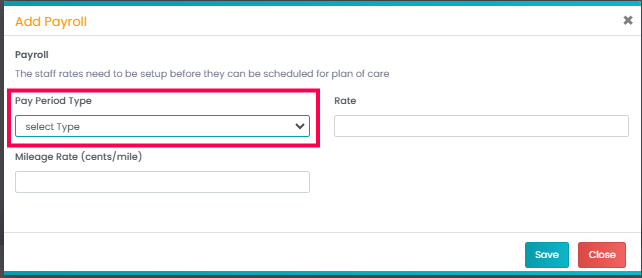
- Once completed, the salary information will automatically appear in the reports. Please verify to ensure the desired salary details are displayed accurately.
- How to revert deleted sessions?
- Navigate to Settings > Appointment Setup > Deleted Sessions
- Enter the relevant details, such as the date range, patient, or provider information.
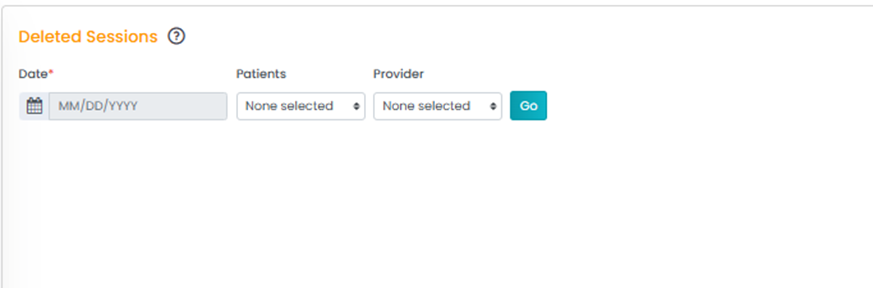
- Click Go to fetch the respective sessions.
3 .How do I add or update modifiers in the system?
- Navigate to the patient and select Ins/Authorization
- Select the service Utilization of the respective Auth
- Click on Add/edit icon under Action Column and Add/Modifify the Modifier and save
- Process Billing: In the Process Billing section, you have the option to update modifiers as needed for specific services.

4. Unable to add notes or view forms in the dropdown?
- If a form has already been added, it will not appear in the Add Notes dropdown. However, you can edit the existing form by accessing it through the View Notes option.
5.Unable to find a diagnosis code in the dropdown/How to add a diagnosis code?
- To use a Diagnosis Code, add it to the Diagnosis Library:
- Go to Settings -> Billing Settings -> Diagnosis Library.
- Click on Add Diagnosis code to add Diagnosis code

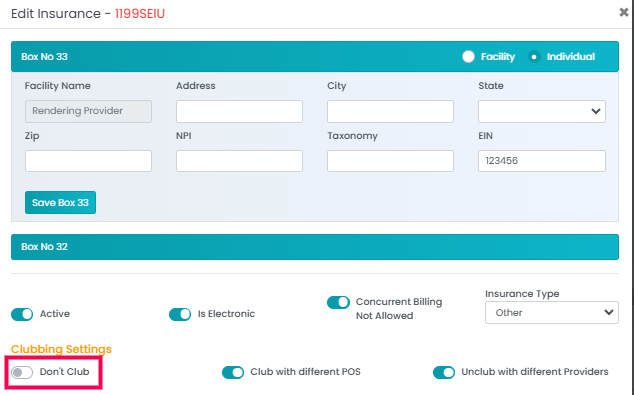
6. How to disable the Clubbing Rule?
- Navigate to Settings -> Billing Setup -> Insurance Setup.
- Click Edit Insurance and enable Don’t Club under the clubbing settings.
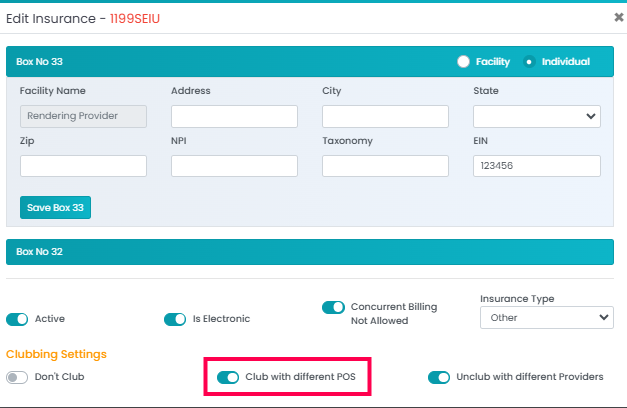
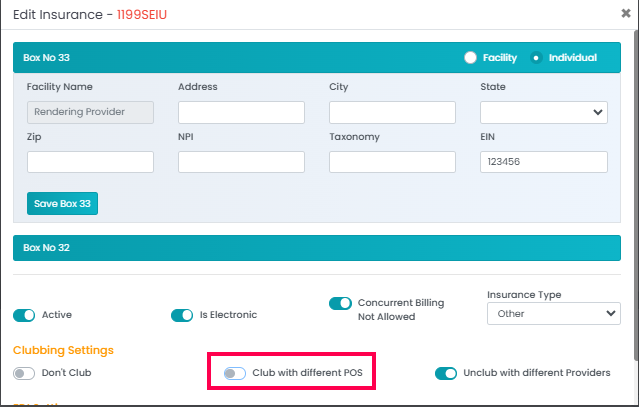
7. How to club with different POS?
- Go to Settings -> Billing Setup -> Insurance Setup.
- Click Edit Insurance and enable Club with Different POS under the clubbing settings.
8. How to unclub with different providers?
- Navigate to Settings -> Billing Setup -> Insurance Setup.
- Click Edit Insurance and enable Unclub with Different Providers under the clubbing settings.
9. How to do Billing?
- Refer to the attached knowledge article for step-by-step instructions.
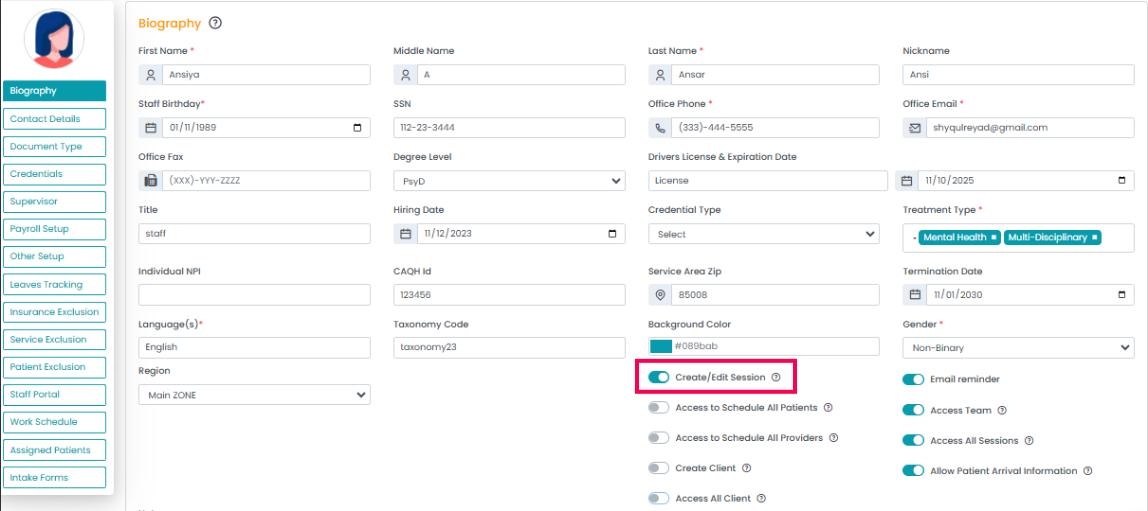
10. How to provide the Create/Edit Appointment option to providers?
- Navigate to the respective staff's profile.
- Enable the Create/Edit Appointment option at the bottom of the page.
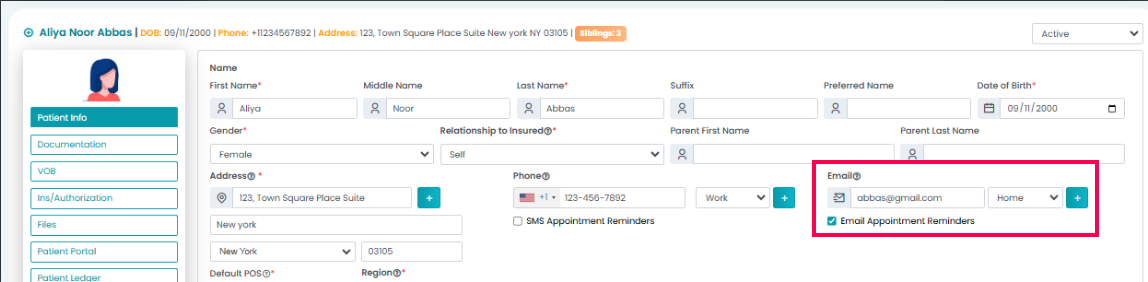
11.How to provide the Email Reminder Appointment option to providers?
- Go to the respective staff's profile.
- Select the Email Reminder option and save
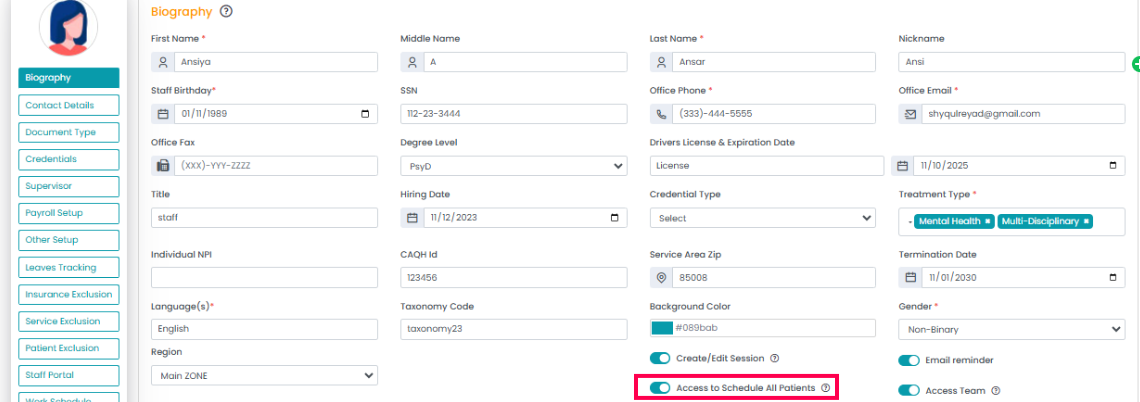
12. How to provide access to Schedule All Patients for providers?
- Navigate to the respective staff's profile.
- Enable Access to Schedule All Patients at the bottom of the page.
13. How to provide access to Schedule All providers?
- Go to the respective staff's profile.
- Enable Access All Sessions at the bottom of the page.
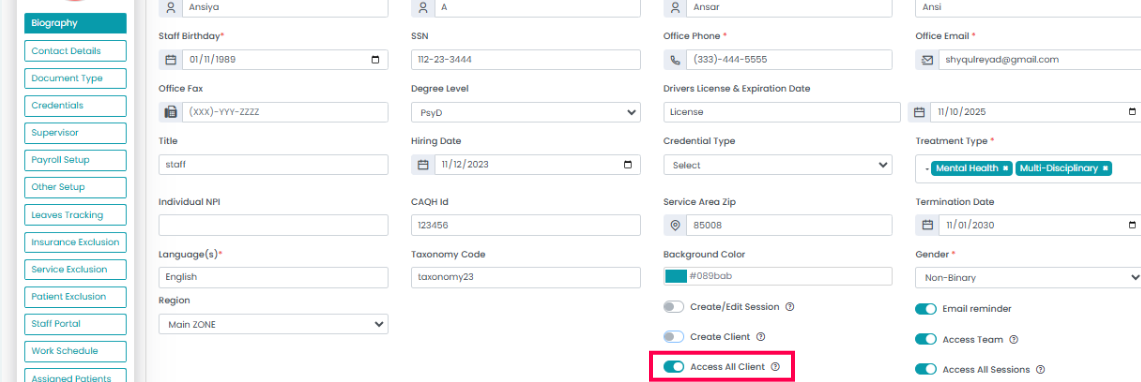
14.How to provide Access All Clients option to providers?
- Go to the respective staff's profile.
- Enable Access All Clients at the bottom of the page.
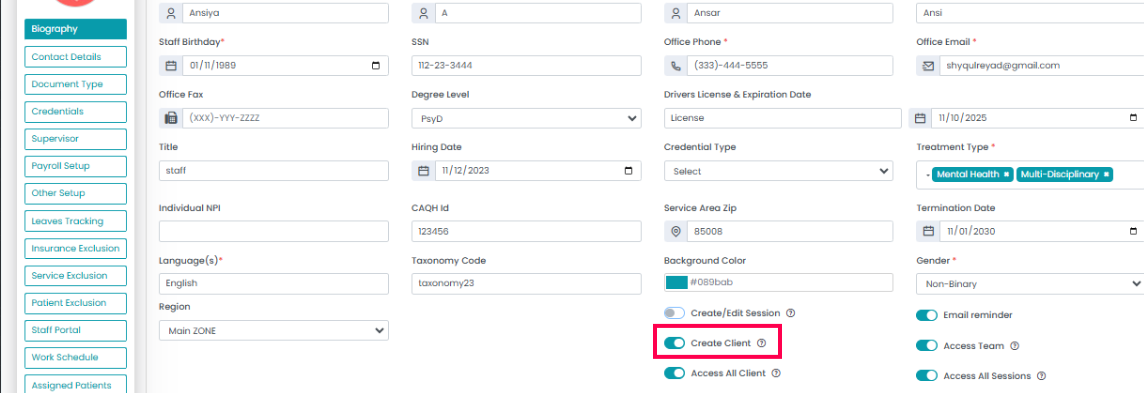
15.How to provide the Create Client option to providers?
- Go to the respective staff's profile.
- Enable the Create Client option at the bottom of the page.
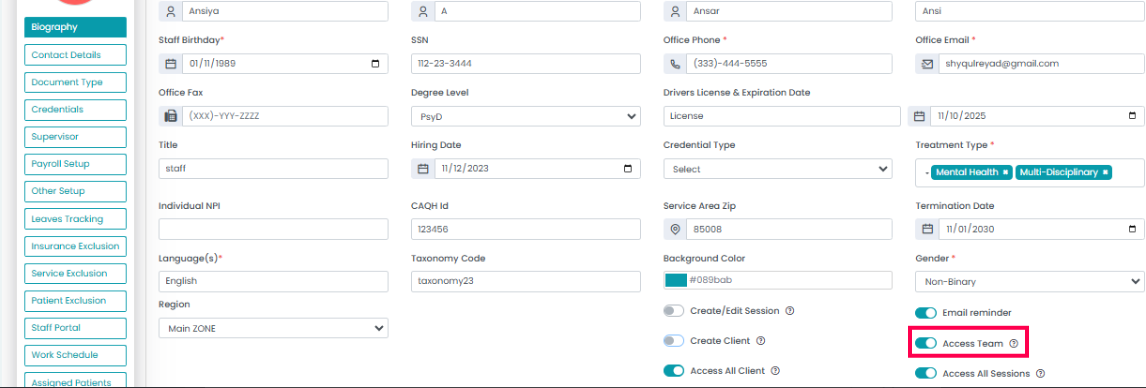
16. How to allow multiple treatments with different providers for the same patient?
- Go to the respective staff's profile.
- Enable the Access Team option at the bottom of the page.
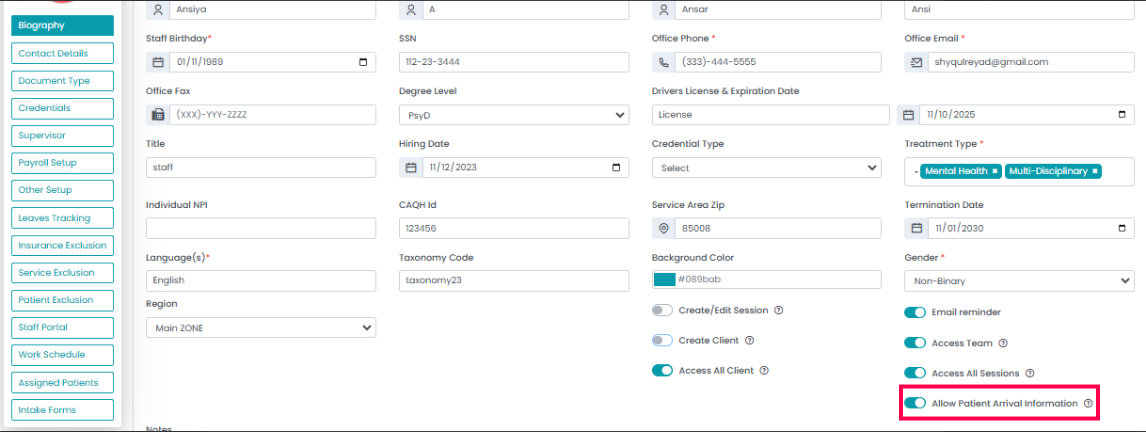
17. How to allow providers to track session time and record patient arrival?
- Navigate to the respective staff's profile.
- Enable the Allow Patient Arrival Information option at the bottom of the page.
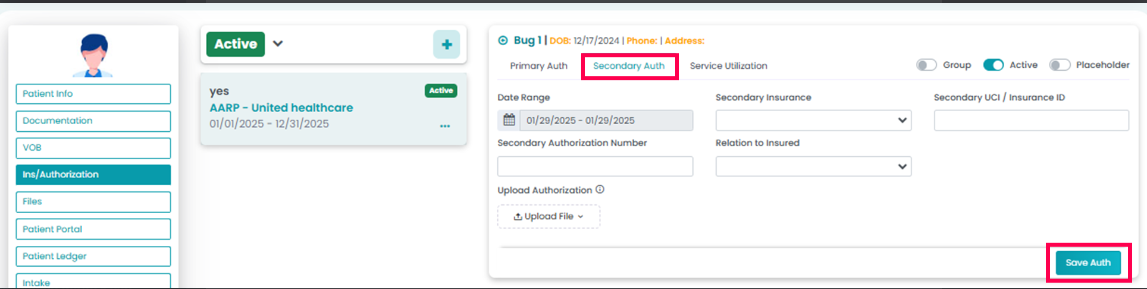
18.How to add secondary authorization?
- Navigate to the Ins/Authorization section of the respective patient.
- Add the secondary authorization details in secondary Auth and save it.
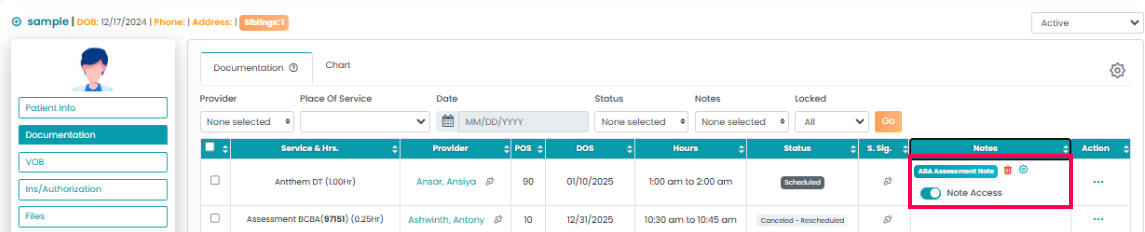
19. How to make patients view their session notes?
- Navigate to Patient Bio -> Documentation.
- Under the Notes column, toggle on the Note Access option for the specific note you wish the patient to view.
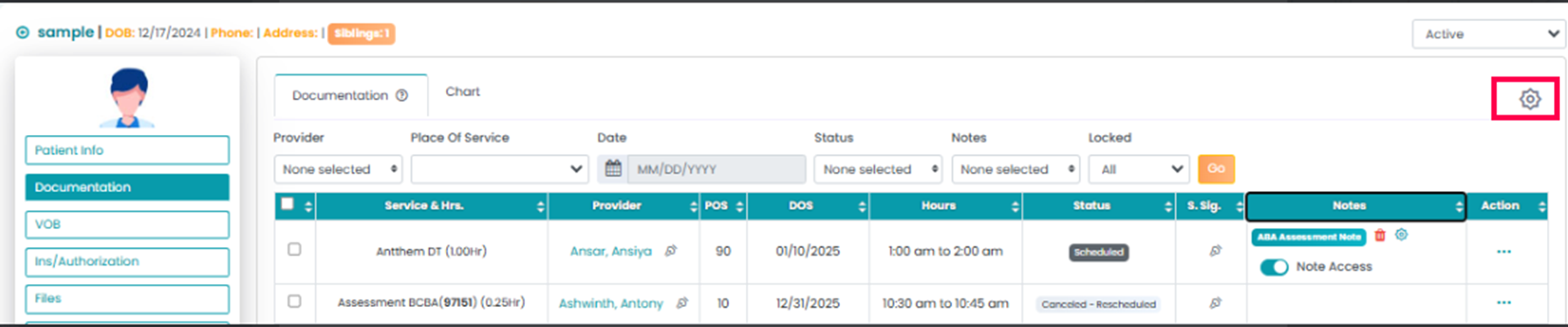
20. How to give providers access to enable patients to view notes?
- Navigate to the respective Patient Bio.
- On the top-right corner, click the Gear Icon.
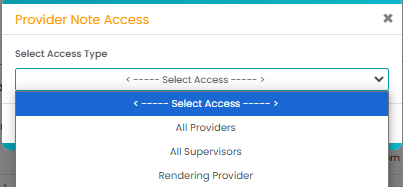
- You can Assign access to All Providers, All Supervisors, or Rendering Providers.
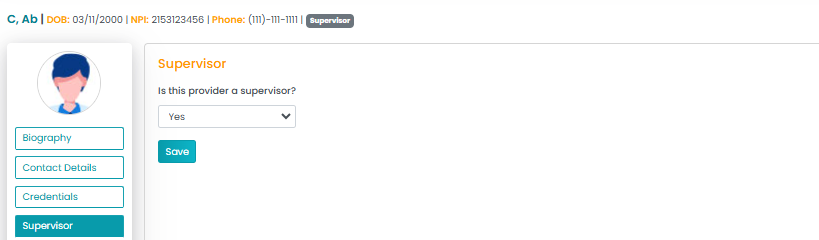
21. How to make a provider a supervisor?
- Go to Respective Staff -> Department Supervisor.
- Choose Yes from the dropdown and save
22. Can appointments be deleted in List View?
Yes, appointments can be deleted in List View. To do this, select the checkbox next to the appointments you want to delete, then choose Bulk Delete from the dropdown menu at the bottom. Ensure the lock is unlocked before proceeding.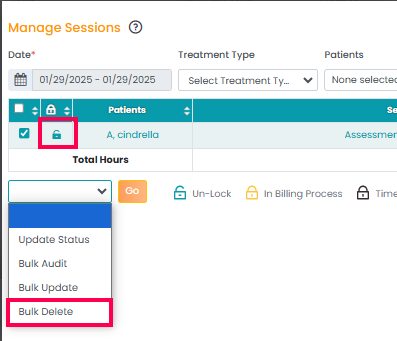
23. What is the purpose of the Lock/Unlock feature in the List View?
- The Lock/Unlock feature in the List View prevents providers from making changes to sessions after the admin has locked them.
- This ensures the integrity of the session data and prevents unauthorized edits.
24. How do I resolve the “Provider Outside of Work Hours” error?
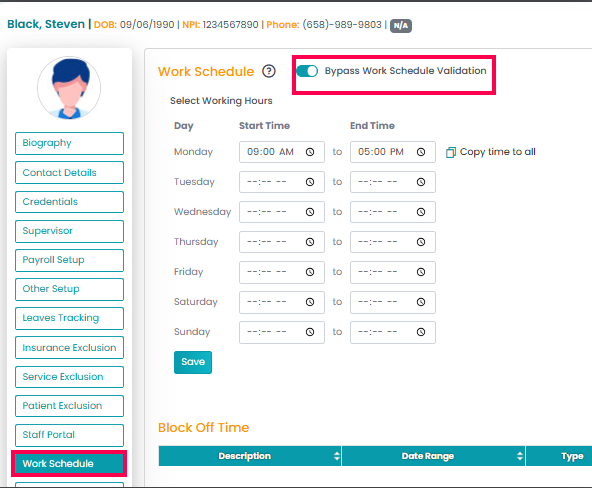
- This error occurs when scheduling a provider without a set work schedule. To resolve it:
- Navigate to the staff member's profile.
- Go to the Work Schedule tab.
- Add the provider's work schedule.
- Alternatively, enable the Bypass switch to override the validation.
25. How do I fix the "Session is not in Facility Work Schedule" error?
- This error appears when the facility’s work schedule hasn’t been configured. To resolve it:
- Go to Settings -> Name and Location.
- Set the facility’s work schedule.
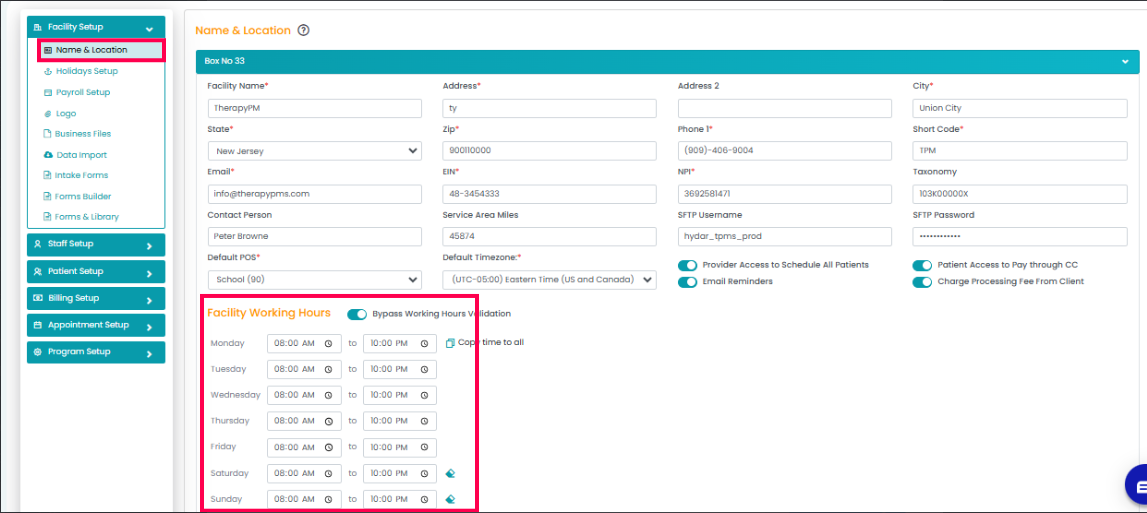
- This ensures sessions are scheduled within the designated hours.
26. How can I create an Admin staff profile?
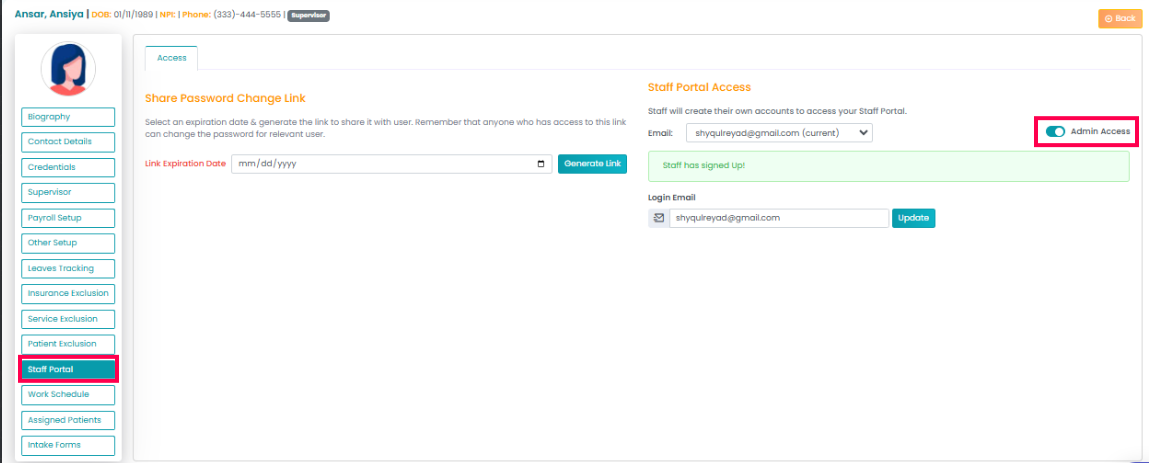
- To grant Admin Access to a staff member:
- Ensure the staff member has completed their setup in the Staff Portal.
- Go to the staff member's profile in the system.
- Navigate to the Staff Portal section within their profile.
- Toggle the switch to enable Admin Access.
27. How to upload Contract Rates rates?
- Please refer to the knowledge article: Contract Rates Knowledge Article.
28. Why can't I see a patient's name in the dropdown list in List View?
The patient list in List View is based on the selected date range. If a patient's name does not appear in the dropdown, it means there are no sessions associated with that patient during the selected date range. Adjust the date range to include sessions for the desired patient.
29.How can I locate a missing claim that I can’t find after making updates to a patient profile?
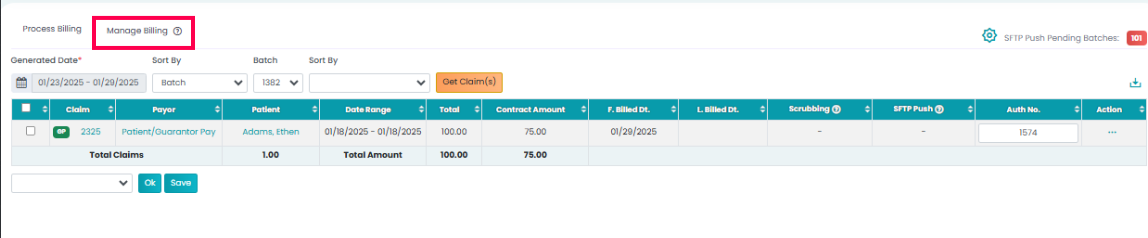
- If you’re unable to find a claim after updating patient information, follow these steps to locate it:
- Go to Primary Billing Manager -> Manage Claim(s).
- Select the appropriate Generated Date (choosing "This Year" can simplify the search).
- Find the relevant Batch to locate the claim.
30. How can I prevent changes made by a sub to a recurring schedule from affecting the entire recurring pattern?
- If changes (e.g., name, service code, time) are made by a substitute provider to a recurring schedule, these changes will reflect in the recurring pattern when updated through the Recurring Session feature.
- To make specific updates without affecting the entire pattern:
- Use the List View option in the Appointments tab.
- At the bottom, select the Bulk Update dropdown.
- Choose the appropriate action to update activities, times, providers, or points of service.
- This method ensures only the specific sessions are updated without altering the recurring pattern.
31. How can I send a claim with our new address?
- To update the new location address and send a test claim, follow these steps:
- Navigate to Settings -> Name and Location.
- Input the new address in Box 32.
- Save the changes.
- This will automatically update the address for claims. After making the changes, submit a test claim to verify that the update is functioning correctly.
32. How to give Block Off time Access to a provider?
- Providing Create/Edit Access to the staff in the respective staff profile will allow access to create Block Off time.
33. How to Grant Full Admin Access to a New Staff Member?
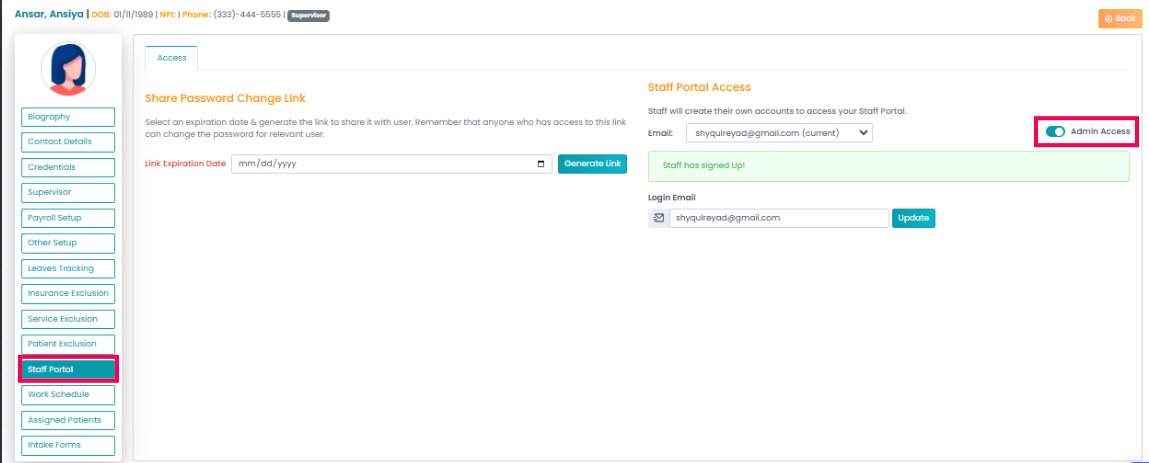
- After adding a new staff member to the portal, you need to activate the Admin Access toggle. Here's how:
- Navigate to the staff member's profile in the system.
- Go to the Staff Portal tab.
- Enable the Admin Access toggle.
- If the toggle is not enabled, the staff member won't have full admin access.
34. How can I adjust the duration for treatment codes and evaluations?
- To set specific durations for treatment codes and evaluations:
- Go to the Billing tab and select Contract Rate.
- Choose the relevant insurance payor.
- Set the desired duration under the Rate Per field.
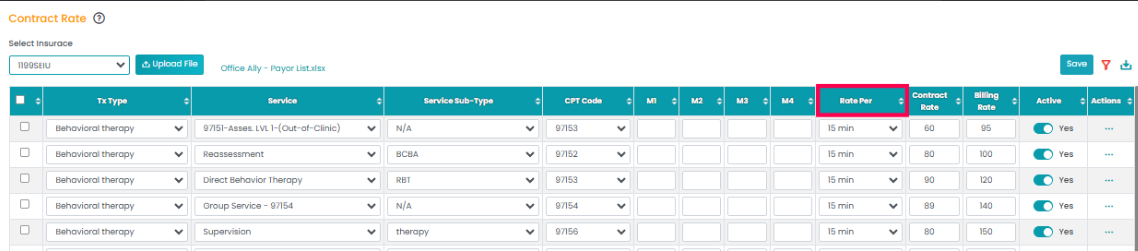
- Click Save to confirm the changes.
- This allows you to customize the timing for different codes as needed.
35. How can I resolve discrepancies in patient responsibility in the AR Ledger and Patient Statements?
- If there is a discrepancy between the AR Ledger and Patient Statements, follow these steps:
- Check the AR Ledger:
- Go to the AR Ledger - CPT Wise tab.
- Sort by the patient, select the date range, and click View.
- Locate the transaction in question and select View Transaction from the drop-down menu.
- Copy the relevant check number for editing.
- Update in Cash Posting:
- Navigate to Cash Posting.
- Paste the check number and click View.
- Select the transaction and click Show Details.
- Use the pencil icon to edit the details as necessary and click Save.
- Check the AR Ledger:
36. How can I schedule sessions exceeding the authorized weekly hours?
- To schedule sessions beyond the authorized weekly limit:
- Adjust the frequency in the system to reflect the total number of hours needed in the respective Auth.
- Extend the limit from the current authorized hours (e.g., 10 hours) to the required number of hours.
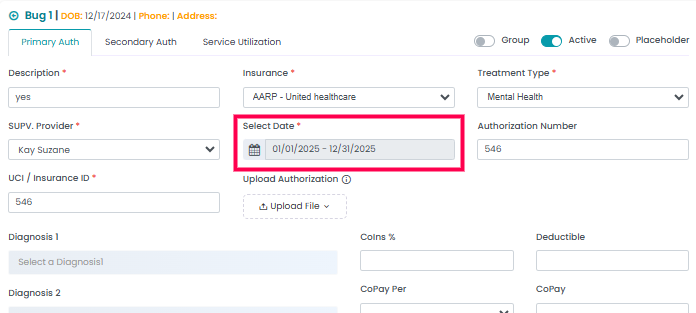
- This allows you to schedule sessions exceeding the weekly limit up until the authorization expires, ensuring flexibility for special circumstances.
- Adjust the frequency in the system to reflect the total number of hours needed in the respective Auth.
37. How can I organize provider names alphabetically when exporting session times?
- To organize provider names alphabetically:
- Click on the triangles next to the column headings in the export view.
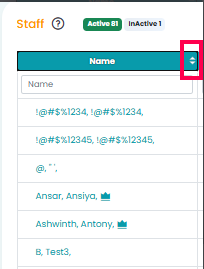
- For example, clicking on the triangle by the provider's name will arrange them alphabetically by their last name.
- Click on the triangles next to the column headings in the export view.
38. How can I export Motivity session notes for billing?
- To export session notes navigate to the List view in Appointment Module:
- Select the desired date range.
- Click the three dots under the Action column.
- Select View Motivity Notes—the note will open in a new tab.
- Click the download icon to save the notes.
39. Why are some patients not receiving appointment reminders in Therapy PMS?
- To ensure appointment reminders are sent correctly, follow these steps:
- Client-Level SMS/Email Control: Navigate to the client's phone number in their profile. Check the "Send SMS" option to enable reminders for that client.
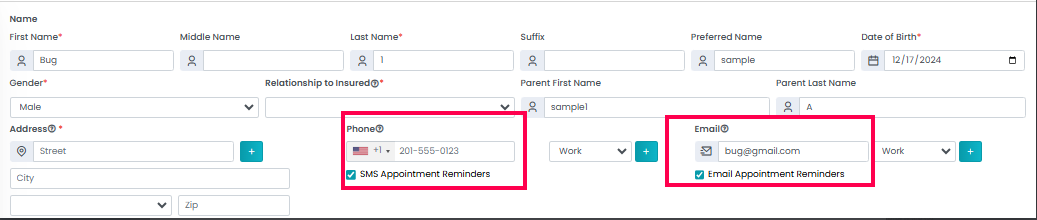
- Patient -Level SMS Control:If SMS is enabled at the client level, you can further customize reminders for individual sessions:
- Go to Settings -> Appointment Setup ->SMS settings
- Toggle off SMS notifications for specific patient as needed.
- Client-Level SMS/Email Control: Navigate to the client's phone number in their profile. Check the "Send SMS" option to enable reminders for that client.
40. Why is a "mock" authorization being created, and why does it show up randomly with a random client?
The "mock" authorization is created automatically once a session with "No Auth" is scheduled. This mock authorization is essentially a dummy authorization created from the backend to allow appointments to be scheduled without an actual authorization. It is not tied to a specific client and may appear randomly in the system. This is part of the process to facilitate scheduling but does not impact the actual billing or authorization status.
41.How to revert deleted sessions?
Only an Admin has the ability to revert deleted sessions. Follow these steps to revert sessions:
- Navigate to Settings > Appointment setup >Deleted Session
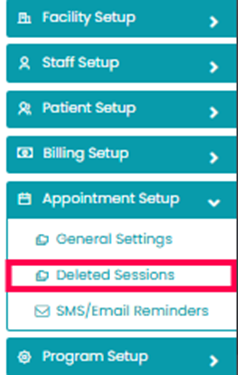
- Click on Deleted Sessions.
- Select the desired date range and choose the sessions you wish to revert.
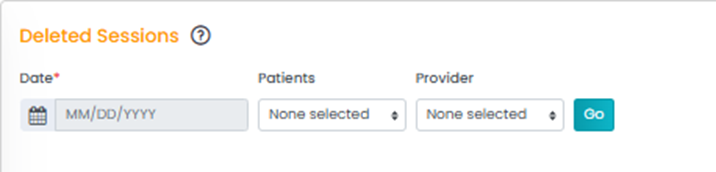
- Scroll down, select the Revert option from the dropdown menu, and click Go. This will restore the deleted sessions.

42. How can I reverse a batch of claims that was generated for billing?
- To revert a generated batch of claims, follow these steps:
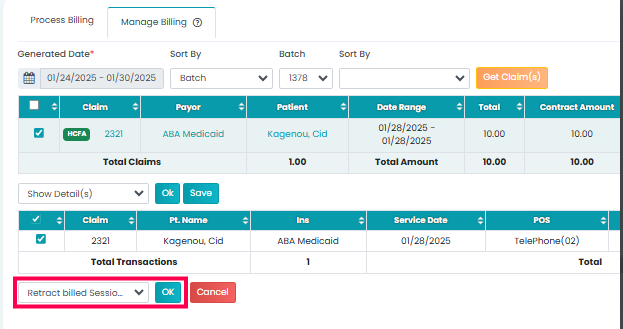
- Go to Billing >Primary Billing> Manage Billing.
- Select the Date Range and Sort by Batch and select the relevant batch.
- Select the claims by checking the appropriate boxes (either specific claims or all claims).
- From the dropdown menu, click on Show Details.
- Select all the claims, choose Revert Billed Session, and confirm by clicking OK.
43.How can I view the Block Off Time I just created for a provider?
- The Block Off Time can be viewed in the following locations:
- Appointment Module: Navigate to Appointment>Timeline View to view Block off time

- Appointment Module: Navigate to Appointment>Timeline View to view Block off time
44. What are the clearing house does the Therapy PM Support?
we support Office Ally (OA) along with the following platforms: Etactics, Ability, Waystar, and Trizetto.
45. How do I move a staff member from one category to another in menu permissions?
- To move a staff member from one category to another:
- Assign the respective status to the staff member. For example, if you are moving a staff member from the "Provider" category to the "Admin" category, you need to first grant them "Admin" access while they are still in the "Provider" category.
- Once the status has been updated, the system will allow you to move the staff member to the desired category.
46. How do I post a recoupment?
47. How can I view non-billable sessions?
You can view non-billable sessions in the following ways:
- List View (Appointment Module): Switch to the "List View" in the Appointment Module. Switch the "Billable" toggle to view non-billable sessions.
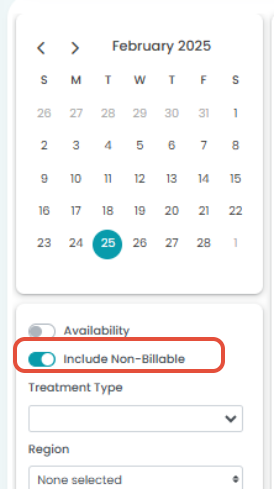
- Calendar View(new): Toggle on the "Include Non-Billable" option to display non-billable sessions on the calendar.
48. How can I charge a parent for a no call no show?
- You can use the "No Show" option to generate an invoice. Follow these steps:
- Set Appointment Status: Create billable appointments with the status set to "No Show" instead of "Scheduled" or "Rendered."
- Locate in Billing Manager: Navigate to the "Primary Billing Manager," where these appointments will appear under the "No Show" status instead of "Ready To Bill."
- Create a Batch: Select the "No Show" claims and create a batch, just as you would for regular claims.
- Generate an Invoice: Go to "Manage Billing," where you will find the "No Show" claims available as printable invoices.
49. How can I download all patient details?
- Follow these steps to download all patient details:
- Navigate to the Patients tab.
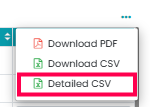
- Click on the three dots in the top corner.

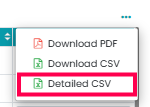
- Select the View Detailed CSV option. This will generate a CSV file with all patient details.
50. How can I download all staff details?
To download all staff details, follow these steps:
- Navigate to the Staff tab.
- Click on the three dots located in the corner of the page.

- Select the View Detailed CSV option. This will allow you to download the staff details in a CSV format.
51. How can I edit session details after posting payments?
- Once payments are applied to sessions, the sessions are greyed out, and further posting or editing is disabled. To edit already applied sessions, follow these steps:
- Go to the Cash Posting section and search for the relevant check.
- Select "Show Details" from the dropdown menu at the bottom of the screen.
- This will display the session details. You can edit any payment by clicking the pencil icon next to it.
52. If a patient has the same appointment every day (same service, provider, time, and POS), is there a way to group them into a single claim?
- Yes, the system has a "Clubbing Sessions" feature that automatically groups appointments with the same Date of Service (DOS) into a single claim.
- If you need to adjust this setting, you can do so at the insurance level by following these steps:
- Go to Settings>Billing Setup>Insurance Setup.
- Click on pencil icon under Edit column of the insurance to be clubbed.
- Under Clubbing Settings, you’ll find options that can be customized based on your needs.

- If you need to adjust this setting, you can do so at the insurance level by following these steps:
- By default, the system will club sessions, but these settings can be modified to suit your specific requirements.
53. Can I use the Clubbing option for entries on different dates?
No, the Clubbing option only works for entries on the same date. If you need to club entries across different dates, we recommend updating the dates in the appointments accordingly.
54. How can I perform write-offs in the system?
Follow this article for detailed instructions on performing write-offs.
55. How can I prevent providers from adjusting appointment times in the calendar or timeline views?
- If a provider is not given Create/Edit Session permissions, they will not be able to change appointment times through the “Edit Appointment” option, which is expected. However, if you notice that they are still able to adjust appointment blocks in the calendar or timeline views, you can follow these steps to restrict that:
- Grant Session Permissions: Navigate to the Staff tab and select the staff member.
- Go to their bio section and enable or disable permissions for creating or editing sessions. This allows you to control access to specific features like scheduling appointments and adjusting session details.
56. How can I restrict a provider from editing client information?
- We are actively working on a feature to restrict providers' editing access and more. This new module is expected to be available by the end of the year. We'll keep you updated as soon as it goes live.
- In the meantime, you can restrict provider access to client information in the following
57. Why can't I see my non-billable sessions?
Non-billable sessions are not displayed by default. To view them, you need to toggle on the "Non-Billable" option located in the top-right corner of your screen In list view.
58. How do I view non-billable sessions?
To view your non-billable sessions, simply click on the "Non-Billable" toggle option at the top-right corner of your screen. This will display all non-billable sessions.
59. How can I view the history of a deposit?
To view the history of a deposit, follow these steps:
- Go to Payments > Cash Posting.
- Click on the three dots in the Action column for the specific deposit.
- Select the History option from the dropdown menu.
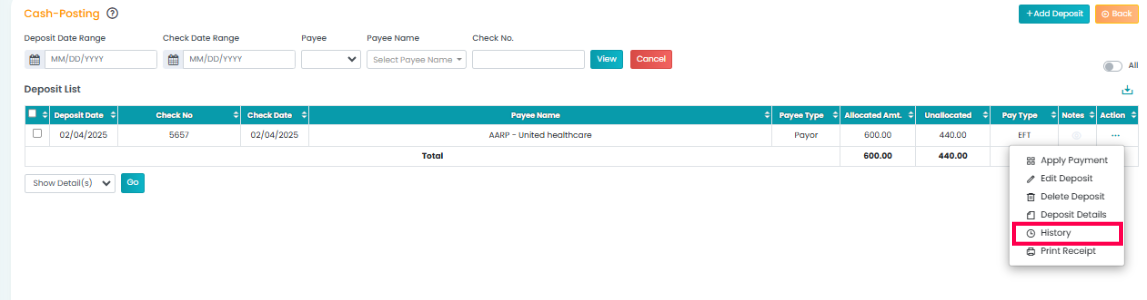 This will show the complete history of the deposit, including who created it and any changes made.
60. What does "Total Auth" represent in Auth module?
"Total Auth" refers to the total number of units authorized for the service, as determined by the authorization.
61. What are "Scheduled" units in Auth module?
"Scheduled" represents the units that have been used for scheduling purposes, such as the number of sessions planned.
62. What are "Rendered" units in Auth module?
"Rendered" represents the units that have been used for rendering the actual service or session. These units reflect the completed service.
63. How are "Unused" units calculated in Auth module?
"Unused" units are calculated as the difference between the "Total Auth" units and the sum of "Scheduled" and "Rendered" units. It represents the remaining units that have not yet been used.
64.What does "Remaining (Rend.)" mean in Auth module?
"Remaining (Rend.)" refers to the units still available for rendering, calculated as the sum of "Scheduled" and "Unused" units. These are the units that can still be used for future service sessions.
65.How can I restrict staff from editing appointments ?
To restrict staff from editing appointments, Navigate to Staff bio and disable the following permissions:
- Access to Schedule All Patients
- Access to Schedule All Providers
- Create Client
- Access All Client
This will limit their ability to edit the schedule while still allowing them to create new appointments.
66. How can I track changes to the schedule made by staff?
You can track changes to the schedule through the Session History feature. To view the session history:
- Navigate to the Appointment tab.
- Switch to the List View.
- Click the three dots in the Action column.
- Select Session History from the dropdown.
This will provide a detailed record of any changes made, including who made the changes and what was updated.
66. What is a clubbed session?
Learn more about clubbed sessions
67. How can I submit multiple timesheets at once without the bulk select option?
To submit multiple timesheets in bulk, follow these steps:
- Select one or more timesheets by clicking the checkbox next to each timesheet you want to submit.
- Choose the action "Submit Timesheet" from the available options.
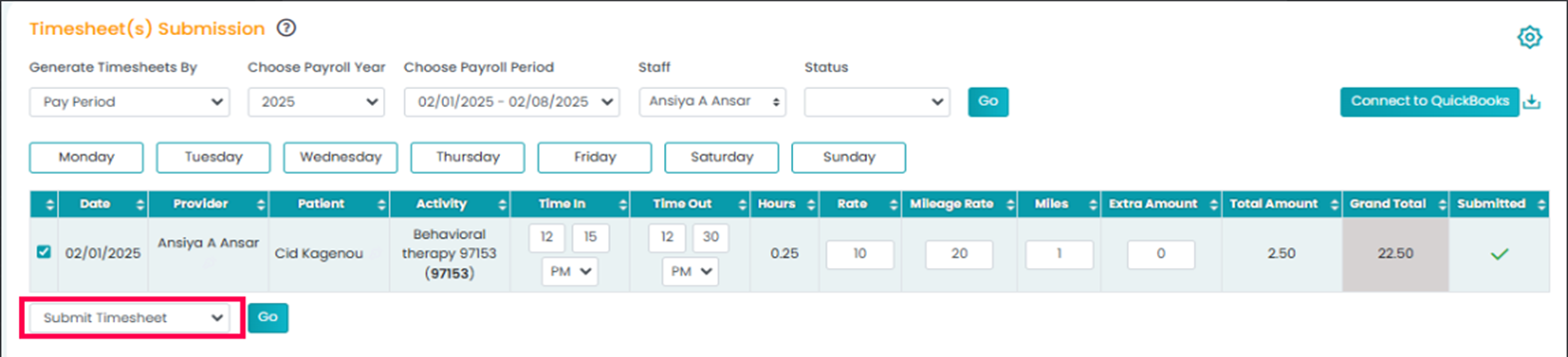
- Click "Go" to proceed.
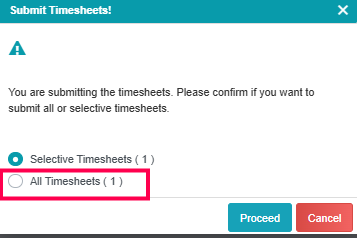
- A message will appear asking if you want to submit the selected timesheets or all timesheets on the page.
- To submit all timesheets on the page, select "All Timesheets" and click "Proceed."
68. How to add a sibling?
Learn how to add a sibling
69. What is the new feature in the Gusto Payroll Report?
We’ve introduced a feature that allows you to customize the columns and services in the Gusto Payroll Report. This enables you to have each job populate in its own column, providing more flexibility in viewing payroll data.
70.How do I access the Gusto Payroll Report?
Navigate to the "Reports" tab and select the "Gusto Report." From there, you can provide the necessary payroll year, period, staff, and generate the report. If you are unable to find please reach out suppot@therapypm.com
71. How do I customize the columns in the Gusto Payroll Report?
Click the gear icon in the top right corner.
You will have the option to create your own columns by specifying the service type (what service should be in the column) and the service name (the specific name for the service in that column).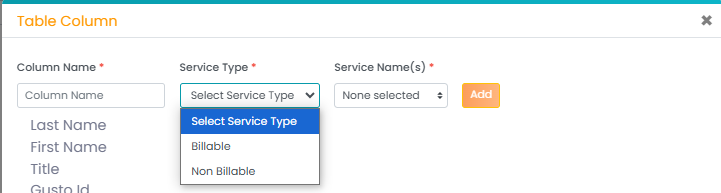 Once you’ve chosen the desired options click "Add" and then "Close."
72. Where will my customized column appear?
The newly created column will appear in the Gusto Report page after you close the customization window.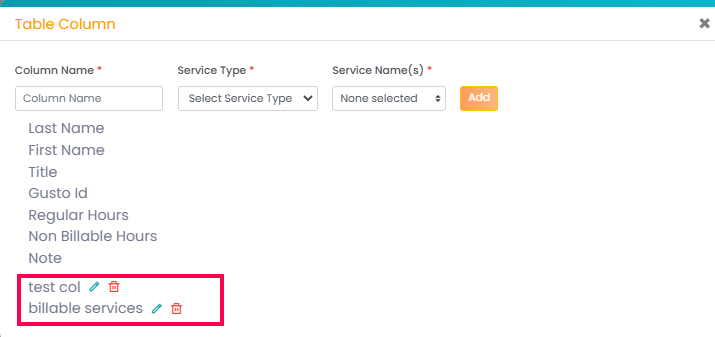
73.Can I edit or delete a customized column?
Yes, you can. Customized columns will be listed at the bottom of the page. Use the pencil icon to edit the column and the delete symbol to remove it.
74.Is there any limit to how many columns I can customize?
There is no specific limit; however, we recommend reviewing the report's readability to ensure that it remains organized and easy to navigate.
75.How can I find the patient balance amount?
To view and follow up on payments for patient statements, follow these steps:
- Go to the Billing tab and click on Patient Statements.
- Navigate to Manage Statements.
- You can sort the statements by Patients and Paid Status.
- Once sorted, click Go to view the relevant details.
76. Why are my services not clubbing together in the system?
The system’s default clubbing logic groups services by the same date, the same patient, and the same place of service (POS). If services are provided at different places of service, they will not automatically club together.
77.How can I club services with different places of service?
To enable clubbing of services with different places of service, follow these steps:
- Go to Settings.
- Select Billing Setup and navigate to Insurance Setup.
- Click the pencil icon in the Edit column next to the insurance you want to modify.
- Enable the option "Club with Different POS" under the clubbing settings.

78. How can I upload forms for staff use?
To upload forms for staff use in TherapyPMS, follow these steps:
- Go to the Settings>Facility Setup>Intake forms.
- In the top-right corner, click on Add Intake Forms.

- Select the option for Employee, then browse for your file to upload.
This will allow staff to access and use the forms as needed.
79. How can I customize the calendar view to show my own schedule or a specific provider's schedule by default?
For Admin Accounts:
By default, the calendar view shows all staff schedules. To display only your own or a specific provider's schedule, follow these steps:
- Go to the Calendar View Settings.
- In the Default Provider option, select the desired provider.
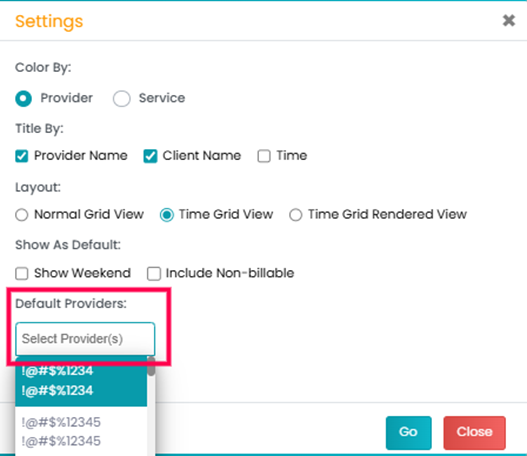
- If you prefer to continue viewing all staff schedules, leave the Default Provider field blank and save the settings.
For Provider Accounts:
To view your own schedule by default:
- Log in to the Admin account.
- Navigate to the Settings > Staff Setup.
- Go to MISC Settings.
- Enable the Show Provider Schedule option.

80. How to create a Patient portal?
Learn how to create a Patient portal
81. How do I add mileage to my timesheet?
Follow these steps to add mileage to your timesheet:
- Ensure that the appointments are properly rendered. Once rendered, they will appear in the timesheets.
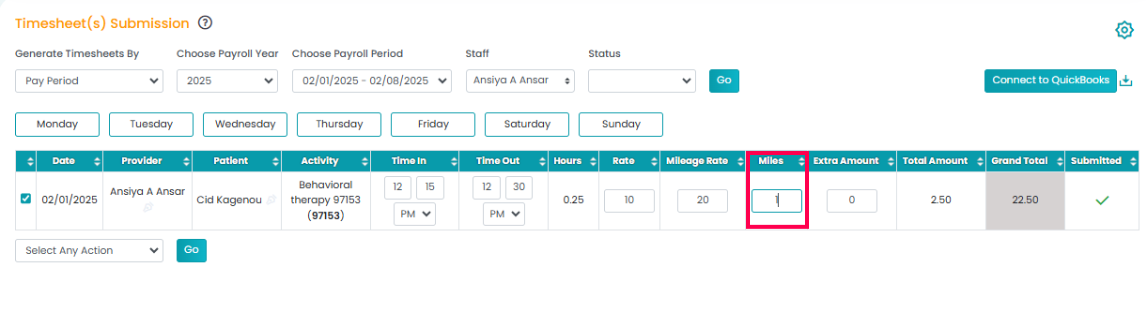
- Go to Payroll → Timesheet to access your timesheet.
- Input the necessary details for your appointments.
- You will see a column labeled "Miles" in the timesheet. Enter the relevant mileage for your appointments in this column.
82. Can parents see appointments and insurance payments on the portal?
Yes, parents can view scheduled appointments in the "My Schedule" section of the portal. Insurance payments are not visible to parents on the portal. However, parents can view the details of their invoices in the "My Invoice(s)" section.
83.Does the system send email reminders for expiring staff credentials?
Yes, the system automatically sends email reminders for expiring staff credentials at 90, 60, and 30 days before the expiration date. This ensures that there is enough time to update or renew credentials as needed.
-x-
84.How do I add a new PTO earning code?
- To add a new PTO earning code, please follow these steps:
- Navigate to Settings > Facility Setup > Payroll Setup.
- Click on Earning Code.
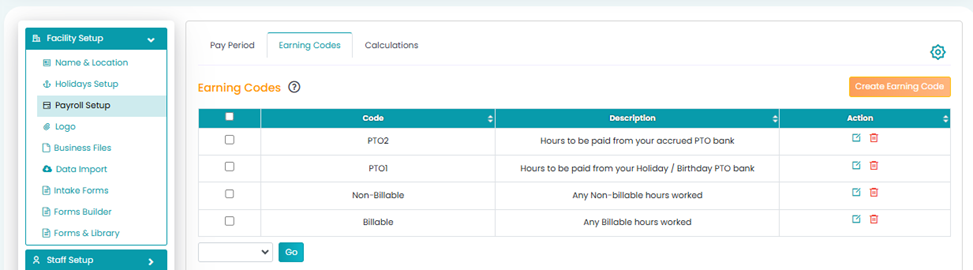
- From there, you can create, edit, or delete earning codes as needed.
This will allow you to update the setup and replace PTO1 and PTO2 with the new PTO service type.
85. Can I add a file to a secondary claim in TherapyPM?
Currently, TherapyPM does not support the ability to add a file to a secondary claim. However, we have forwarded this request to our development team, and it will be considered for future updates in our enhancement pipeline
86. Why am I receiving errors about a client's profile not being complete, even though the units were billed in the billing manager?
The billing manager may show the units billed, but if the required fields in the client's demographics are not filled in, the system will not allow downloading the EDI or pushing it to the SFTP.
If the claim hasn't been billed to the clearinghouse, it remains unbilled, but the batch will be generated and ready to be pushed. You can check the SFTP flag to determine whether the claim has been pushed to the clearinghouse.
87.Why is mileage not calculating correctly in the timesheet?
Mileage is manually added in the timesheet submission. Please ensure that the mileage is entered in the "Miles" column. Once the mileage is entered, it will be calculated correctly based on the rate set up for the staff. If the issue persists, please check the payroll setup for the staff to ensure everything is configured correctly
88.How to edit the Locked Session?
To set edit the Locked Session, please refer to the relevant knowledge article for step-by-step instructions.
89.How do I set up my pay period?
To set up your pay period, please refer to the relevant knowledge article for step-by-step instructions. This article will guide you through the process to ensure your pay periods are correctly configured according to your needs.
90. Does inactivating a client impact billing or the ability to reconcile accounts?
No, inactivating a client will not affect your billing team's ability to reconcile accounts or receive payments. When a client is marked as inactive, it only restricts the creation of new appointments and sending appointment-related emails. However, emails related to invoices will still be sent, and all billing processes will continue without disruption.
91.How can I delete appointments from my provider calendar?
Appointments cannot be deleted directly from the calendar view. To delete appointments, follow these steps:
- Navigate to the My Schedule section under the Appointment module in your provider portal.
- Select the session(s) you wish to delete.
- Click on Bulk Delete from the dropdown menu.
- Save the changes.
- If you have any further questions or need assistance, feel free to contact us.
92.Is there a way to view denial codes directly on the portal instead of reviewing each remit to understand why a claim was denied?
Yes, the denial codes should be automatically displayed on the AR ledger if auto-posting or remits are being processed. In cases of manual posting, a hint note will be added when posting the payment to provide the necessary details.
93.What do the "F. Billed Date" and "L. Billed Date" refer to on the Manage Claim portal?
The "F. Billed Date" refers to the date when the batch of claims was initially generated.
The "L. Billed Date" indicates the date when a claim was corrected and resubmitted after any necessary adjustments.
94.How do I update a Payer ID for Billing?
- To update a Payer ID for Billing, follow these steps:
- Go to Settings and select Billing Setup.
- Choose Add Insurance.
- Find and select the insurance under Facility Selected Insurance.
- Click on View Details.
- Enter the new Payer ID in the Electronic Insurance ID for Billing field.
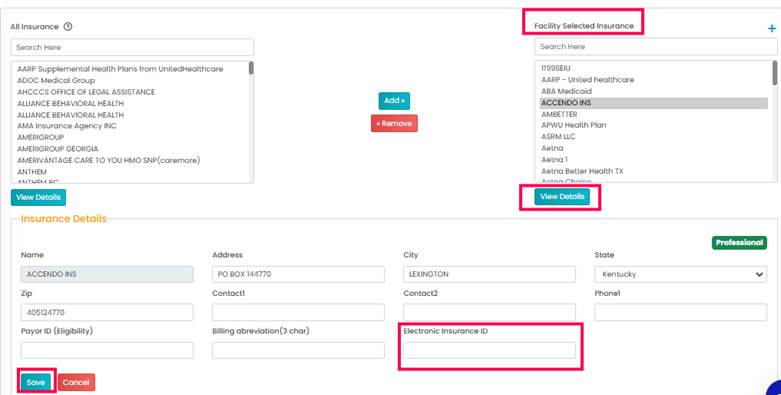
- Click Save to update.
95.How can I add multiple contacts to a patient's file?
To add additional contacts to a patient's file, follow these steps:
- Open the patient's profile.
- Click the "+" icon next to the Email or Phone fields.

- This will allow you to add additional contact details as needed.
96. How does your system notify me about authorization expirations?
Our system automatically sends email notifications regarding upcoming authorization expirations. These reminders are typically sent to the designated contact email address for your facility at the following intervals:
- 90 days prior to expiration
- 45 days prior to expiration
- 30 days prior to expiration
- 15 days prior to expiration
This ensures you have ample time to manage the renewal process.
97. How can I correct a claim if I made a mistake?
To fix an error on a claim, simply click the pencil icon next to the claim you wish to edit. Make the necessary changes and then save the updated claim. This will correct the details on the claim.
98. How can I view the completed intake form?
To view the intake form submitted by the patient, make sure you click the eye icon under the "Action" column. Clicking on the form name will take you to the form template, not the one the patient filled out. The eye icon will display the form as completed by the patient.

99. How to Configure Box 24J and ID Qualifier in Insurance Setup?/Steps to Update Insurance Setup for Box 24J and ID Qualifier?
Please refer to the attached Knowledge Article for step-by-step instructions on configuring Box 24J and the ID Qualifier in the Insurance Setup.
Let us know if you need any further assistance!
100. How can I verify the session time that is either rendered or scheduled?
You can verify the session time by navigating to Appointments > List View in the system. This section allows you to review the details of all scheduled and rendered sessions.
If this does not address your concern, please provide more details about your request so we can assist you further.
101. How to Update Descriptors for Subtypes in TPMS
You can update the descriptors for subtypes by following these steps:
- Navigate to Settings > Billing Setup > Services.
- Locate the service you want to update and click the edit icon under the Action column.
- Update the name as needed.
- Click Save to apply the changes.
If you have any questions or need further assistance, please reach out to support!
102. I created an admin staff, but when I go to edit their profile, it asks me to assign a treatment type. They are not a therapist. What should I do?
You can assign your facility's treatment type to the admin staff profile. This will not affect their permissions or functionality in any way. The system requires a treatment type for all staff profiles, but for non-clinical roles like admin staff, it does not impact their access or tasks.
If you have any further questions or concerns, feel free to reach out!
103. Can I Send a Group Invite to the Portal for All Staff?
Currently, our system does not support sending a group invite to the portal for all staff at once. To invite staff members, you will need to navigate to each staff member's profile individually and send the invite manually.
If you need further assistance, please reach out to our support team.
104. What is the Charge Patient option?
A: The Charge Patient option allows you to directly charge a patient a specific amount (such as a deductible or copay) before the billing process is fully completed. This helps invoice families sooner instead of waiting for the entire claim to process.
105. How do I charge a patient before the claim is processed?
A: Follow these steps:
Go to the List View in your billing or session management system.
Find the session for which you want to charge the patient.

Click on the three dots (⋮) under the Action column.

Select Charge Patient from the dropdown menu.
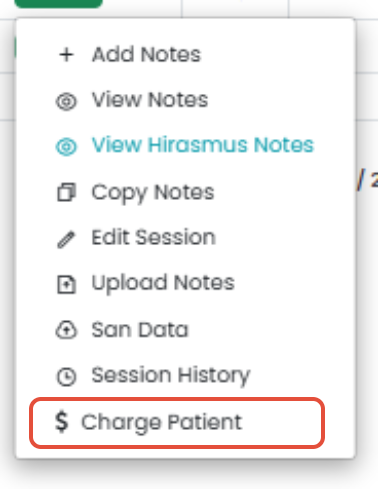
Enter the required amount (e.g., deductible or copay).
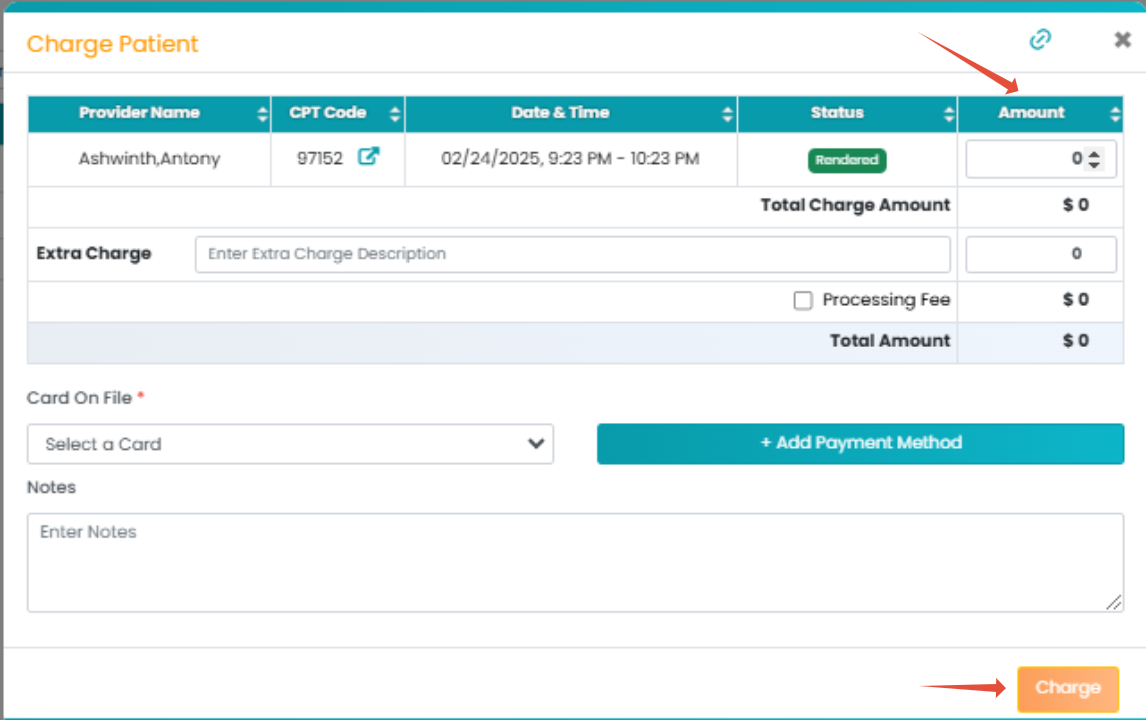
Confirm the charge.
106. Why are some rendered appointments not appearing in the Billing Manager?
A: Once a session is rendered, You need to need to Navigate to Billing>Primary Billing Manager
107. How do I generate Process Billing for a rendered session?
We have a knowledge article that provides a step-by-step guide on how to generate Process Billing. Please review it and reach out if you need further assistance.
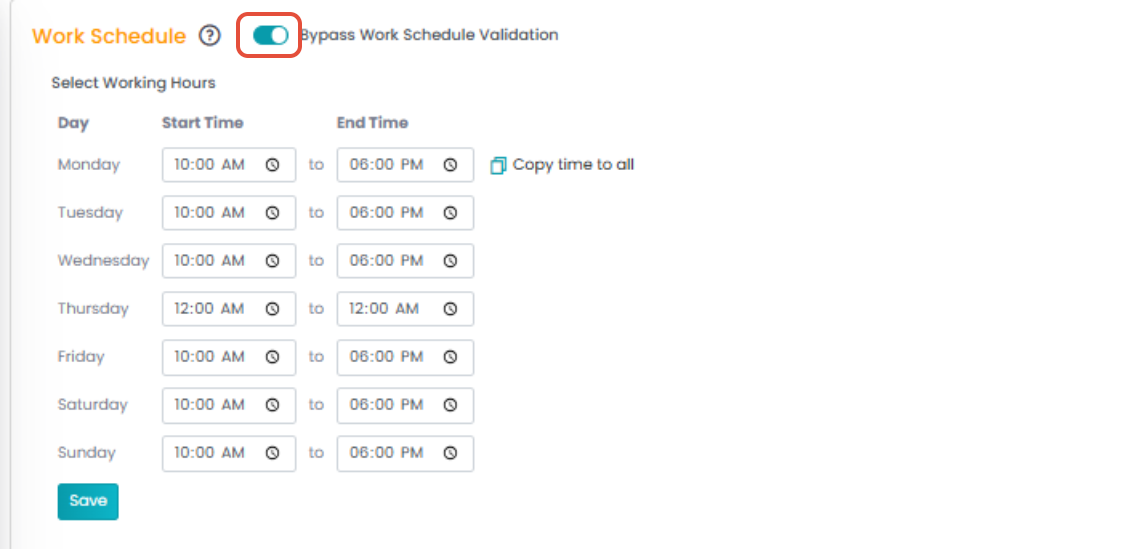
108. How can I bypass the schedule requirement for staff?
Follow these steps:
Navigate to the Staff Module and click on the Staff Name.
Go to the Work Schedule section.
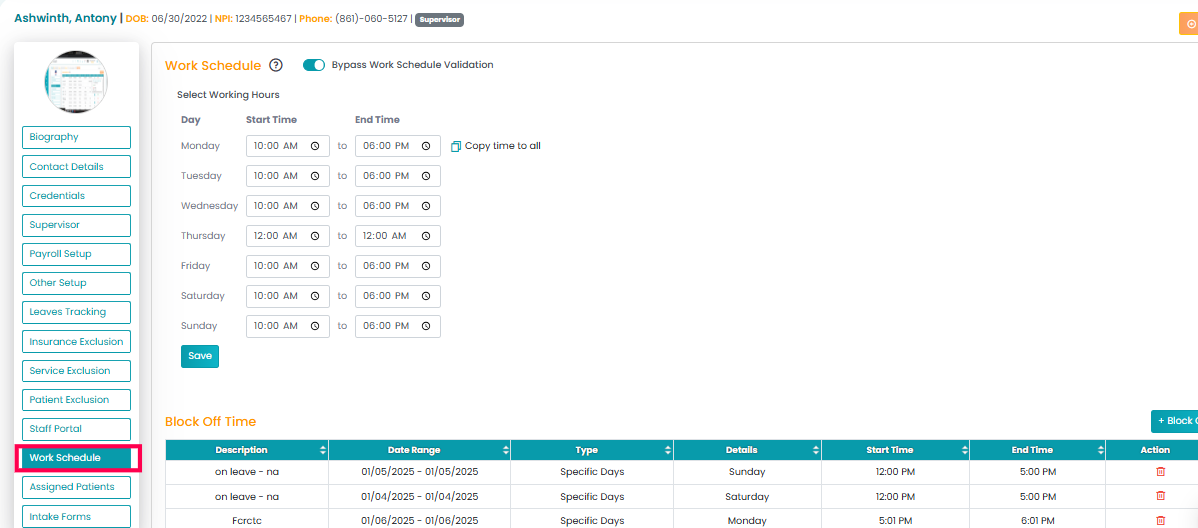
Toggle on Bypass Work Schedule Validation.
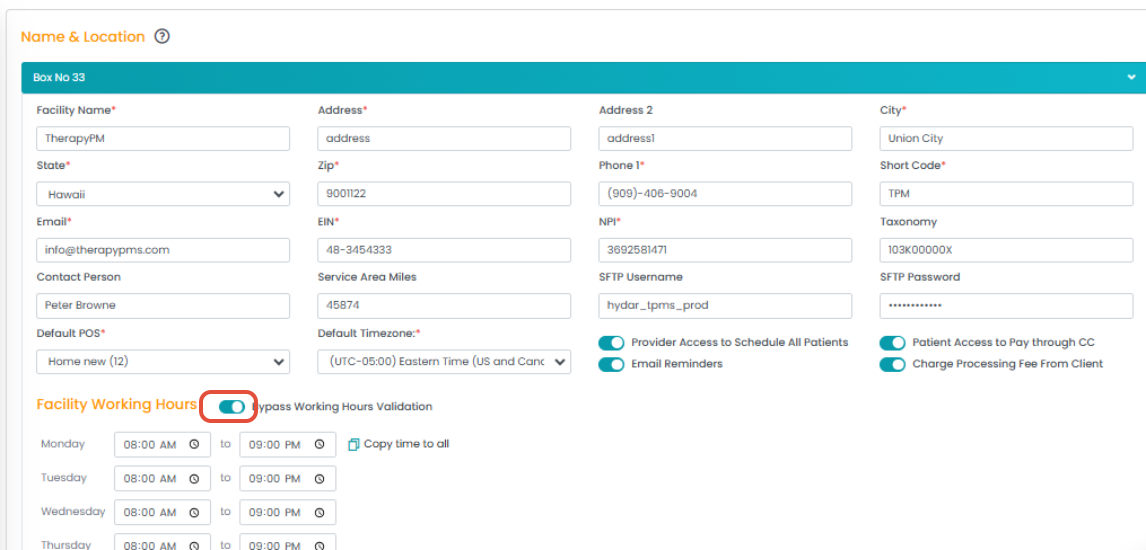
109.How do I bypass the schedule requirement for facility working hours?
Follow these steps:
Go to Settings > Facility Setup > Name and Location.
Enable Bypass Work Schedule Validation.
110. I have updated the payroll rate, but it is not reflecting in the timesheet and still shows old rates. How can I fix this?
The payroll rate may have been updated after the timesheet was generated. When a timesheet is created, it captures the payroll rate available at that moment, and it does not automatically update if the rate changes afterward. To reflect the correct rate, follow these steps:
Select the effected session from the timesheet .
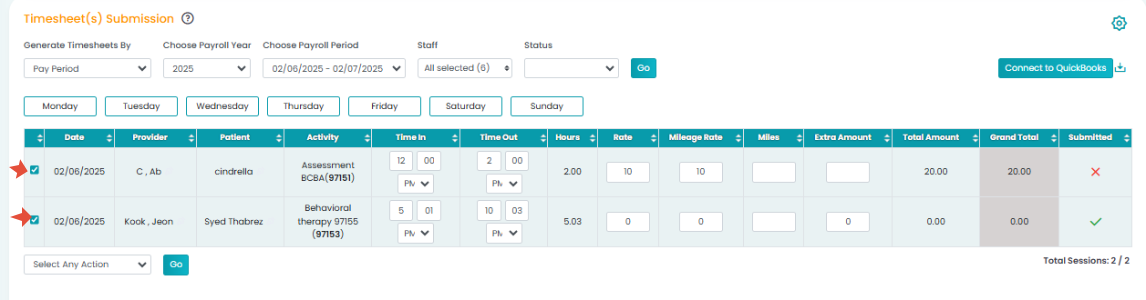
Retract the session.
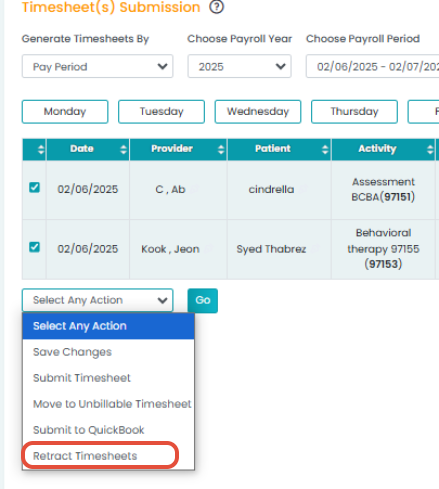
Generate the timesheet again.

Once reprocessed, the updated payroll rate will be applied correctly.
If the issue persists, please contact our support team for further assistance.
111. How Can I Change the Account Email ID/ How do I update the account email ID for a staff member?
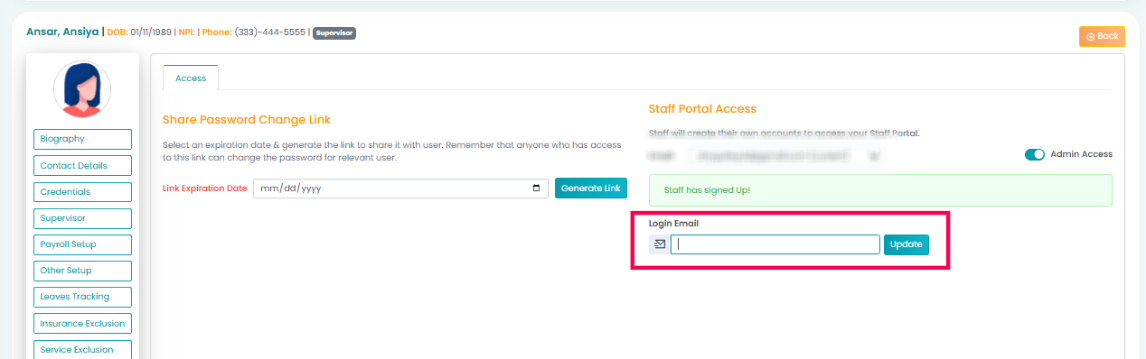
Follow these steps to update the email ID:
Go to the respective staff Bio section.
Navigate to Staff Portal.
Remove the existing login email and update it accordingly.
If you need any further assistance, please let us know!
112. How Can I Change My Password/How do I change my password?
You can change your password by accessing the 'Change Password' option in the top right corner under your profile.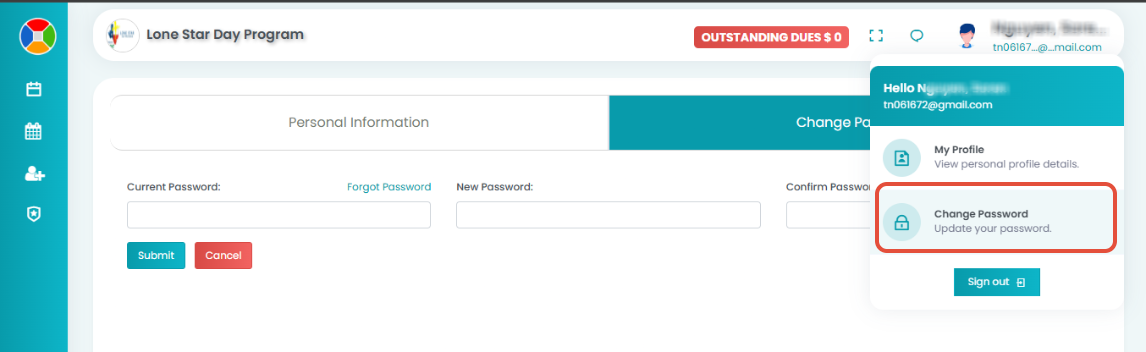
113. How Can I Retract Billed Claims from Secondary Billing/ What steps do I need to follow to retract billed claims from secondary billing?
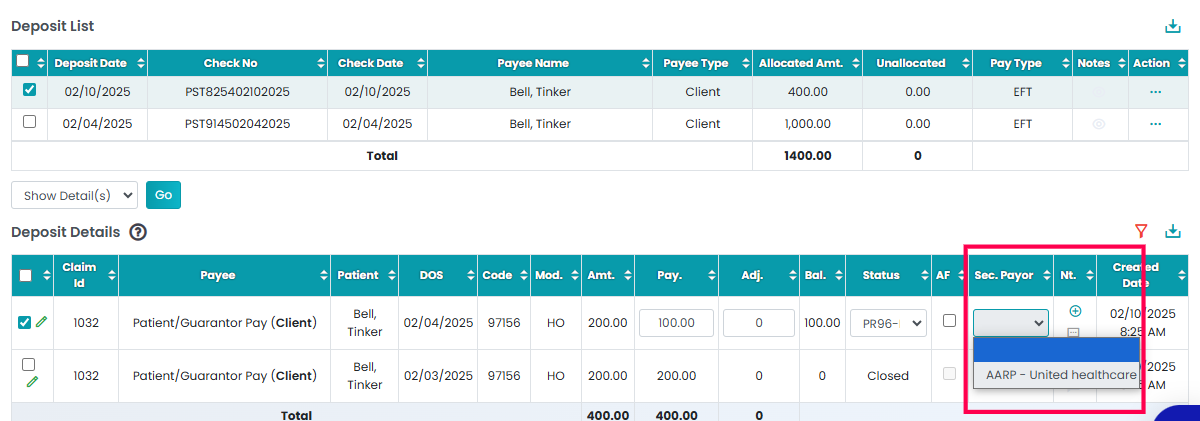
Follow these steps:
Go to the Cash Posting tab and access the primary claim deposit.
Select the deposit and click Show Details.
Remove the secondary payer from the deposit.
Navigate to Secondary Billing Management.
Select the claim and click Refresh Secondary Claims from the bottom dropdown.
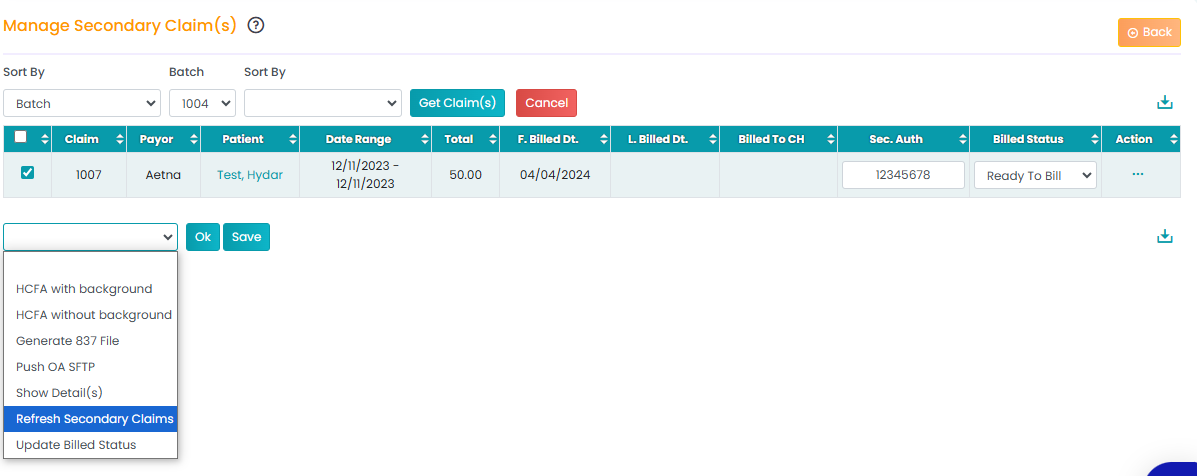
This will allow you to retract the billed claims. If you need further assistance, please contact our support team.
114. Can I Delete a Staff Profile/Can I delete a staff profile in TherapyPM?
No, staff profiles cannot be deleted. However, TherapyPM provides an Archive feature that allows you to hide staff profiles when they are no longer needed. Attached is a knowledge article on how to archive.
If you need further assistance, please contact our support team.
115. How do I update the payment status in TherapyPM?
Follow these steps to update the payment status:
Navigate to the Cash Posting tab.
Locate the deposit you want to update.
Select the session and click Show Details from the dropdown.
Click on the pencil icon to edit the line items.
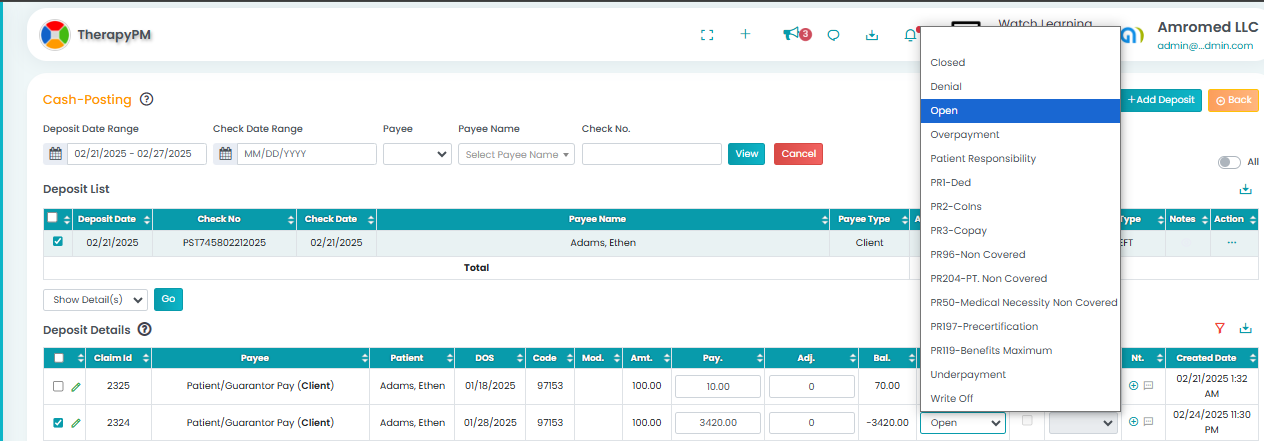
Update the status and save.
By completing these steps, the claim will be included in the patient statement.
116. How do I upload an intake form in TherapyPM?
Follow these steps to upload an intake form:
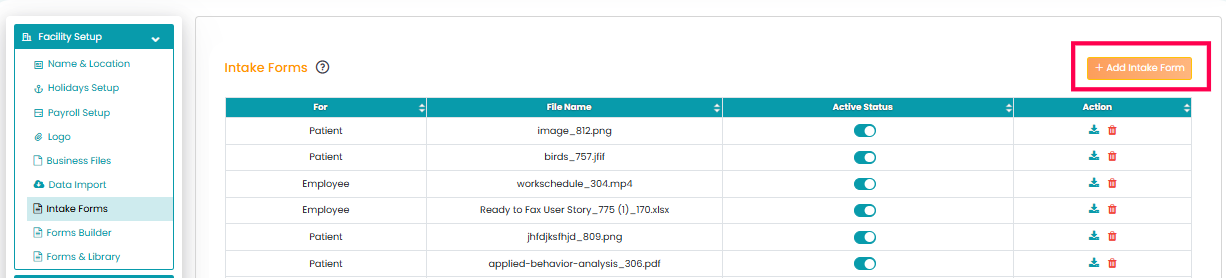
Navigate to Settings >Facility Setup>Intake Forms
Click the Add Intake Form button in the top right corner.
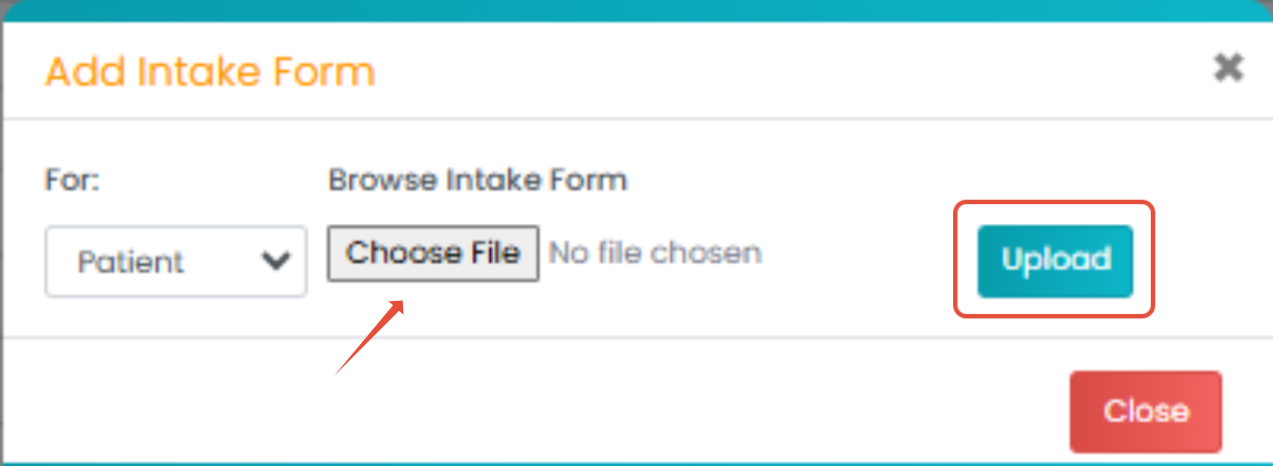
Click on choose file and select the file from the system and upload
117. How Can Parents Sign Documents in TPMS/ How can a parent sign documents in TPMS?
Parents must log in to the Patient Portal to sign documents. If they don’t have an account, they need to create one.
Steps to sign documents:
- Go to My Schedule.
- Use the search filters to find the appointment.
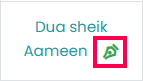
- Click the Grey Pen icon next to the patient’s name.

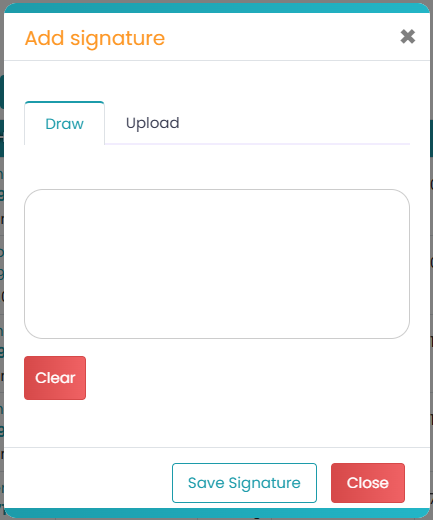
- Sign using a drawing tool or upload a signature file.
- Once completed, the Grey Pen icon turns Green as confirmation.
For further assistance, please contact support.
118. How to Delete Recurring Session?
We have a knowledge article that provides a step-by-step guide on how to delete Recurring Session. Please review it and reach out if you need further assistance.
119. How Can I Reverse a Denial and Reconcile a Payment/How do I reverse a denied claim in TherapyPM?
To reverse a denied claim, go to Payment > Cash Posting, find the deposit details, click Show Details, locate the denied claim, and click Retract Transaction.
120.why is the system not allowing me to render the session?
This issue may occur if the appointment date falls outside the authorized date range. The system will prevent rendering if the session is not within the approved timeframe.
121. Where am I unable to download the EDI file( Getting error "Complete the client info to download EDI")?
This error occurs when required patient information is missing. A common reason is that the "Relationship to Insured" field is not completed.
Follow these steps to resolve the issue:
- Navigate to the Patient’s Bio section.
- Locate the "Relationship to Insured" field.
- Select the correct relationship from the dropdown menu.
- Save the changes and try downloading the EDI file again.
122. How can I add a secondary authorization when each CPT code has a different authorization number, but the primary authorization has only one?
In cases where the secondary payer provides separate authorization numbers for each CPT code, while the primary payer issues a single authorization number, you will need to create separate authorizations for each service. This ensures that each CPT code is correctly linked to its respective authorization number.
123. Why does the invoice number in the system not match the invoice number on the printed invoice?
This is expected behavior and not a mismatch. The number displayed in the system is the claim number generated in Manage Billing, while the printed invoice follows a different numbering format.
124.How do Motivity notes sync with TherapyPM?
Once notes are signed in Motivity, they will automatically flow into TherapyPM if they are linked to an appointment.
125.What if the notes are not linked to an appointment?
If the notes exist but are not linked to an appointment, they will need to be manually linked. For assistance with this process, please contact Motivity support.
126. Can I Use the Same Email for Multiple Accounts in TherapyPM?
No, TherapyPM only allows an email address to be associated with one account. If a family has multiple patients, follow these steps:
- Add the email address to one patient's account and designate them as the Primary Sibling.
- For the other sibling(s), remove the email address and leave the field blank.
- From the Primary Sibling’s account, link the other patient(s) by adding them as siblings.
This setup ensures that the primary contact receives all necessary communication while keeping the accounts properly linked.
127.Why am I getting the error message "You are scheduling over Authorized hours/units/sessions"? How can I fix this issue?
This error occurs when the total scheduled sessions exceed the authorized hours, units, or sessions set in the system for the patient.
To resolve this:
Verify the patient's authorized limits in the system.
Ensure your scheduling stays within the approved amount.
Adjust the schedule to fit within the remaining authorized units or request additional authorization before proceeding.
128. Why can't I see scheduled appointments beyond 5:00 PM in the calendar view?
In the old calendar view, time slots function based on the facility's working hours. If the facility's working hours are set to end at 5:00 PM, schedules beyond that time will not be visible.
To resolve this:
Go to Settings > Facility Setup > Name and Location.
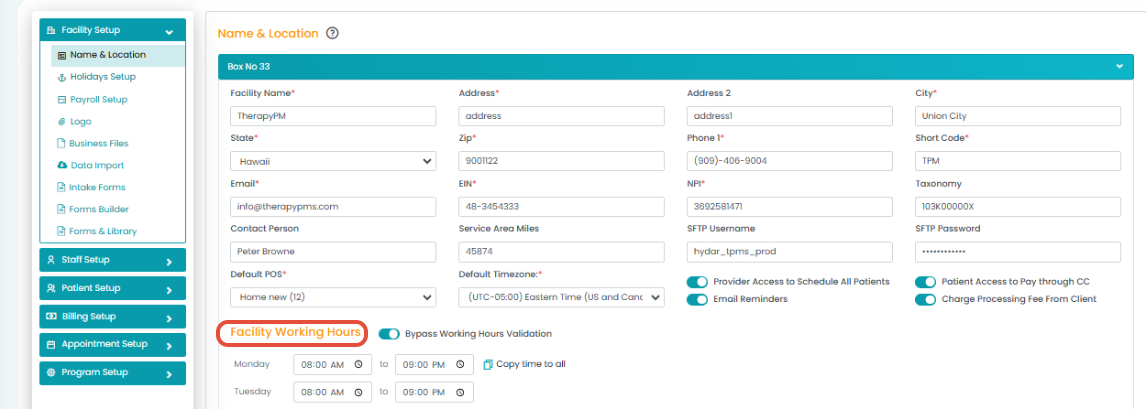
Adjust the facility's working hours to extend beyond 5:00 PM as needed.
129. How can I download the exported reports?
You can download the reports from the download tray located in the action column above. Please refer to the attached screenshot for guidance.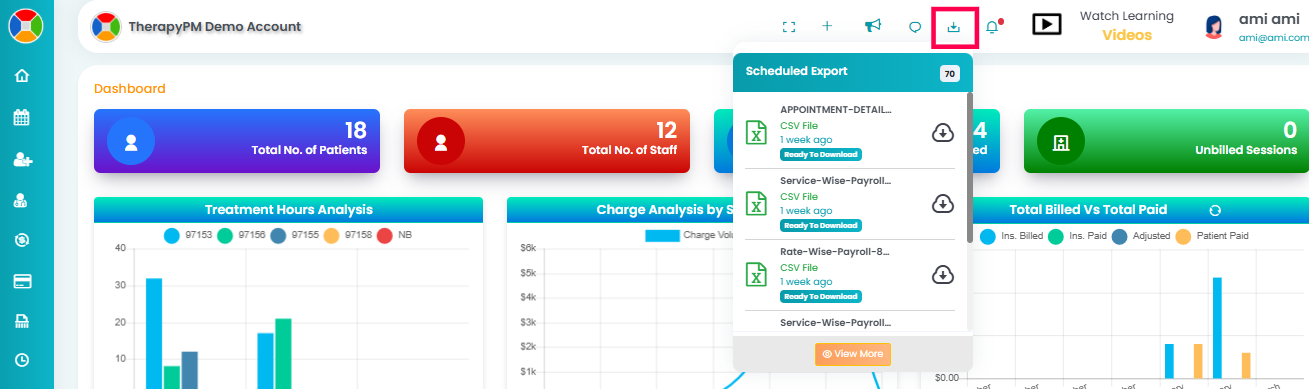
130. Can I add notes for sessions that have already been billed?
Yes, you can add notes for billed sessions by clicking on the three dots under the "Action" column and selecting "Add Notes." Please try this and let us know if you need further assistance.
140. Can HSA cards be used for payment?
Yes, HSA cards are accepted as a payment method. Please let us know if you need any further details or assistance
141. Why am I unable to save a patient's profile due to a phone number error?
This error occurs when the same phone number is already associated with another patient’s profile. To resolve this, check if the phone number is duplicated in another profile and update it accordingly. If the issue persists, please reach out for further assistance.
142.How does TPM count visits when a client is seen by multiple providers on the same day?
When a client is seen by two different providers on the same day, each session is counted as a separate visit, regardless of whether the sessions overlap or occur at different times. The system does not merge multiple provider sessions into a single visit. For example, if:
Provider 1 sees the client from 8 AM - 12 PM
Provider 2 sees the client from 11 AM - 12 PM or 4 PM - 5 PM
Two visits will be deducted from the authorization utilization.
143. Can I add a second Box 33 NPI for a different specialty in TPM?
Yes, if you need a different Box 33 NPI for a specific specialty, you can configure it in the Insurance Setup section.
144.How do I add a specialty-based Box 33 NPI?
Follow these steps:
Go to Settings >Billing Setup>Insurance Setup.
Click on pencil icon under edit column for respective insurance

Scroll down to the Treatment Types section and Locate the last field labeled Box 33 NPI.
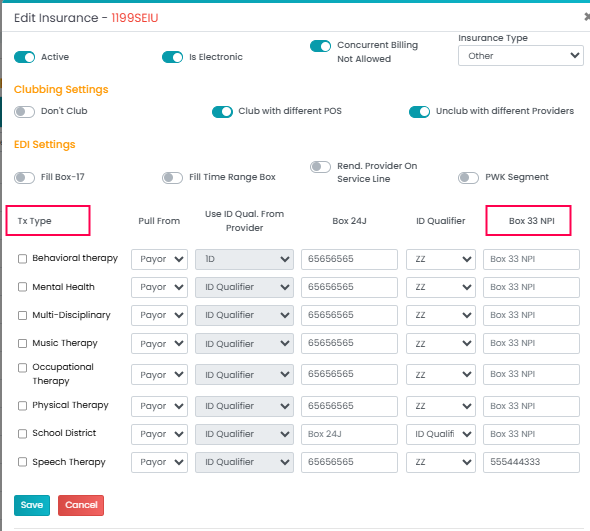
Enter the appropriate NPI for the specialty.
Click Save to apply the changes.
145. How can I ensure all psychological service visits are billed together as required by insurance?
To ensure all visits are submitted at the same time, keep each session in "Pending" status under Process Billing. Once all required visits are completed, update them to "Ready to Bill" and submit the claim.
Steps to Update Session Status:
Go to Process Billing.
Select the session(s) that need to be updated.
Click "Update Status" from the dropdown menu.
Choose "Pending" and click Save.
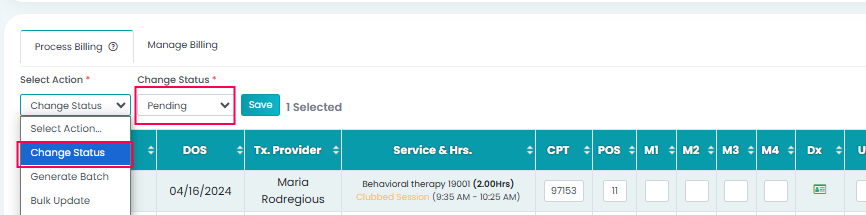
After all visits are completed, update the sessions to "Ready to Bill" and proceed with submission.
For further assistance, please reach out to the billing support team.
146. How can I ensure each service in a Date of Service (DOS) appears on a separate CMS form?
To bill each service individually for the corresponding DOS, enable the "Split by Date of Service" option. This will ensure that each service is billed separately.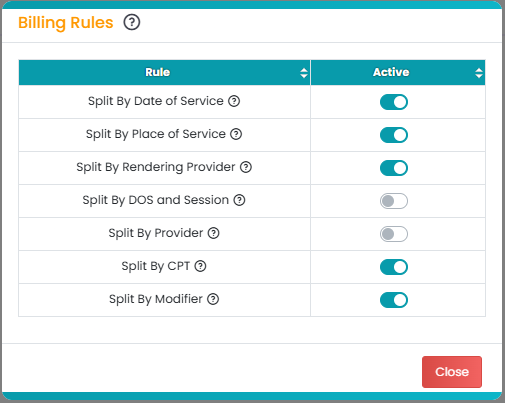
147. Why does the dashboard show that provider signatures are missing when they are actually present in the session?
The "Provider Signature Missing in Session" section on the dashboard lists sessions where either:
A session note has not been added, or
The provider signature is missing.
148. Why aren't the submitted timesheets pulling correctly?
If submitted timesheets are not appearing as expected, it's likely due to missing calculation types for the services linked to the staff. Here's how to resolve it:
Set Up Calculations in Payroll Settings:
Navigate to the Settings tab.
Go to Payroll Setup and ensure that the appropriate calculation types are defined.
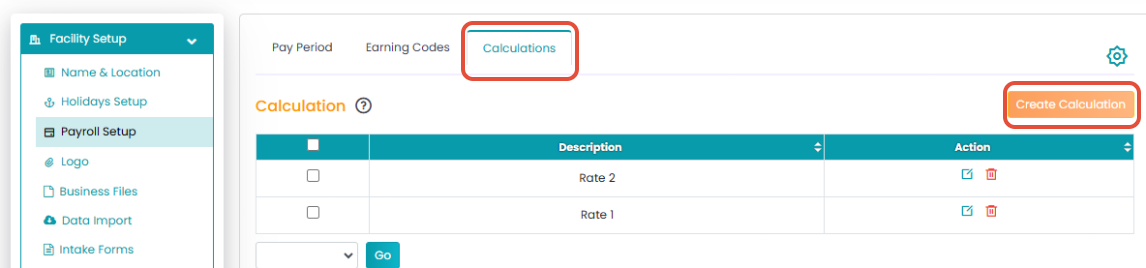
Assign Calculations to Staff Services:
In the Staff module, locate the specific staff member.
For each service they are assigned, make sure the correct calculation type is selected.
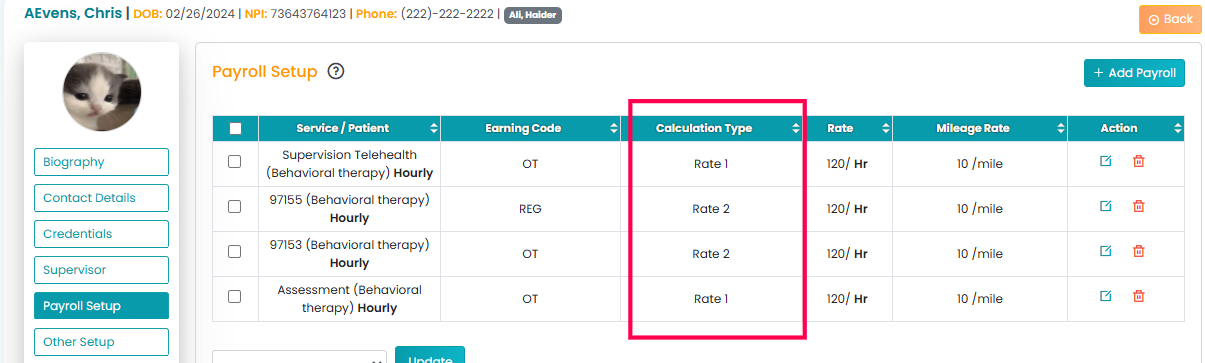
These steps are necessary for timesheets to be processed correctly.
149. How do I schedule using an older group authorization when multiple are active?
When multiple group authorizations are active, the system prioritizes the most recently created one and displays its associated services by default.
To schedule under the previous authorization:
Inactivate the most recent authorization.
Once this is done, the system will recognize and display the services linked to the older authorization.
You can then proceed to schedule appointments under the desired authorization.
If you need help with this process or have further questions, feel free to reach out—we're happy to assist.
150. Can I add test clients for training without affecting billing?
Yes, you can create test clients that won't affect billing. Here's how:
Create a Test Patient in the system.
Set up a Dummy Authorization for the test patient.
Place the Authorization in a "Placeholder" status, which will exclude it from billing processes.
Create a Test Provider if needed for training scenarios.
This setup allows you to conduct staff training and test workflows without impacting real client data or billing records.
151. Will changing a staff member’s credential type affect billing?
No, changing the Staff's credential type will not affect billing. You can proceed with the update without any concern.
152. Why is the "Paid" stamp not showing on my invoice?
The "Paid" stamp only appears on invoices when the remaining balance is exactly $0.00. If there is even a small remaining balance—such as a few cents—the system will not display the green "Paid" stamp.
To ensure the stamp appears, please verify that the full invoice amount has been paid down to the last cent.
153. Why isn’t the diagnosis code (Dx) showing in green in Process Billing page?
If the diagnosis code isn’t displaying in green, it’s likely because the Dx code has not been added to the patient’s Authorization.
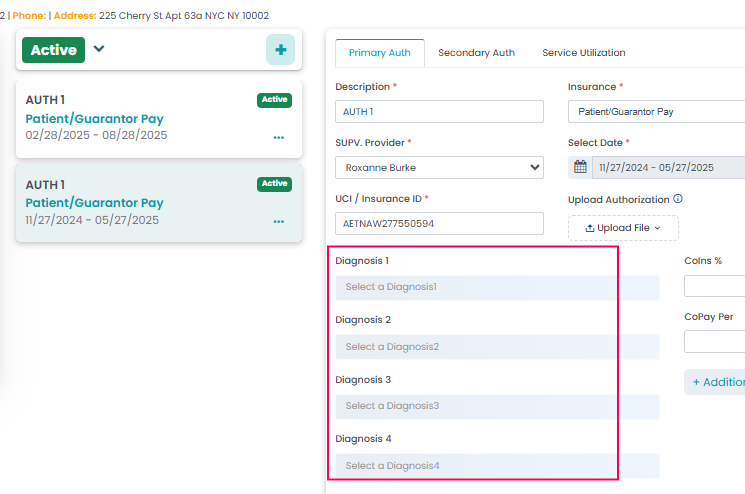
Once the Dx code is entered in the Authorization, it will reflect correctly across all relevant sections of the system.
Need help updating it? Feel free to reach out—we’re happy to assist!
154. When are email reminders sent for scheduled sessions?
Our system sends email reminders one day prior to the scheduled session, between 9:00 AM and 9:30 AM.
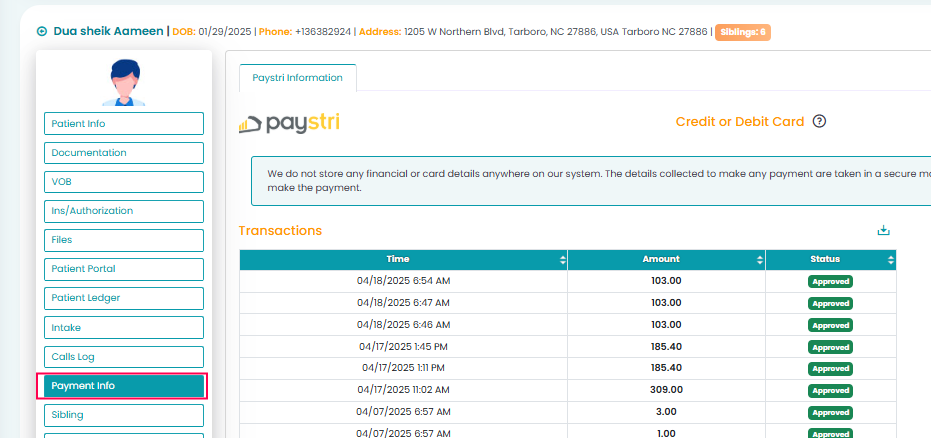
155. How can I refund a patient's payment that was processed through Paystri?
To refund a payment processed through Paystri, you'll need to log in to your CardPointe account (Paystri’s portal) and complete the refund manually from there.
156. Can TherapyPM be accessed outside the U.S. and Canada?
No, TherapyPM can only be accessed within the U.S. and Canada. If you need to access it from another location, we recommend using a VPN to connect.
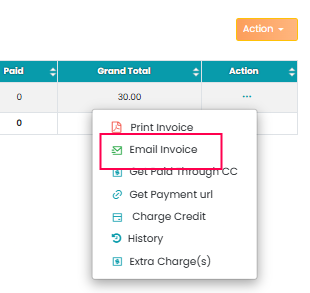
158. How to email invoice to patients?
To send invoices to patients, please follow these steps:
- Go to Billing > Patient Statements
- Navigate to the Manage Billing section

- Locate the appropriate Invoice
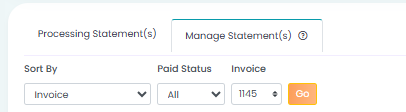
- Click on the three dots (...) under the Action column

- Select "Email Invoice" and send
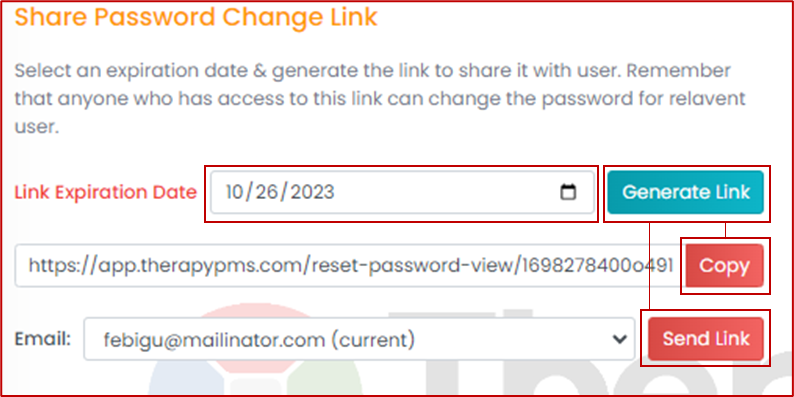
- 1. Self-Service: They can click on the "Forgot Password button" on the login page, and enter the email address used during account creation. A verification code will be sent to their email and on inputting the code, they can enter their new password twice and log in securely.
- 2. Admin Assistance: Alternatively, you can provide them with a link to change their password. Access the staff profile in the admin account and locate the "Staff Portal" tab. Choose an expiration date for the link and click on "Generate Link." You can then share it with them by copying it and sending it in a message/email or sending it directly to their email. They can reset their password by clicking on the link, and they will then be able to log in.
160. How is the collection rate calculated?
the Collection Rate, it is calculated using the following formula:
Collection Rate = 100 - ((Insurance Balance ÷ Total Billed Amount) × 100)
This helps reflect the percentage of the billed amount that has been successfully collected, excluding any outstanding insurance balances.
161. What does "Payment link has been disabled" mean?
This message usually appears when the payment link has already been used. If it shows up before the payment is completed, there may have been an issue during the transaction.
We recommend resending the payment link to the patient to ensure they can complete the payment successfully.
162. How to bring back clients from archive?
- Navigate to Settings > Patient Setup > Patient Settings
- Under Patient Status, enable the Show Archived and Active toggle

- Then go to the Client module — you will now be able to select client profile