
Within the Manage Statement tab, you can complete payments in multiple ways depending on the patient’s setup. Below is a breakdown of the available payment methods:
- Get Paid Through CC – Use this option when the patient already has a saved card on file.
- Generate Payment URL Link/Send URL via SMS– Share a secure payment link for patients who do not have a card saved in the system
To get paid through cc follow the steps below:
1. Within the Manage Billing tab, you can use the Action button to manage and complete invoice payments.
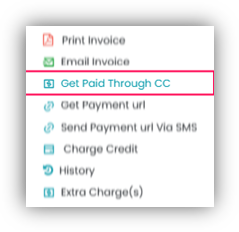
2. Click the Action (three dots) next to the invoice. Select Get Paid Through CC.
3. This option will only appear if the patient has a credit card saved on file.
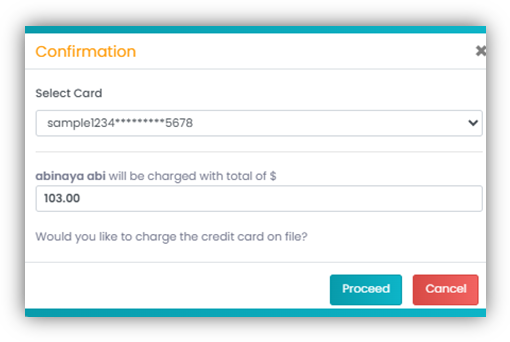
4. Once selected, a confirmation pop-up will appear. Choose the appropriate saved card from the dropdown and review the charge amount.
5. Click Proceed to confirm.
6. The system will then charge the selected card, and the invoice will reflect the updated payment status.
To Generate Payment URL Link, follow the steps below.
Within the Manage Billing tab, you can use the Action button to manage and complete invoice payments.
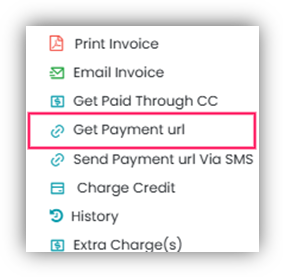
1. Click the Action (three dots) next to the invoice, select Get Payment URL option.
2. The payment link will automatically be copied to your clipboard. You can now share this link with the client or the client’s parent/guardian to complete the payment securely.
3. To proceed with payment, open the link in your preferred web browser.
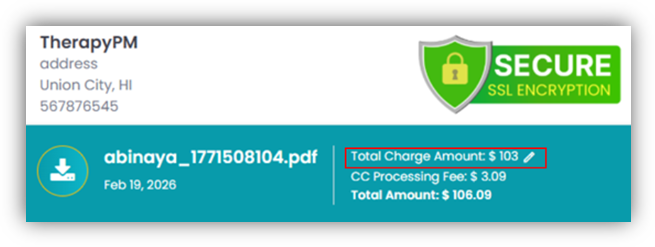
4. On the payment page, you will have the option to edit the charge amount if a partial payment needs to be collected, access the pencil button next to the Total Charge Amount.
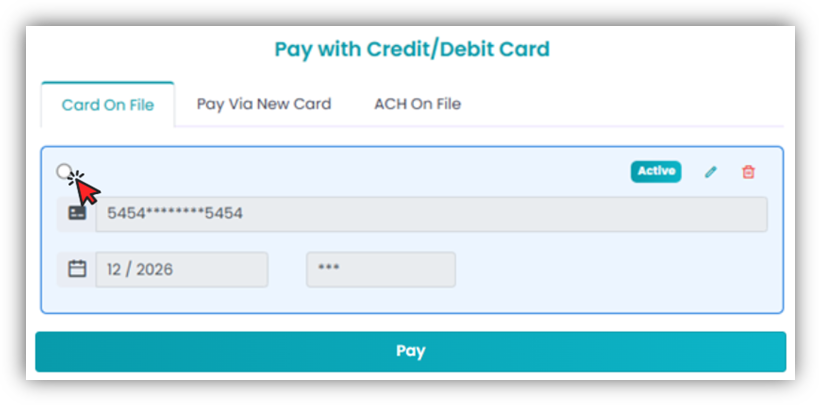
5. If a card is already on file, in Card on File tab select the saved card and click Pay.
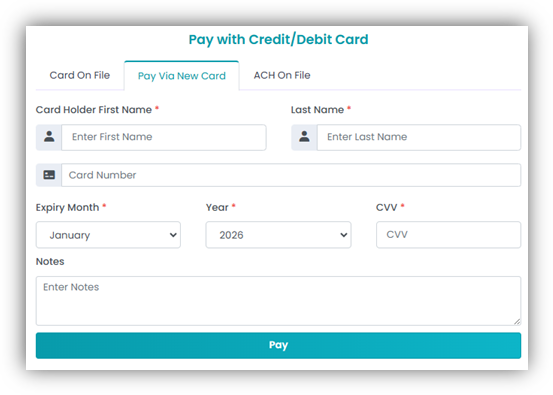
6. If no card is saved, switch to the Pay via New Credit Card tab, enter the card details, and complete the payment.
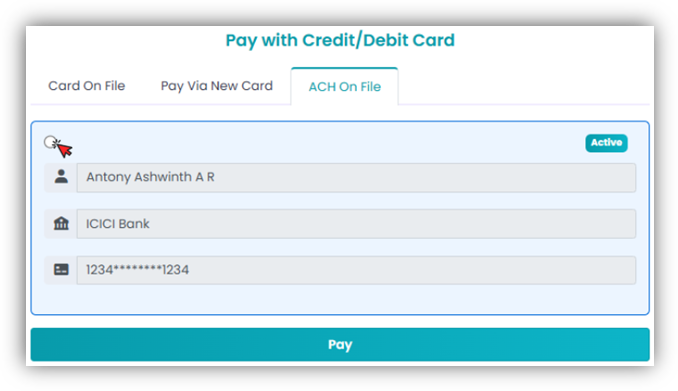
7. If paying via bank account: Select ACH on File, choose the saved bank account and click Pay to complete the transaction.