
Add Card on File
- Navigate to the Patients module from the left-hand menu to access your full patient list.
- Select the patient you’d like to add payment information for. You can use the search bar to quickly find a specific patient. Once located, click on their name to open their profile.
- From the patient profile, click on Payment Info in the left panel.

- In the Paystri Information tab on the top-right corner, click the orange Add Card button. A pop-up window will appear.
- In the pop-up, enter the following details:
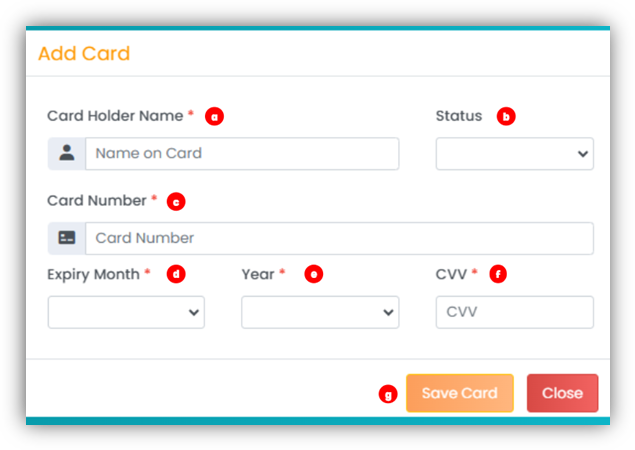
- Card Holder Name: Enter the patient’s name exactly as it appears on the card.
- Status: Choose whether the card status is Active or Inactive.
- Card Number: Enter the full card number.
- Expiry Month: Select the card’s expiry month from the drop-down menu.
- Year: Select the expiry year from the drop-down menu.
- CVV: Enter the card’s CVV number.
- Click Save Card to complete the process and add the card on file.
- Once saved, the card details will appear in the payment information box on the right side of the screen.
Add ACH / Bank Accounts on File
- Navigate to the Patients module from the left-hand menu to access your full patient list.
- Select the patient you’d like to add payment information for. You can use the search bar to quickly find a specific patient. Once located, click on their name to open their profile.
- From the patient profile, click on Payment Info in the left panel.
- Next to the Paystri Information tab, you will now see a ACH List tab.

- From the ACH List tab, access the orange Add Bank Details button.
- In the pop-up, enter the following details:
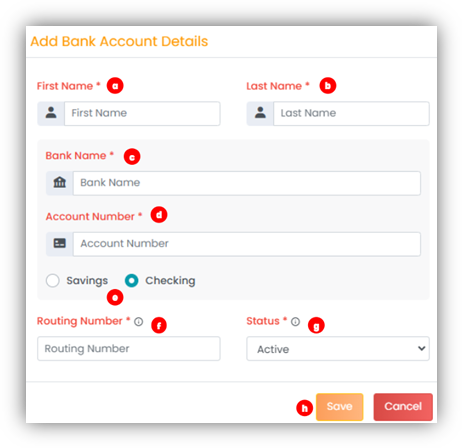
- Name: Add First and Last name of card holder.
- Bank Name: Add the name of the bank.
- Account Number: Add the Account number of the Bank account.
- Toggle if savings or checking.
- Routing Number: Add the routing number.
- Authorization Type: Select the authorization type from the dropdown.
- Status: Add the status if the card is active or not
- Click Save Card to complete the process and add the bank account on file.