
This article details how providers can view and manage appointments in Timeline View. Video Walkthrough
View the below walkthrough video on Timeline View in Provider Portal
Manage Timeline view
Accessing Timeline View: Click the Appointment Tab option, then select Timeline View to view and manage appointment scheduled in TherapyPM. The features available in the Timeline View is like List View and Calendar View to manage the appointments.
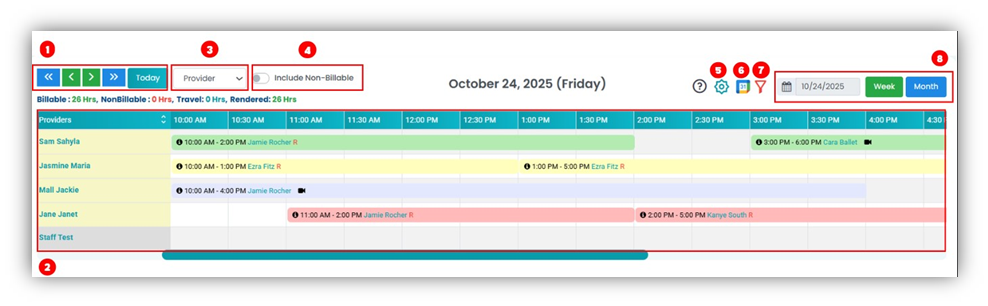
- Navigation buttons: Use these buttons to move to the next or previous day/ week/ month.
- Timeline View: All the appointments for that day/ week/ month will be available per their background color. Users will be able to the appointments between providers/ patients and at different times within the same provider/ patient.
- Provider/ Patient filter: Use this filter to generate appointments by patient or provider in the timeline view.
- Include Non-Billable: Include non-billable sessions as well in the Calendar.
- Settings Icon: Click this button to get more settings to customize the timeline view.
- Sync Icon: Use this button to sync your TherapyPM calendar with Google Calendar.
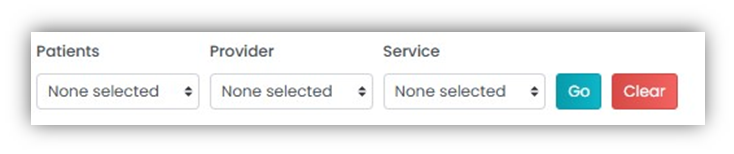
- Filter Button: Use this button to get more filter options to refine appointment generation.
- Day/ Week/ Month Button: Use these buttons to view the timeline view by day or week or month.