
This article explains how to create and manage user groups in TherapyPM.
The User Group option under Menu Permissions allows you to create and manage custom groups of users within the system. For example, if you would like to manage Providers and Staff as a specific group, you can create a group based on your requirements.
Once the group is created, you can control which tabs they are allowed to access by enabling or restricting menu permissions. This helps you manage what each group can view or modify within the platform, ensuring appropriate access control across your organization.
Create a New User Group
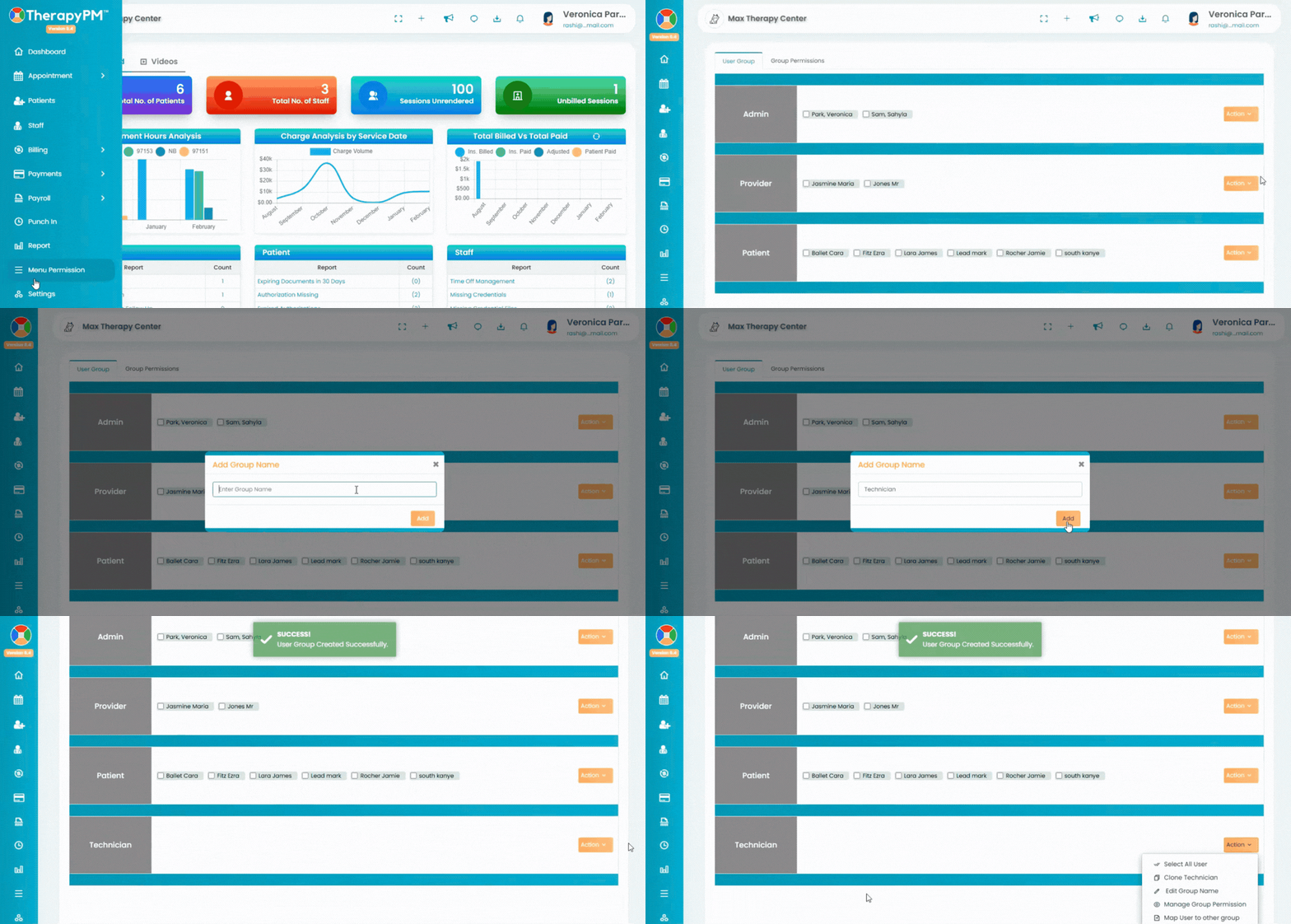
Follow the steps below to create a new User Group:
Navigate to the Menu Permissions tab from the left navigation bar.
TherapyPM is built with three default portal groups:
Admin – Has full access to all modules and settings.
Provider – Has provider-level access.
Patient – Has client portal-level access.
These are system default groups.
To create a new group, select one of the default groups that most closely matches the access level you want. Then click on the Action button.
For example, if you would like to create a Technician group, select the Provider group since technicians typically require provider-level access.
Click on Clone Provider Group.
This option will create a new group identical to the selected default group. Enter the new group name (for example, Technician) and click Add.A new group identical to the Provider group will be created. You can now modify and manage the permissions for this group based on your organization’s requirements.
Manage a User Group
Once a new User Group has been created, you will have multiple options available to manage and customize the group as needed. Navigate to Menu Permissions and select the group you would like to manage. Click on the Action button. The following options will be available:
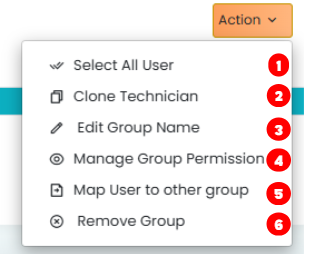
- Select All Users
If there are users assigned to the group, you can bulk-select them to perform actions such as mapping them to another group. - Clone Group
This option allows you to create another group identical to the selected group. This is useful if you want to create a similar role with slight permission changes. - Edit Group Name
You can rename the custom group to better match your organizational structure. - Manage Group Permissions
This will redirect you to the Group Permissions tab for the selected group, where you can enable or restrict specific menu tabs and control what users in this group can access. (Click here to view detail article on this topic) - Map Users to Other Group
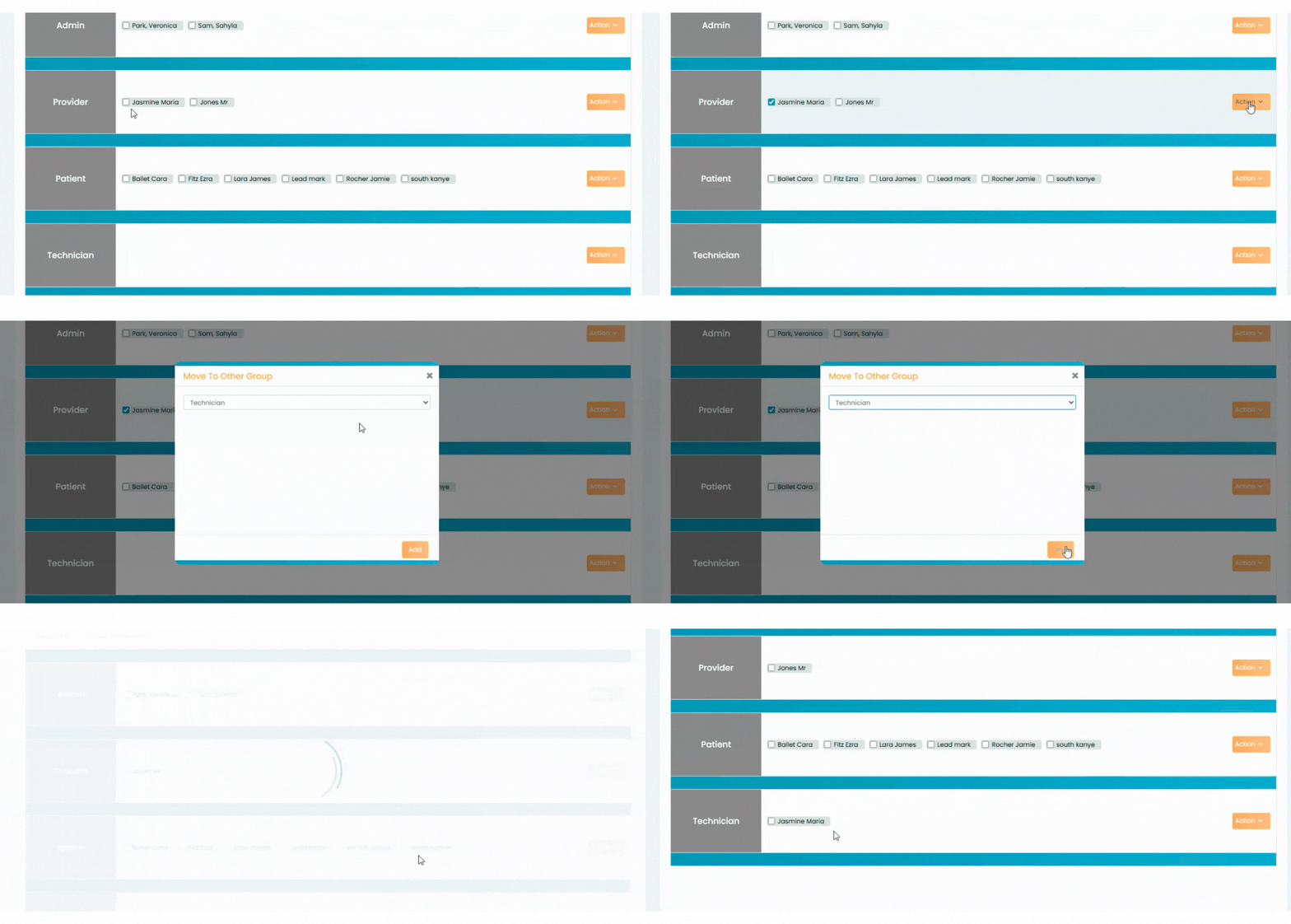
You can select individual users (or use the “Select All Users” option) and move them to a different group. After selecting the users, choose the destination group and confirm the mapping.
This step is typically completed after creating a new group. - Remove Group
This option permanently deletes the customized group that was created. (3 Default system groups cannot be removed.)