
This article explains how to manage menu permissions for user groups in TherapyPM.Within the Group Permissions tab, you can manage which tabs and permissions are available for each User Group in their respective portal view. This determines what users can see and access when they log in.
You can easily toggle between the different User Groups you’ve created and update their access by enabling or restricting specific tabs as needed.
Please note:
The Admin, Provider, and Patient Portal groups come with default tabs.
You can only check or uncheck the permissions that are listed.
You will not be able to add new tabs that are not already available in the list.
This ensures structured access control while maintaining system-level defaults for core portal roles.
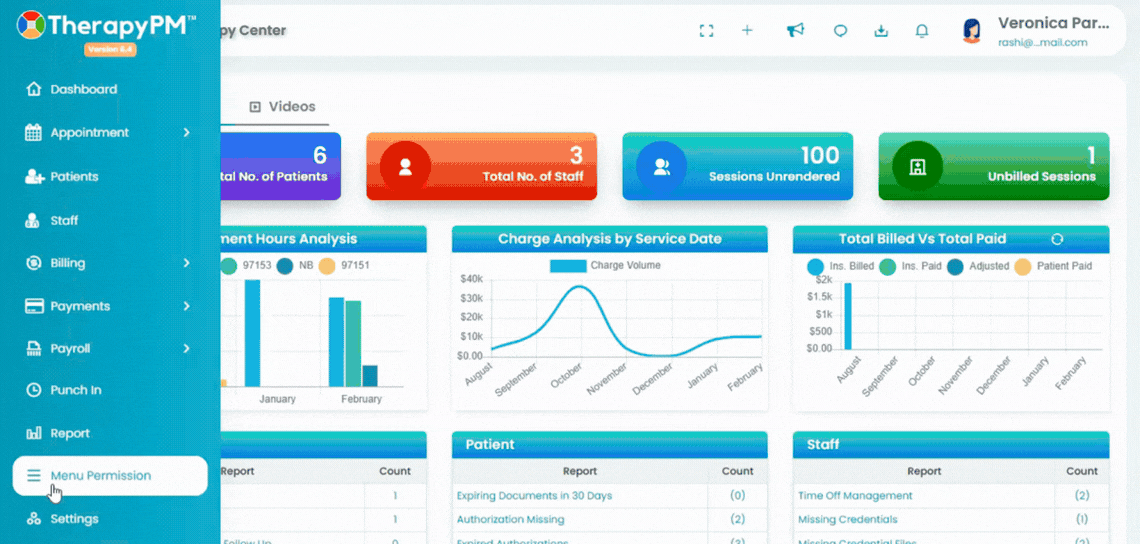
Manage Group Permissions
There are two ways to access Group Permissions:
Click directly on the Menu Permissions tab from the top navigation.
Or, go to Menu Permissions, select the specific group, click the Action button, and choose Manage Group Permissions.
Both options will direct you to the same Group Permissions page.
How to Manage Permissions
On the Group Permissions page:
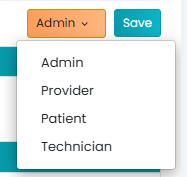
- Use the orange User Group dropdown to toggle between different groups.
Clicking the dropdown will display all available user groups. Select the desired group to view and manage its specific permissions. - You can enable or restrict access by checking or unchecking the available checkboxes.
Understanding the Permission Structure
Permissions are organized in three levels:
1. Module Level (Blue Line)
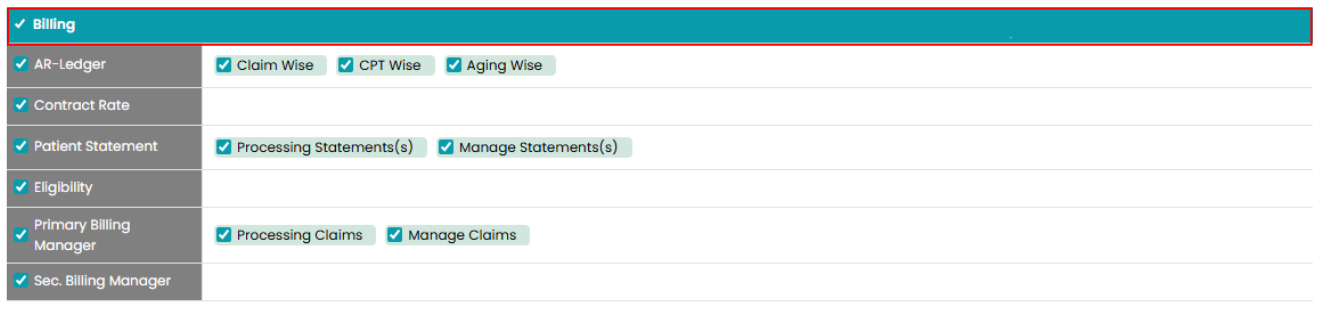
The blue line represents the entire module (for example, Billing).
If you uncheck the module checkbox, the entire module will be removed from the group’s portal view.
2. Page Level (Sub-Module)
Under each module, you will see individual pages (for example, AR Ledger under Billing).
Unchecking the page checkbox will remove access to that specific page only.
3. Tab Level
 Within each page, you can further control access by checking or unchecking individual tabs inside that page.

After making the necessary changes, click the Save button to apply and update the permissions.