
CLIENT SETUP (TherapyPM)
Create Patient
Start by adding clients in TherapyPM. Once the clients are created in TherapyPM, ensure the same clients are also created in HiRasmus using the exact same names, with no discrepancies.
- Plus Icon: Click on the plus icon on the top right-hand portion of your screen.
- Create Patient (A): A dropdown will appear that will suggest two options: Create Patient and Create Appointment.
- Create Patient Popup: When you click on the "Create Patient” option you will be directed to the Create Patient Popup. Fill in the required data.
- Create & Continue: Once you have filled in all the data, click on "Create & Continue."
Create an Authorization
To add appointments for ABA insurance clients, it’s necessary to add an authorization to the client profile so the services can flow correctly to billing. Since client setup happens on the TherapyPM side, make sure this step is completed during the setup process to avoid billing issues later.
- From the Patient’s list, select the Patient you just created
- In the patient info module, click the Ins/ Authorization option. Then, click the "+" icon to add a new authorization.
- In the Add Auth screen, enter the auth information and click the Save Auth button to add a new authorization.
With this step completed, the clients are fully set up.
CLIENT SETUP (HiRasmus)
Linking Clients with TherapyPM
Navigate to the Clients page.
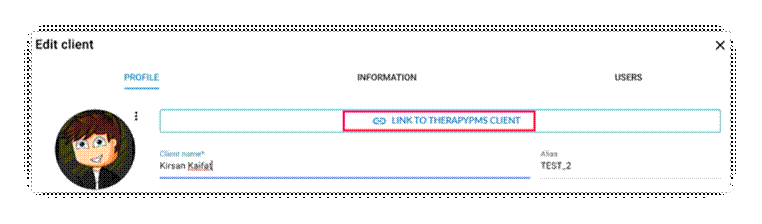
Edit a client and click the Link to TherapyPM client button.
A list of data synced from TherapyPM will appear. Select the appropriate client, click Save, and save the client changes.
Once saved, the data will automatically sync to TherapyPM. Linked clients will display a Connected badge in the table.