
Review Rendered Session
When a session is rendered in Motivity, it will automatically sync and render on the TherapyPM side as well. Below are the steps to view and manage Motivity session notes within TherapyPM.
List View / My Schedule
Navigate to List View from the left navigation bar.

In the list view page, select the session date and use the sort options.
Filter by note as Available to display only sessions that have a linked Motivity note. The sessions will be displayed.
- In the Note column, you will see the Motivity icon.

- Click the icon to view the session note.
Any TherapyPM Calendar
Navigate to any of TherapyPM’s Calendar from the left navigation bar which includes the new and old calendar view and timeline view
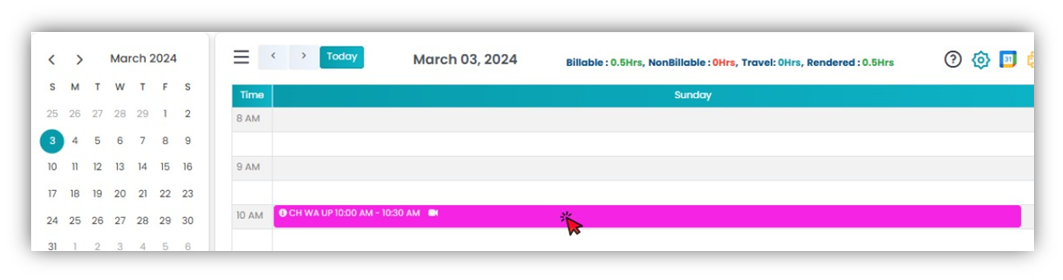
Locate and click on the session block. You will be directed to the Edit Session pop-up.
- Scroll down within the pop-up window.
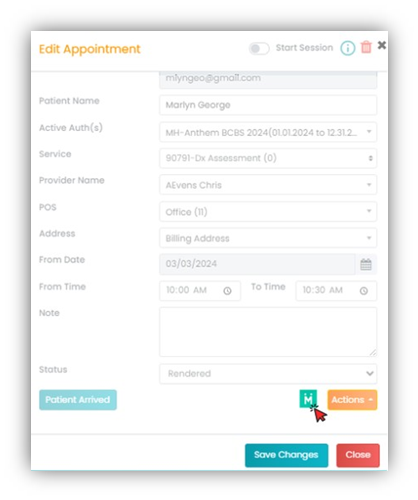
- Click on the Motivity icon to view the session note.