
Sessions scheduled in TherapyPM will automatically appear on the therapist’s calendar in Motivity. Each staff member can view their own appointments in Motivity and has the ability to link or unlink their appointments as needed.
Linking Notes
Sometimes a staff member may forget to select their appointment when creating a note. This will prevent that note from linking to the corresponding appointment in Therapy PMS. Luckily, you can manually link (and unlink) appointments as needed.
To link a note, follow the steps below:
- Select the note.
- It must be unsigned in order to link to an appointment.
- Click the Link Note icon in the top-right corner.
- If an appointment exists for the date of the note, it will display all appointment options available to you.
- Select the appointment to which you want the note linked.
- You can scroll back and forth and use the calendar icon to select a different appointment date.
Linking Notes After the session
After completing the session, you can link your clinical note by following the steps below: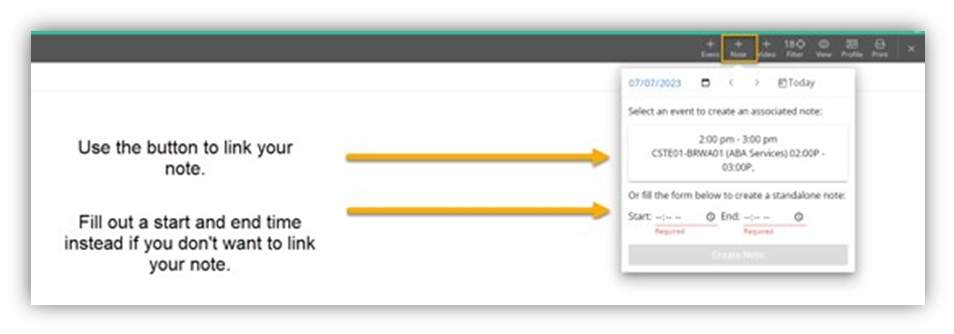
- Once the session ends, click the + Note icon on the right-hand side.
- Select the note template you want to complete.
- A pop-up will appear showing your appointment details.
- If you do not want to link the note to an appointment, enter the time fields located under the appointment button. This will create an unlinked note.
- Click on Timeline and Reports.
- Select the + Note icon on the right-hand side.
- Follow the same process outlined above to complete your note.
- Clicking the Appointment button will automatically link your note to your appointment in TherapyPM.
Icons
Link Appt- only visible if a note is not linked to an appointment.
Appt - only visible if a note is linked to an appointment.
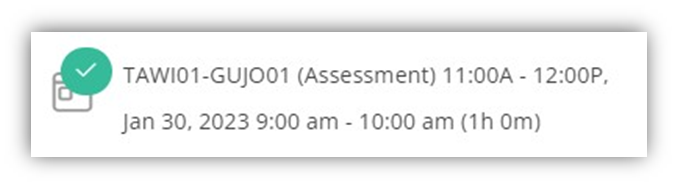 Green Check- the note is linked to an appointment and the appointment and session note times match.
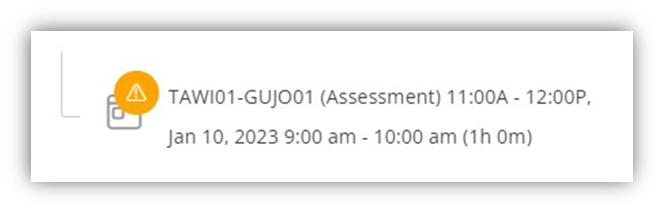
Yellow Alert - the note is linked to an appointment and the times do not match.
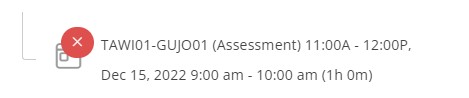
Red - the note is linked to an appointment that has been deleted or canceled in Therapy PMS.