
CLIENT SETUP (TherapyPM)
Create Patient
Start by adding clients in TherapyPM. Once the clients are created on the TherapyPM side, they will automatically sync and populate in Motivity.
1. Plus Icon: Click on the plus icon on the top right-hand portion of your screen. 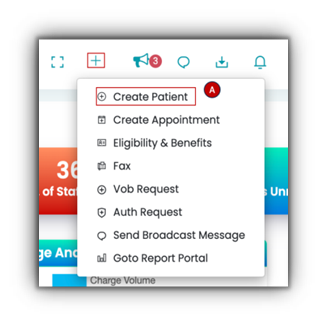
2. Create Patient (A): A dropdown will appear that will suggest two options: Create Patient and Create Appointment.
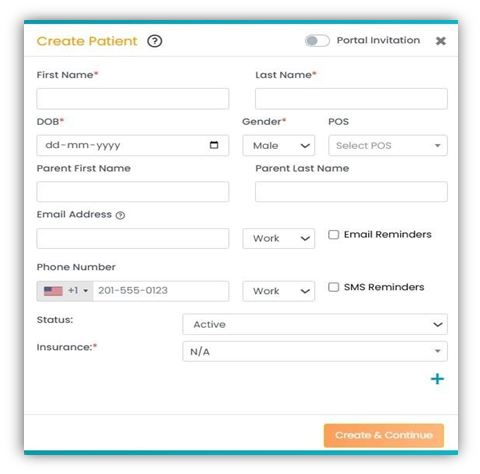
3. Create Patient Popup: When you click on the "Create Patient” option you will be directed to the Create Patient Popup. Fill in the required data.
4. Create & Continue: Once you have filled in all the data, click on "Create & Continue."
Create an Authorization
To add appointments for ABA insurance clients, it’s necessary to add an authorization to the client profile so the services can flow correctly to billing. Since client setup happens on the TherapyPM side, make sure this step is completed during the setup process to avoid billing issues later.
- From the Patient’s list, select the Patient you just created
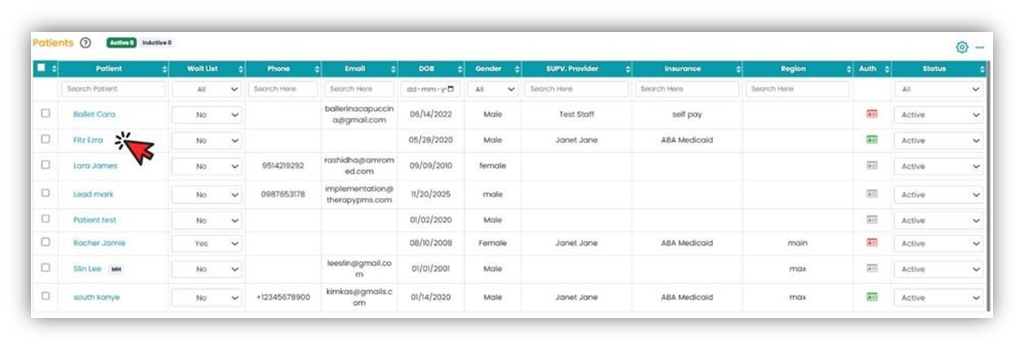
- In the patient info module, click the Ins/ Authorization option. Then, click the "+" icon to add a new authorization.
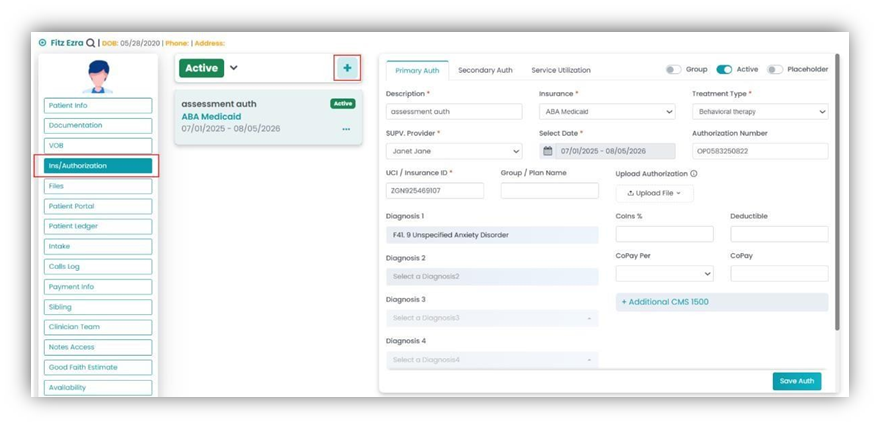
- In the Add Auth screen, enter the auth information and click the Save Auth button to add a new authorization.
With this step completed, the clients are fully set up and ready to be synced to Motivity
You can sync clients (learners) in Motivity in two ways to link profiles between Motivity and TherapyPM:
- Link profiles that already exist in both Motivity and TherapyPM.
- Link profiles that exist in TherapyPM but are not currently available in Motivity.
CLIENT SETUP (Motivity)
Link profiles that are both in Motivity and Therapy PMS:
- Go to your organization in Motivity
- Click on settings
- Click on "Integrations"
- Select "Therapy PMS"
- Select "Learners"
- Select "Not Linked Motivity"
- Click on the learner's name
- They may have a button with their first and last name displayed
- This indicates that Motivity has located the matching profile in Therapy PMS
- Click the name button
- The learner is now linked
Link profiles that are in Therapy PMS, but not in Motivity:
- Go to your organization in Motivity
- Click on settings
- Click on "Integrations"
- Select "Therapy PMS"
- Select "Learners"
- Select "Not Linked Therapy PMS"
- Click on the learner's name
- Click + by their name to add their profile to Motivity
- A profile and alias are created for the Learner. You can change the alias by going to the learner's dashboard, selecting the profile icon, and clicking "Edit".