The latest version includes major and minor bug fixes and improvements. Below are the details of the 6.7 release notes.


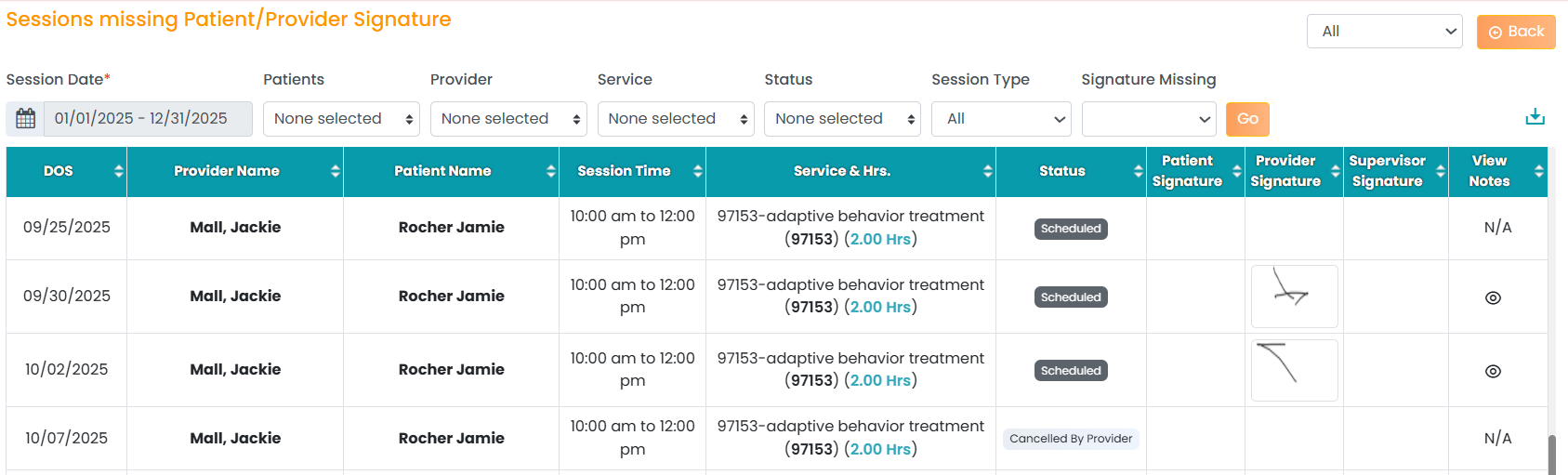
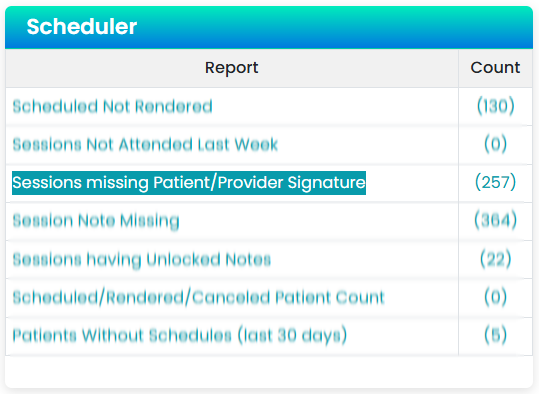
New Missing Signature Report


A new filtering option has been introduced to identify records with missing signatures.

Users can filter based on:

  • Provider signature

  • Supervisor signature

  • Client signature

Includes a “View Note” (eye icon) option to quickly access associated notes.


How to use:

  1. Log in to TherapyPM and go to the Dashboard.

  2. Navigate to the Scheduler Report section.

  3. Click on “Sessions Missing Patient/Provider Signature.”

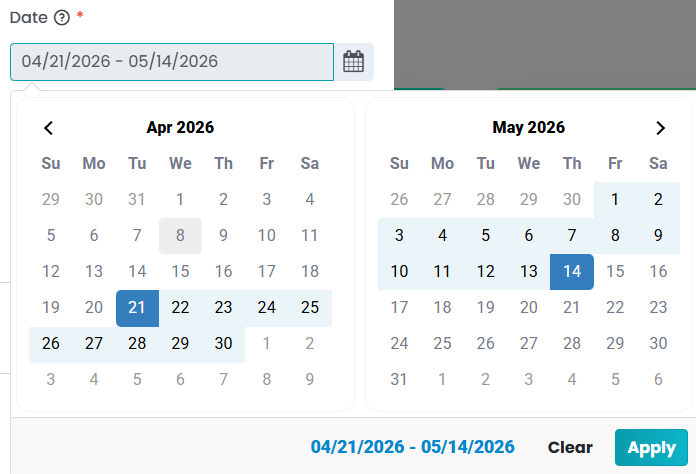
  4. You will be redirected to the Reports page, Apply filters to view sessions as needed.

  5. Sessions will be listed based on the selected sort option.

  6. Click to view the session details.

  7. View the available signatures: Provider, Supervisor, and Client.


Recurring block of time creation


Previously, block of time could only be added for a single date. Now enhanced to support:

  • Multiple dates selection
  • Date range selection
  • Recurring patterns (e.g., repeat on Sundays and Wednesdays.
    And Streamlines scheduling and Reduces manual effort for repetitive blocks
How to Use:

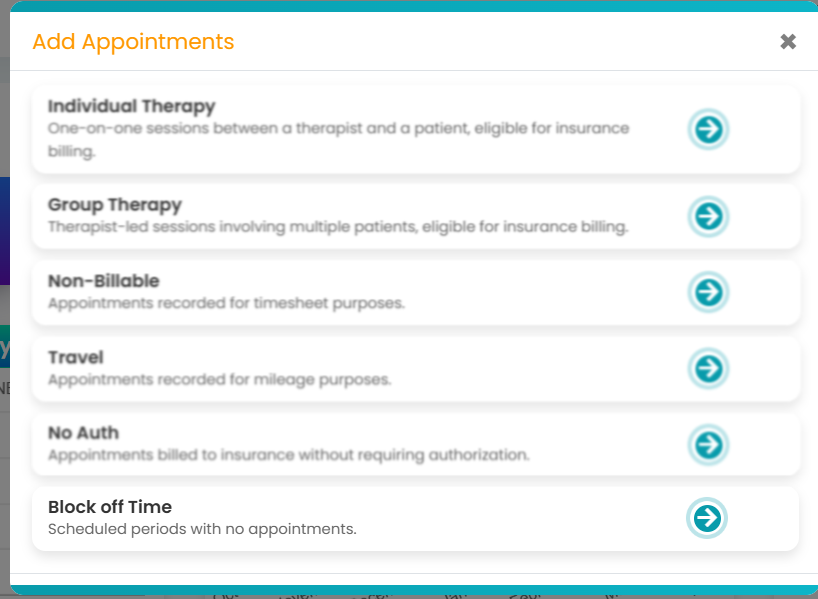
  1. Navigate to the Add Appointment page. 
  2. Select Block of Time. Then choose the provider.
  3. Select a date range for the block to recur.
  4. Toggle on the Repeat On option.


  5. Select the days of the week for recurrence.
  6. Add the relevant details.
  7. Click Save to create the block of time.


ACH Toggle in Patient Settings


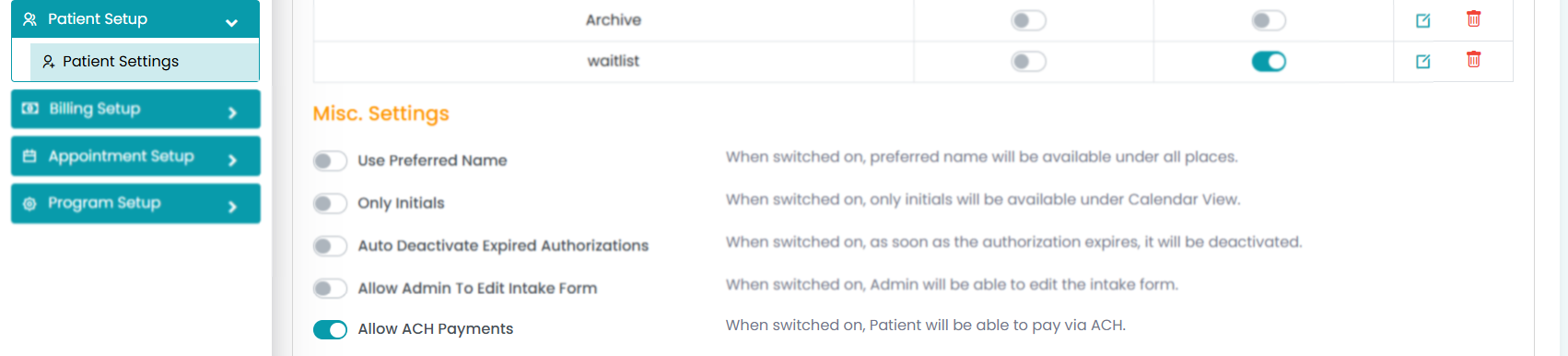
The new added a settings toggle to enable/disable ACH display.
When disabled, ACH will be removed across the system. This Provides customization based on client preference.


How to Use:

  1. Navigate to the Settings module.
  2. Open the Patient Settings tab.
  3. Locate the Allow ACH Payments option.
  4. Toggle it On/Off based on your preference to manage ACH for clients.

Delete/Remove Intake Form


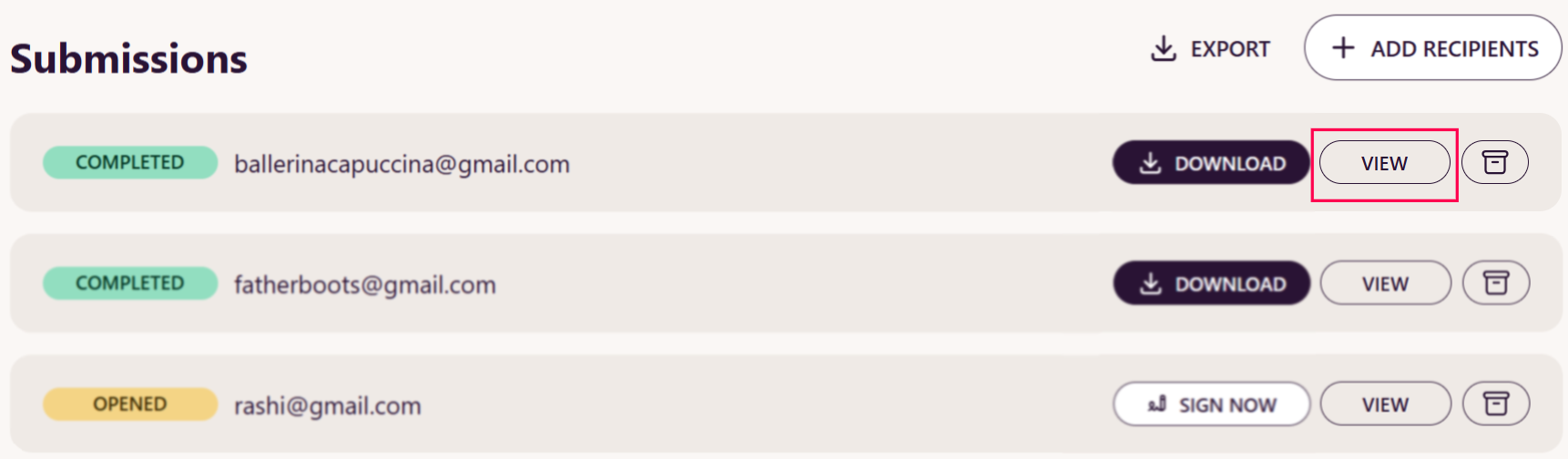
Completed intake forms can now be removed to allow resubmission or corrections if needed. 


How to Use:

  1. Navigate to the New Intake Form section.
  2. Select the intake form that needs to be resubmitted and access the view button on your desired submitted form.
  3. Click on the Archive option.
  4. Choose Remove to delete the intake form.
  5. Reassign a new intake form and complete it from the start.