
The last release, version 6.2, included several major and minor bug fixes along with backend logic updates. Below is the key global enhancement introduced in version 6.3.
New Customizable Form Builder
We’ve introduced a New Form Builder that allows you to upload existing PDF documents and convert them into fillable forms directly within TherapyPM.
What’s new about this form builder?
Upload PDF documents and turn them into fillable forms
Auto-detect fillable fields from uploaded PDFs
Drag-and-drop fields for easy customization
Save, send, clone, archive, or share forms via link
Assign forms for use as:
Session Notes
Patient Intake
Staff Intake
How to use:
Navigate to Settings from the left navigation menu.
Select the Form Builder tab.
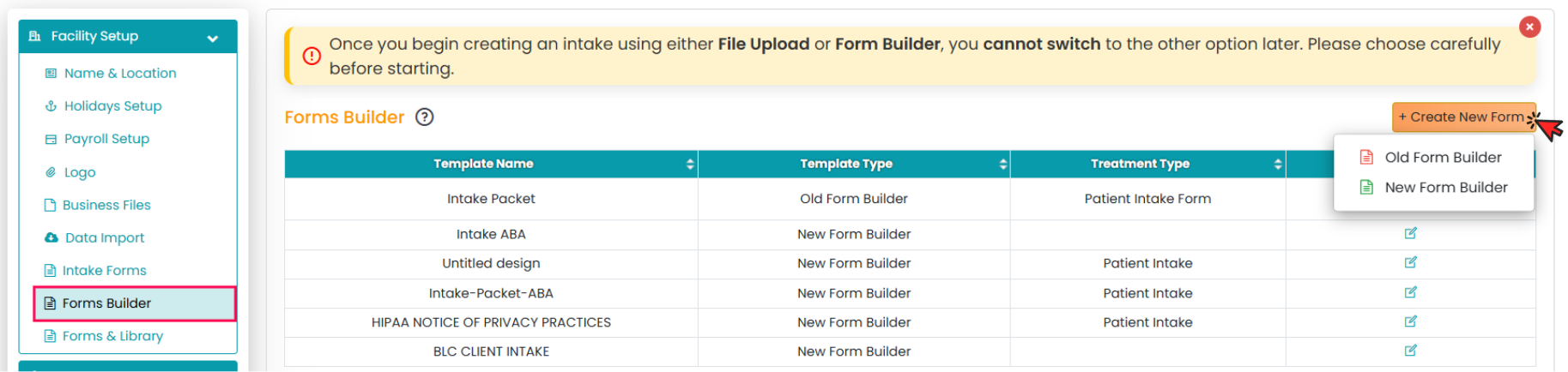
You will see two available options:
Old Form Builder – Create forms from scratch without a base document by adding and managing custom fields.
New Form Builder – Upload an existing document (PDF) and convert it into a fillable form within TherapyPM.
This article focuses on the New Form Builder option.
Creating a Form Using the New Form Builder
Select the New Form Builder option.
You will be redirected to the Form Building Portal.
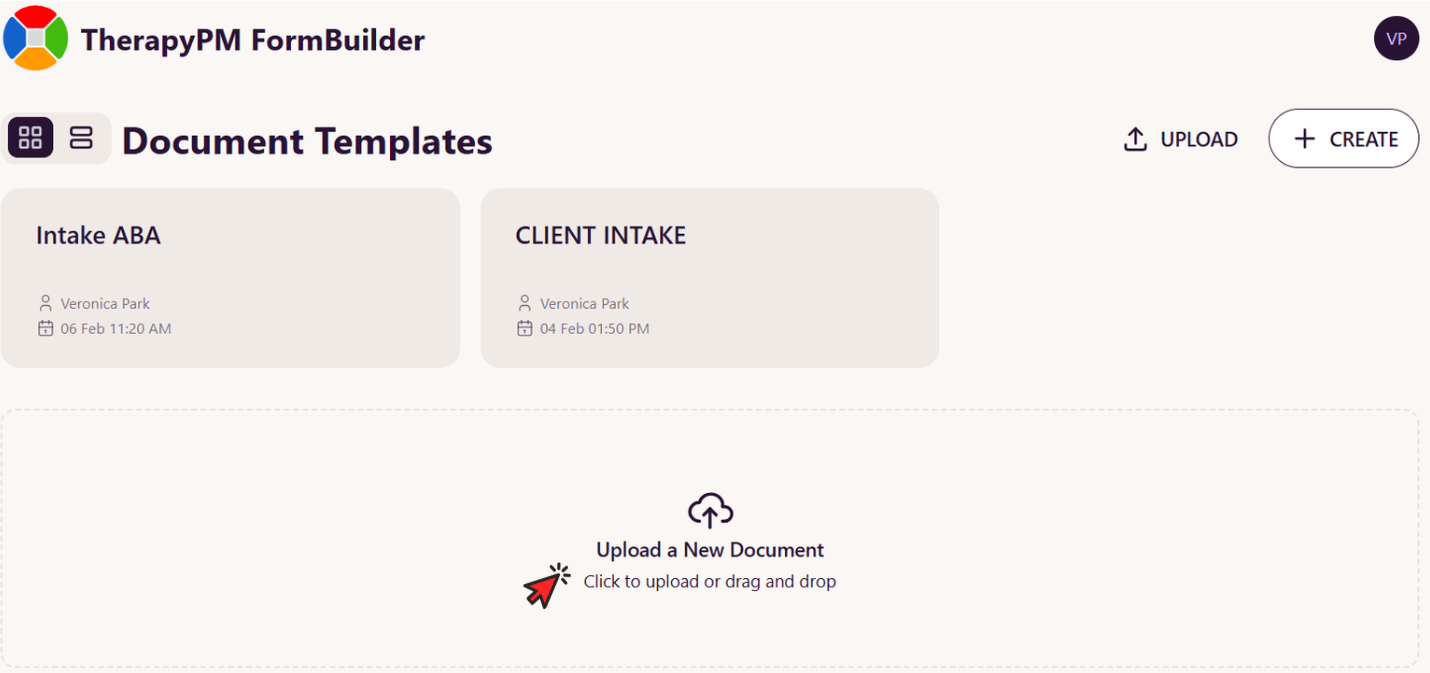
Click Upload New Document and upload your existing PDF form.
Once uploaded, you will be directed to the form-building page.
Auto-Detecting and Customizing Fields
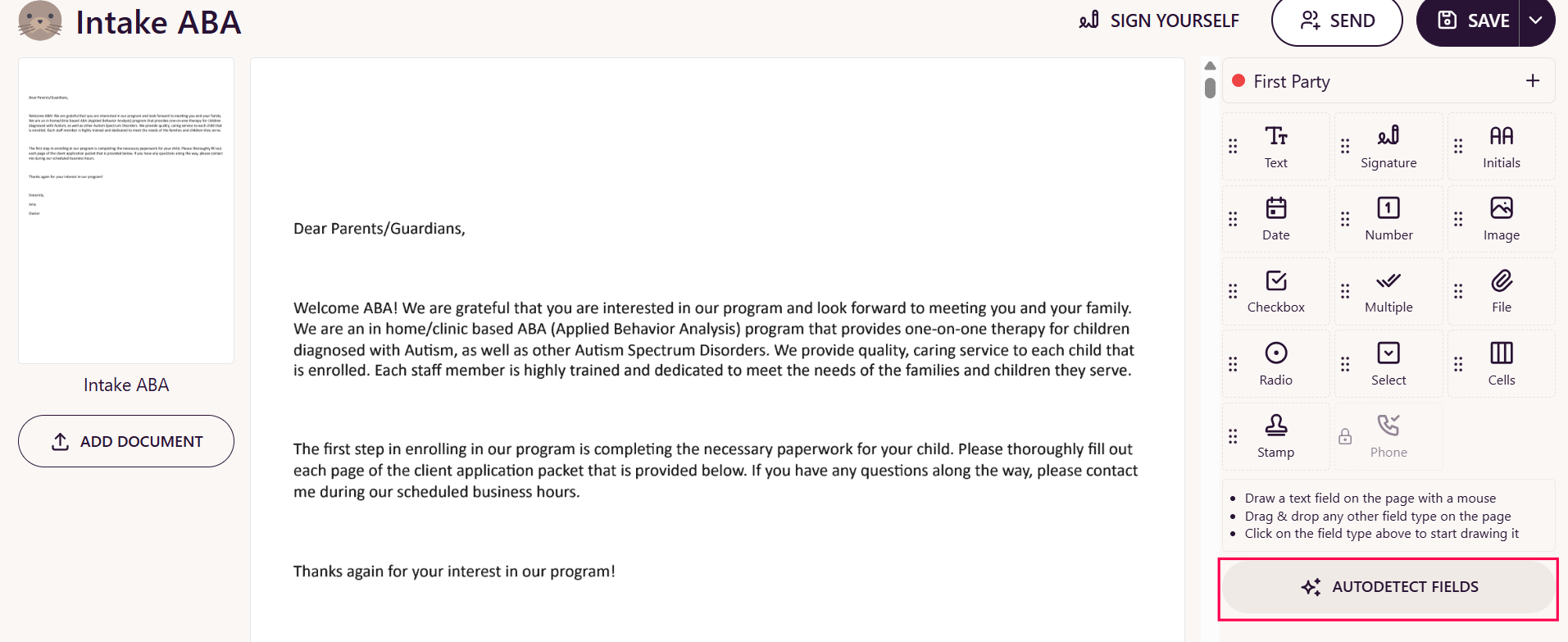
Select the Auto Detect Fields option.This feature automatically identifies and adds all fillable fields from the uploaded document.
Review the detected fields.
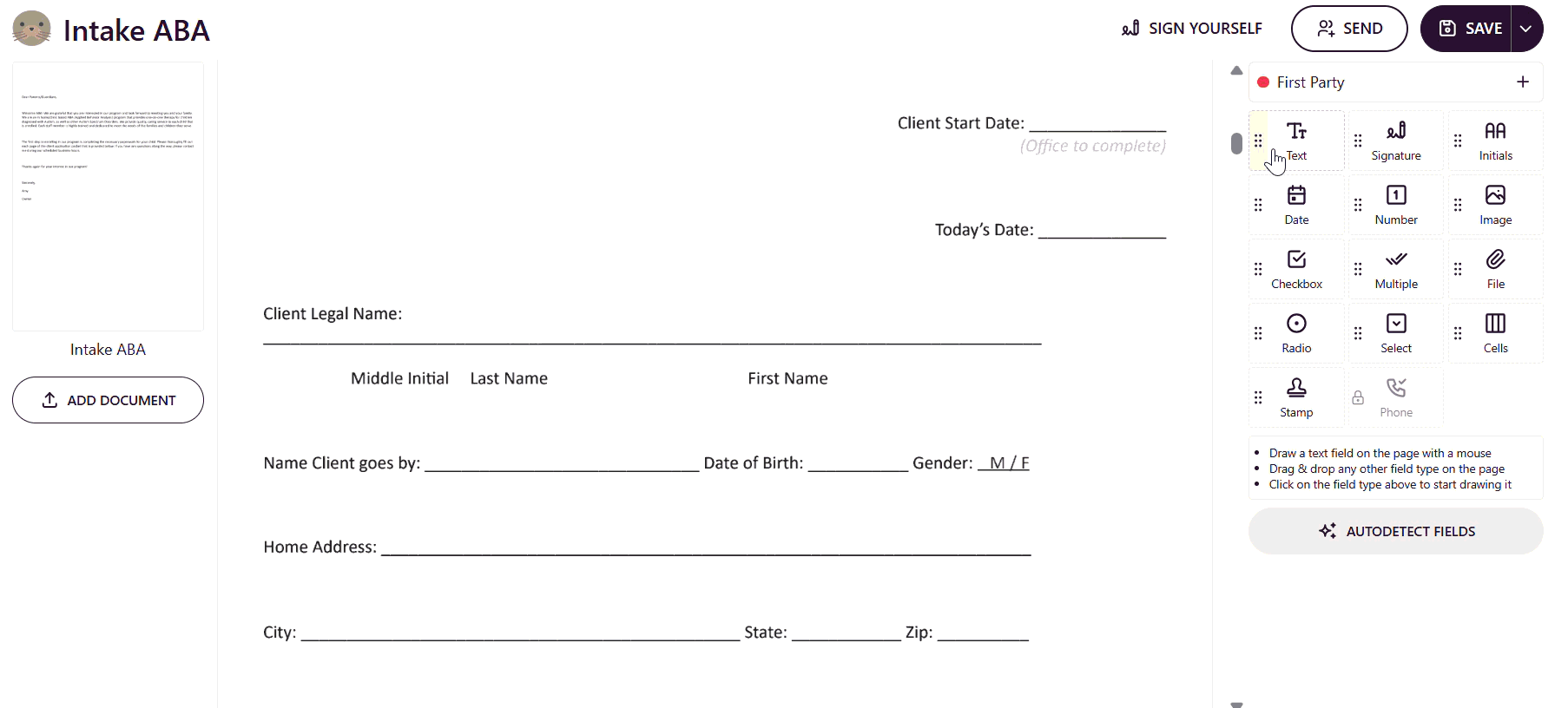
Make changes as needed or add additional fields using the field options available on the left panel.
Drag and drop fields to your desired location on the form.
Once all edits are complete, click Save to finalize the form.
Sending and Managing the Saved Form
After saving the form, you can:
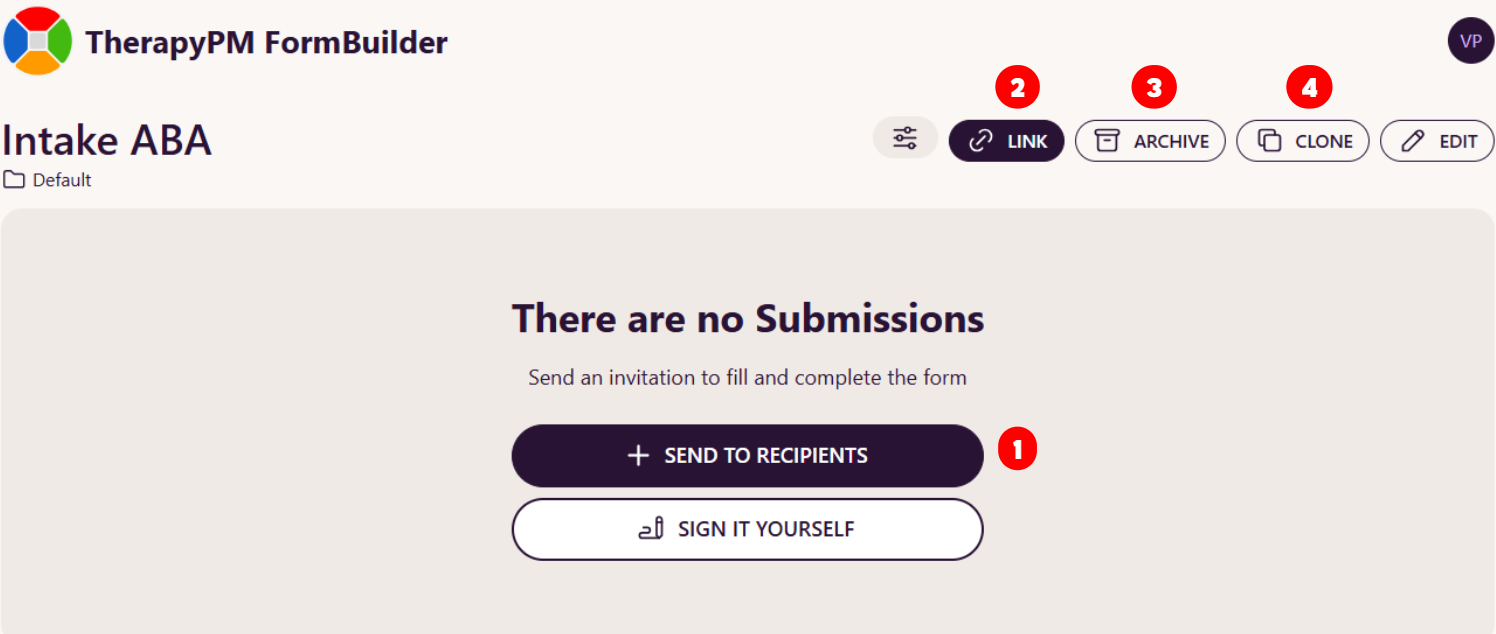
Use Send to Recipient to send the form directly to a recipient.
Copy the Form Link and share it manually.
Archive the form for later use.
Clone the form to create a duplicate and modify it as needed.
Assigning the Form Within TherapyPM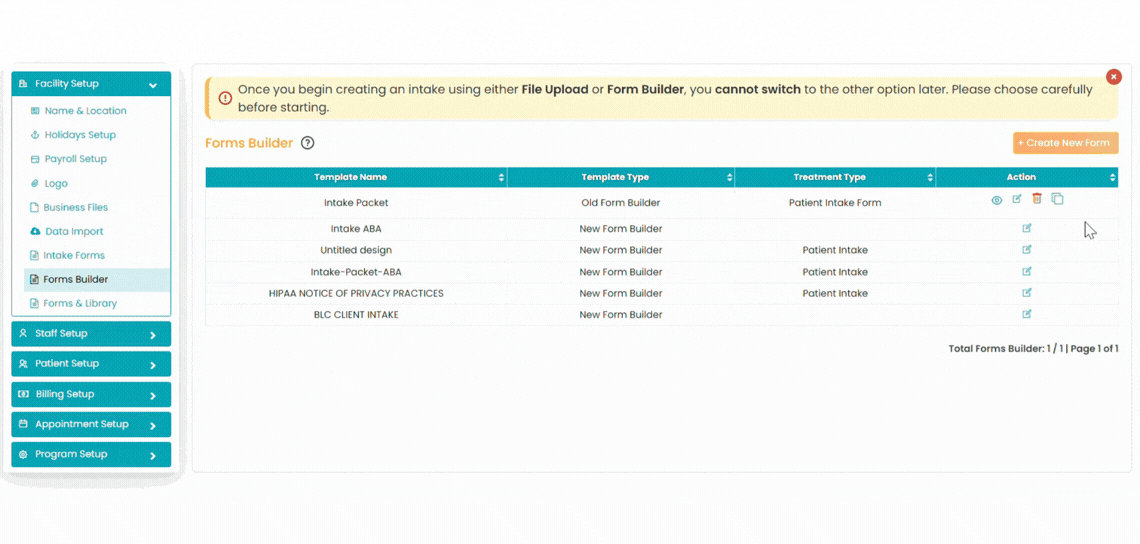
Navigate back to Settings -> Form Builder.
Locate the saved form.
Select the Edit option.
Assign how the form should be used in TherapyPM:
Session Note
Patient Intake
Staff Intake
Update your changes.
The form will now be available based on the assigned usage.