
This article explains how to use the built-in voice recorder and AI-powered summarization feature while adding session notes. These tools help you document sessions faster and convert spoken input into professional, summarized notes.
If you’d like to enable this feature for your practice, please reach out to our support team at support@therapypms.com
Adding a Session Note (List View):
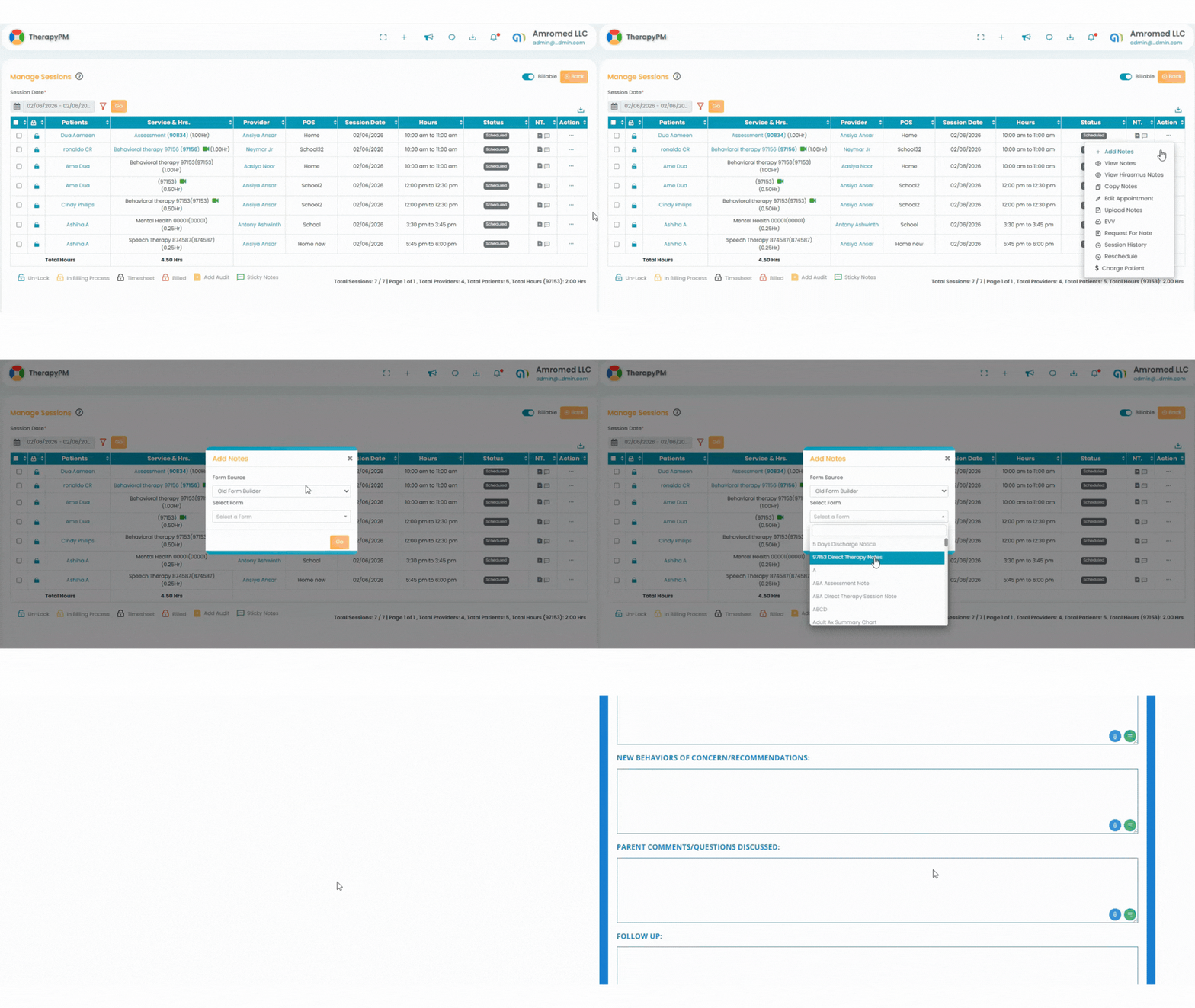
Follow the same steps you normally use to add a session note:
Navigate to Appointments > List View.
Use the available filters to locate the desired appointment.
In the Action column (left side), click the three horizontal dots (…).
Select Add Notes.
In the pop-up window, choose the appropriate session note form.
Add session notes for the selected appointment.
Adding a Session Note (Calendar View):
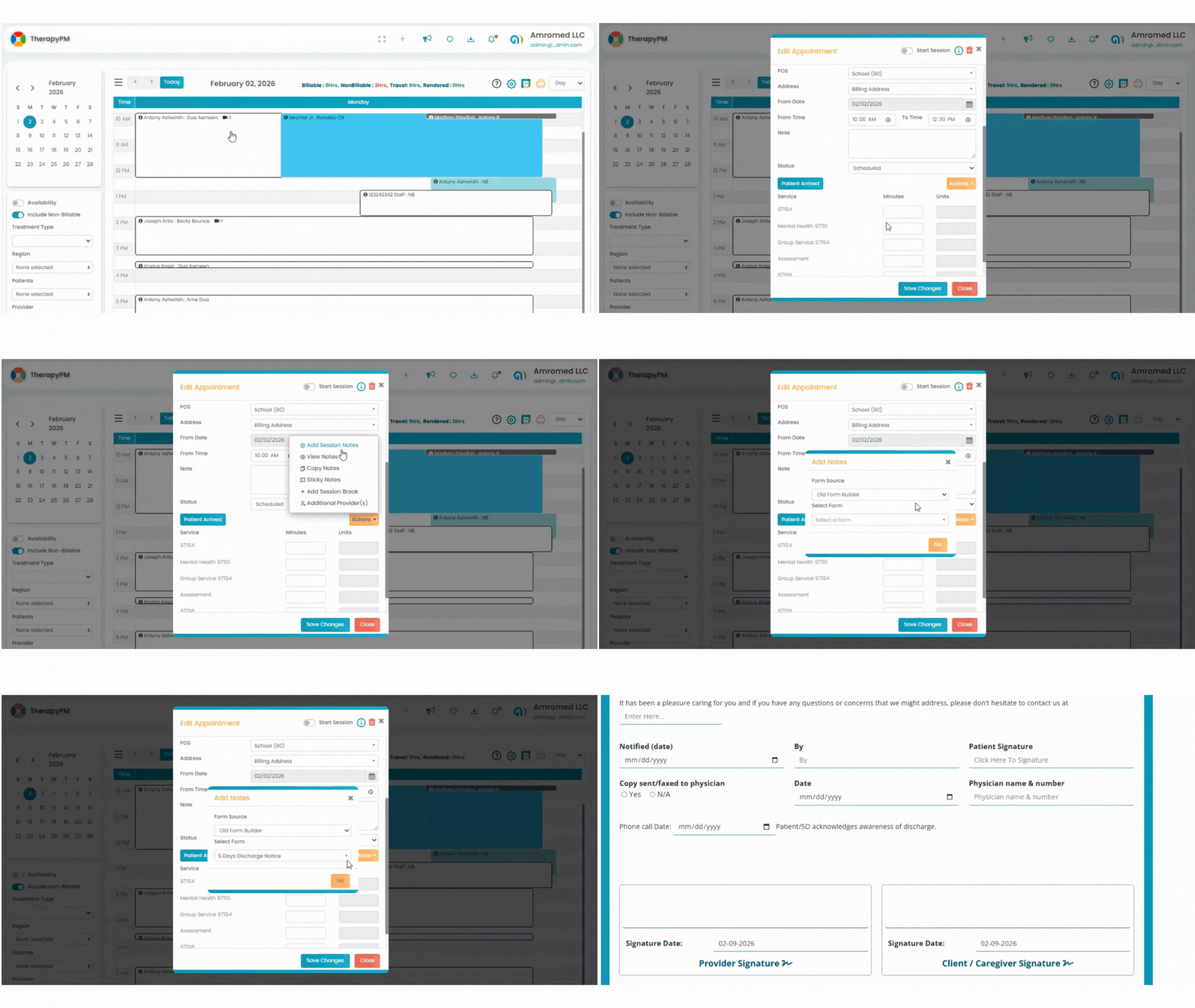
- Open the Calendar View.
- Click on the desired appointment block.
- In the Edit Appointment page, locate the Actions box.
- Select Add Session Notes.
- Choose the required form from the pop-up and proceed.
Utilize the Voice-to-Text feature to dictate notes.

- Any paragraph field within the form.
- Click the speaker (microphone) icon in the corner of the field.
- Enable the recorder and begin speaking your statement.
- The system will automatically transcribe your voice into text within the field.
Using AI to Summarize Your Notes:
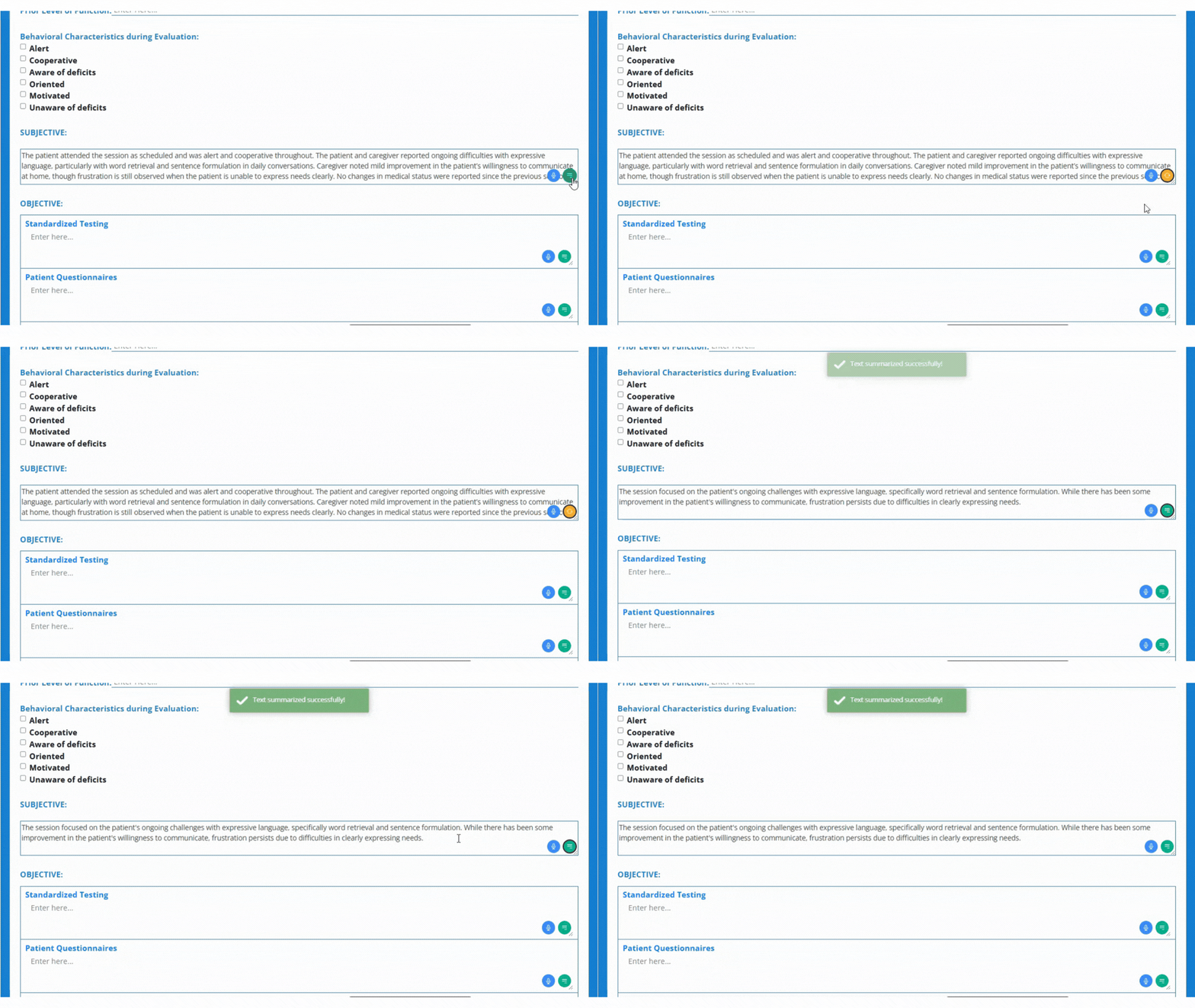
- Click the Summarize button within the field.
- The AI will analyze your transcribed text.
- A clear, professional summarized statement will be generated automatically.