
Linking Cancelled & Rescheduled Appointments
What Problem Does This Solve?
Previously, whenever the provider created and rescheduled a session, the original session would get cancelled, and a new session would be made. Users had to review the Session History manually to understand the relationship between canceled and rescheduled appointments.
What’s New?
This enhancement helps you easily track and review rescheduled workflows without manually checking Session History.How to Reschedule a Cancelled Appointment?
Navigate to Appointment > List View.
Click on the “...” icon under the Actions column.
Select “Reschedule”.
Create a new appointment for the cancelled session.
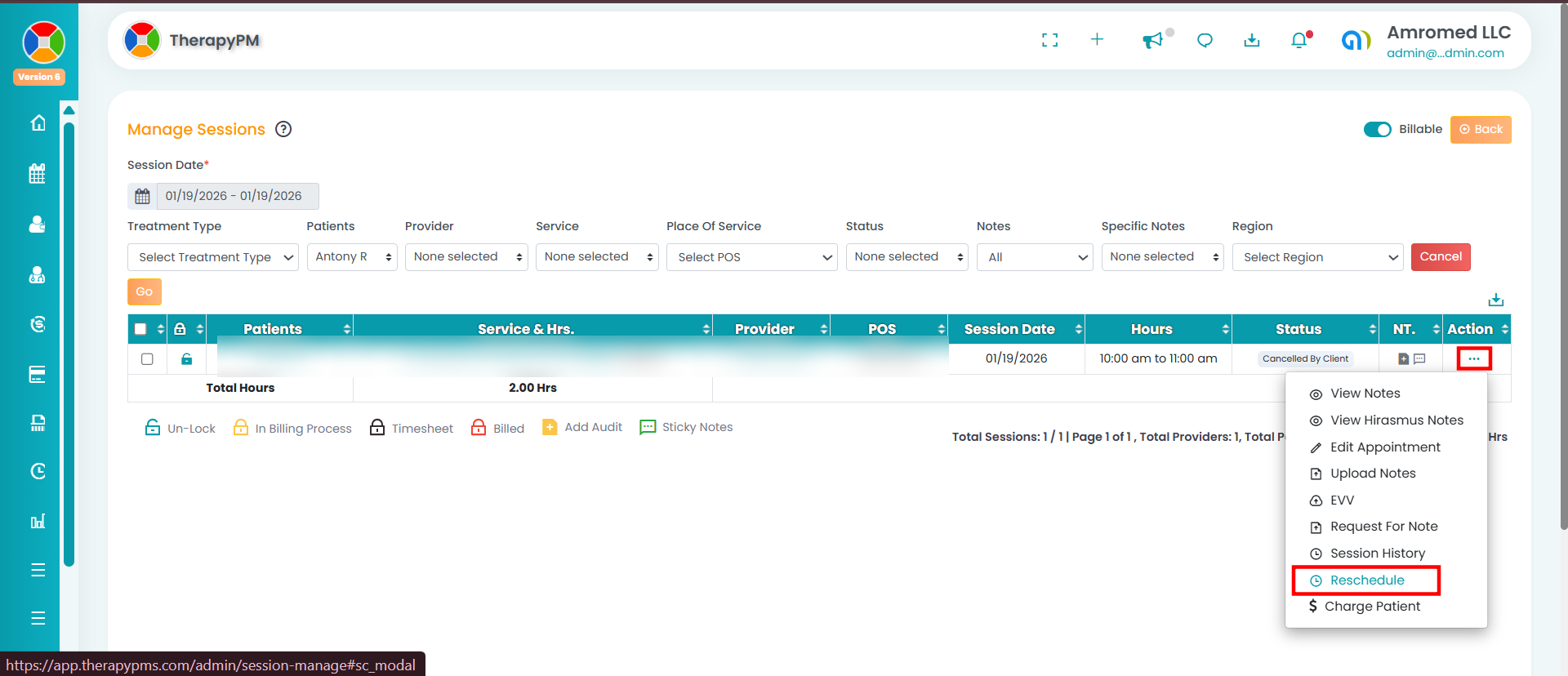
This newly created appointment is now directly linked to the original cancelled appointment.
How to View the “Rescheduled Session Info”?
Navigate to Appointment > List View.
Use the date range and corresponding filters to generate the table.
Under a cancelled appointment, click on the “...” under the Actions column.
Select “Rescheduled Session Info”.
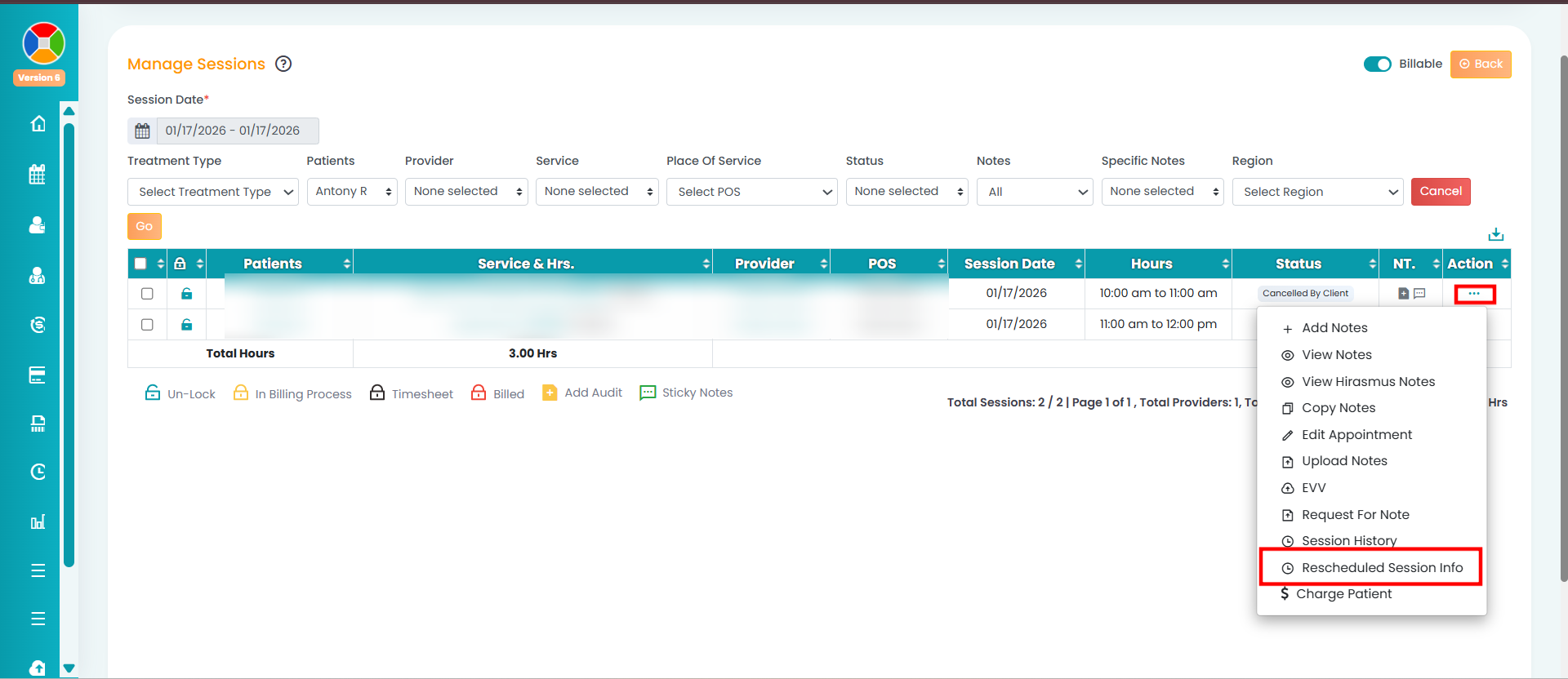
You will be able to view the Session Info of the rescheduled appointment.
How to View the “Main Session Info”?
Navigate to the Rescheduled Appointment in the List View.
Click on the “...” icon under the Actions column.
Select “Main Session Info".
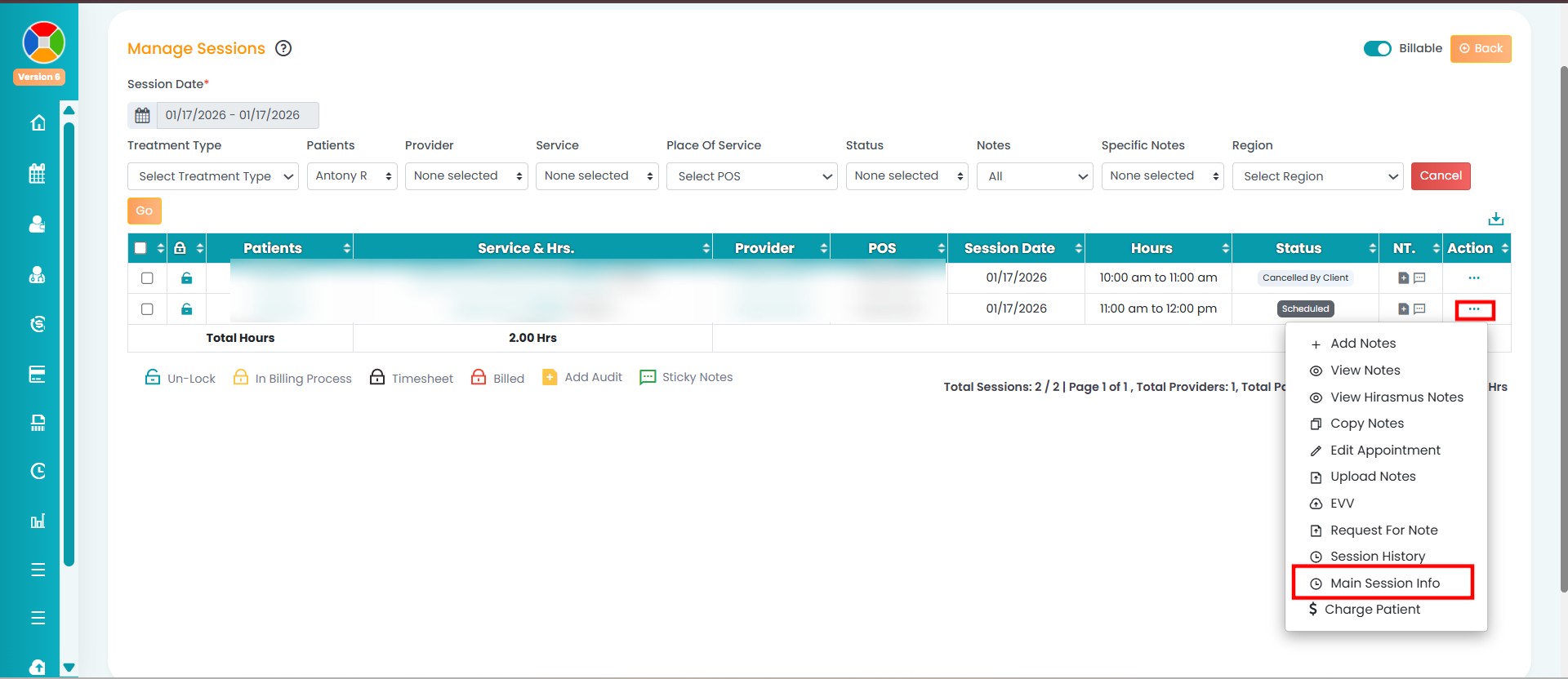
You will be able to view the Session Info of the original cancelled appointment.
______________________________________________________________________
Initial Brought Forward Enabled for “General” Calculation
Previously, the Initial Brought Forward field was editable only for the following calculation types:
Working Hours / Day
Working Hours / Hours
PTO Hours / Worked Hours
It is now enabled for the General calculation type as well, allowing carry-forward leave values to be entered without any restrictions.
How to Edit Initial Brought Forward Leave for the General Calculation Type?
Go to the Staff module and select the required staff member.
Select Leaves Tracking > Leaves Quota.
Ensure the Leave Type is configured with General as the calculation type under Settings.
Click on “Change” and update the Initial Brought Forward days as required, and save the changes.
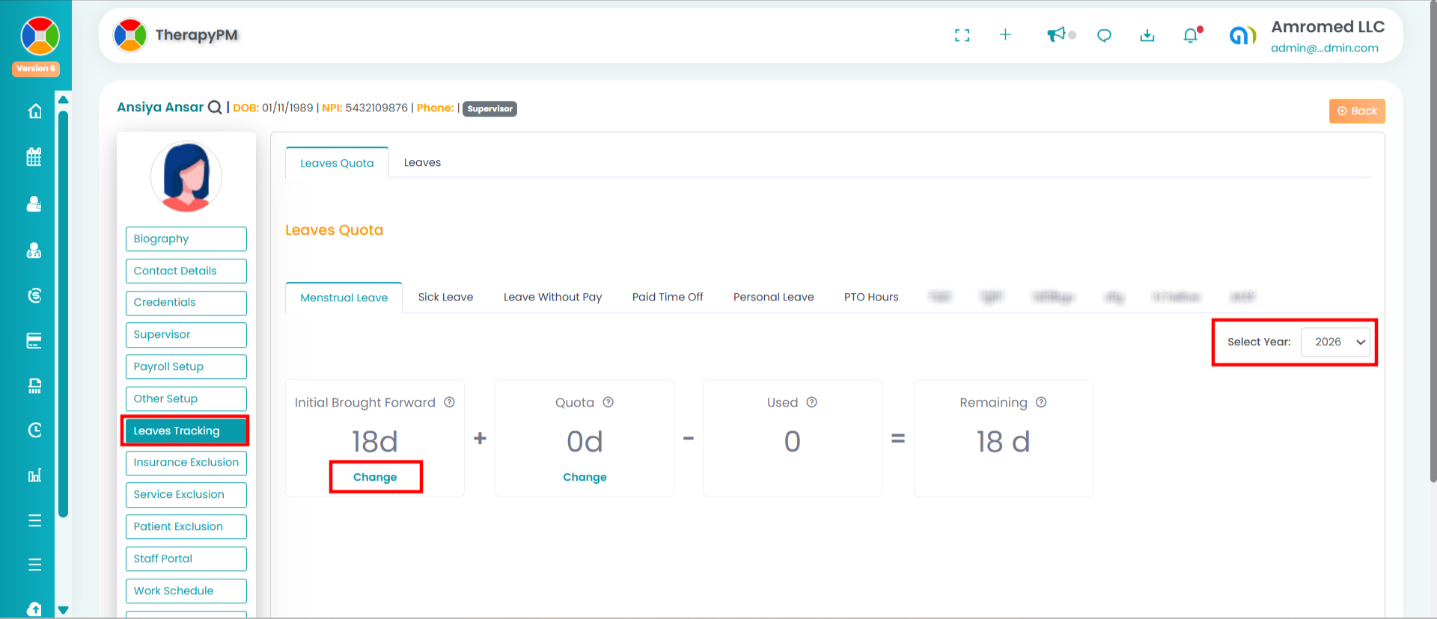
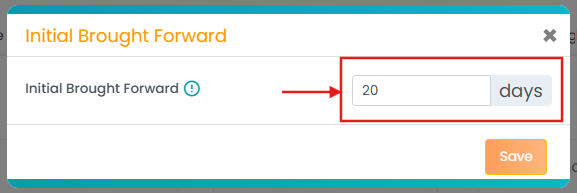
Note: You can update the Initial Brought Forward leave days only for the current year. Editing past years is not supported for the General calculation type.
_____________________________________________________________________
Year Selection Added to Leave Quota
A Year dropdown has been added to the Leave Quota screen, allowing users to view and manage leave balances for a specific year.
How to select the year in the Leave Quota?
Navigate to the Staff profile and select the staff from the list.
Select Leaves Tracking > Leaves Quota.
Choose the required year from the dropdown.
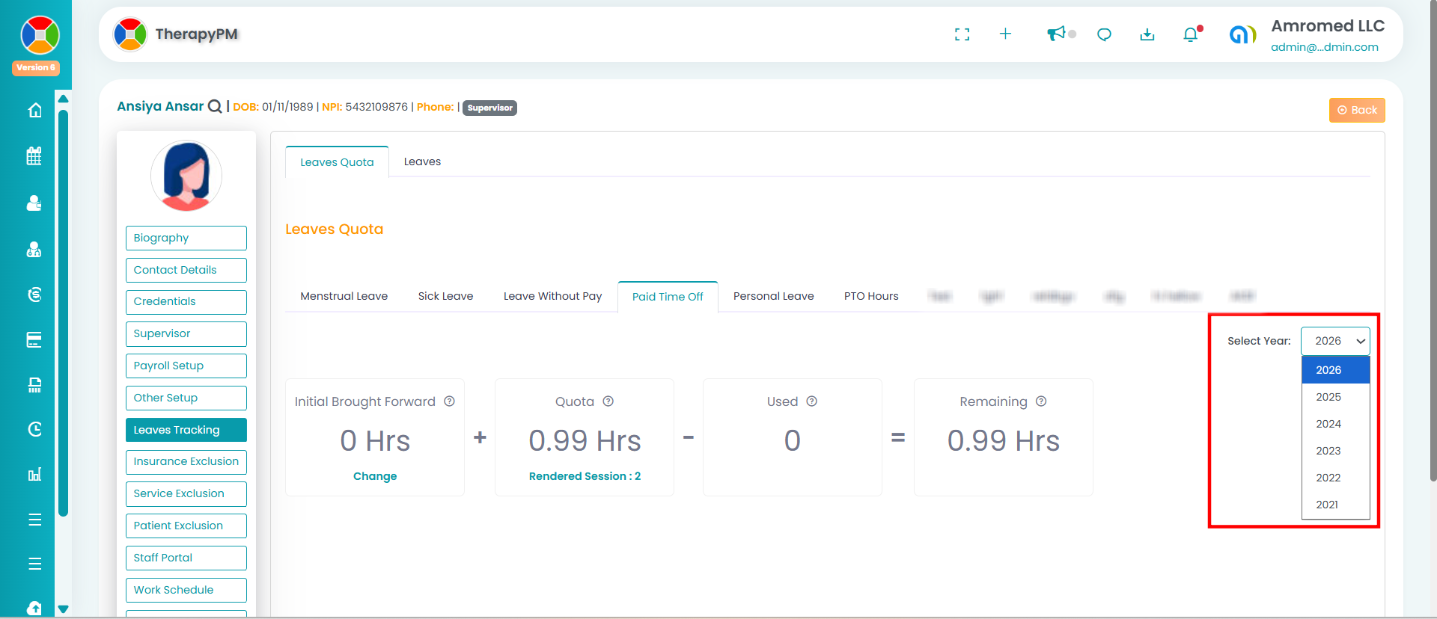
_______________________________________________________________________
Main CPT Code Filter Added to BCBA Billable KPI Report
Previously, the BCBA Billable KPI report did not allow a clear comparison between supervision CPT codes and their corresponding Main CPT codes, making percentage-based analysis difficult.
The Main CPT Code option is now available as a filter in the BCBA Billable KPI report. This allows users to view and compare:
Supervision CPT code hours
Total rendered hours under the corresponding Main CPT code
This makes it easier to calculate supervision percentages (for example, 97155 over 97153).
How to view the BCBA Billable KPI Report with the main CPT codes?
Navigate to the Dashboard.
Under the Staff report, select BCBA Billable KPI Report.
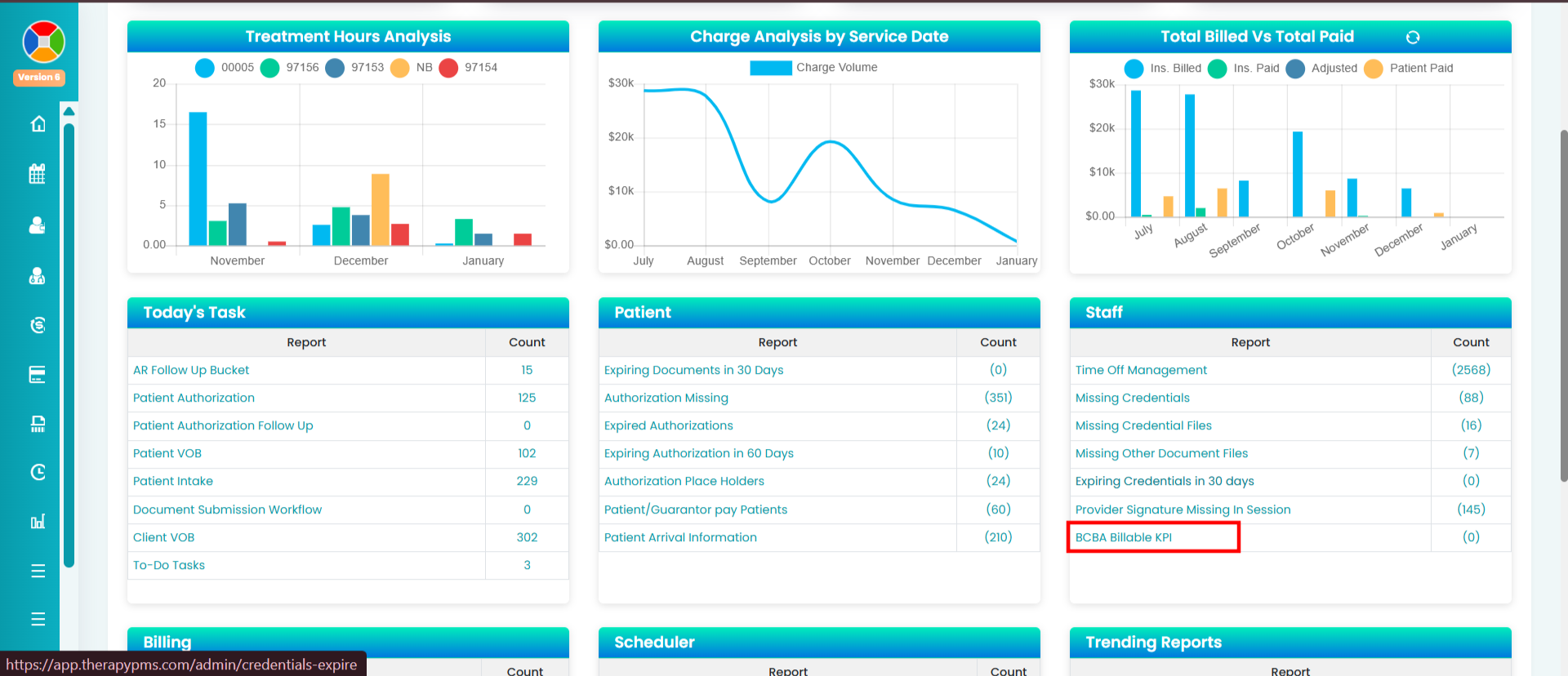
Use the filters - Date, Report By, CPT Code, and Main CPT code to generate the table.
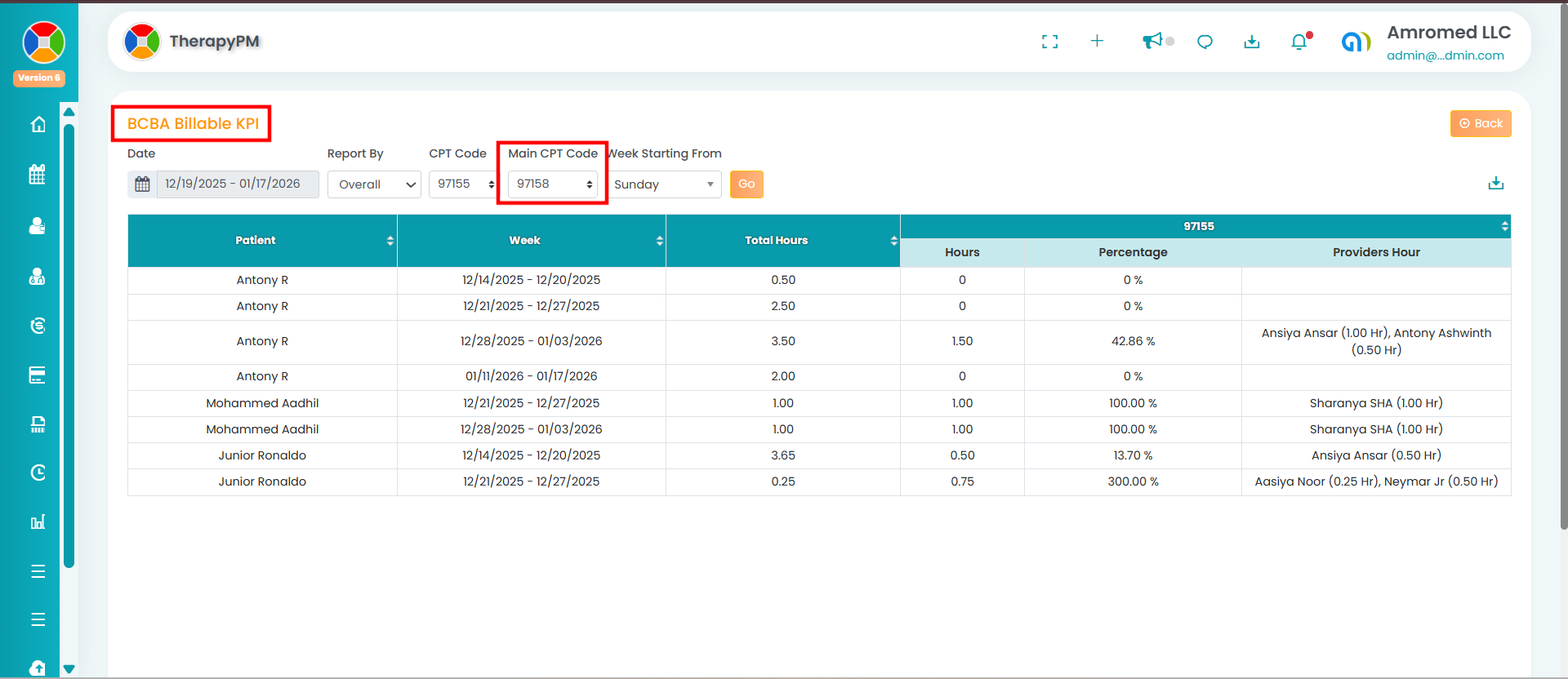
You will now see rendered hours and charges for both CPT and Main CPT codes in the report.