
Add Federal Holidays to Your Calendar
TherapyPM now allows practices to select which U.S. federal holidays they want to add to or remove from the Holiday Setup list. This update ensures that holiday-based logic works accurately for scheduling, billing, payroll, reporting, and other dependent workflows.
With this enhancement, practices can confidently plan their calendars for upcoming years without manual workarounds or the risk of missing holiday-related considerations.
How to Add/Remove Federal Holidays?
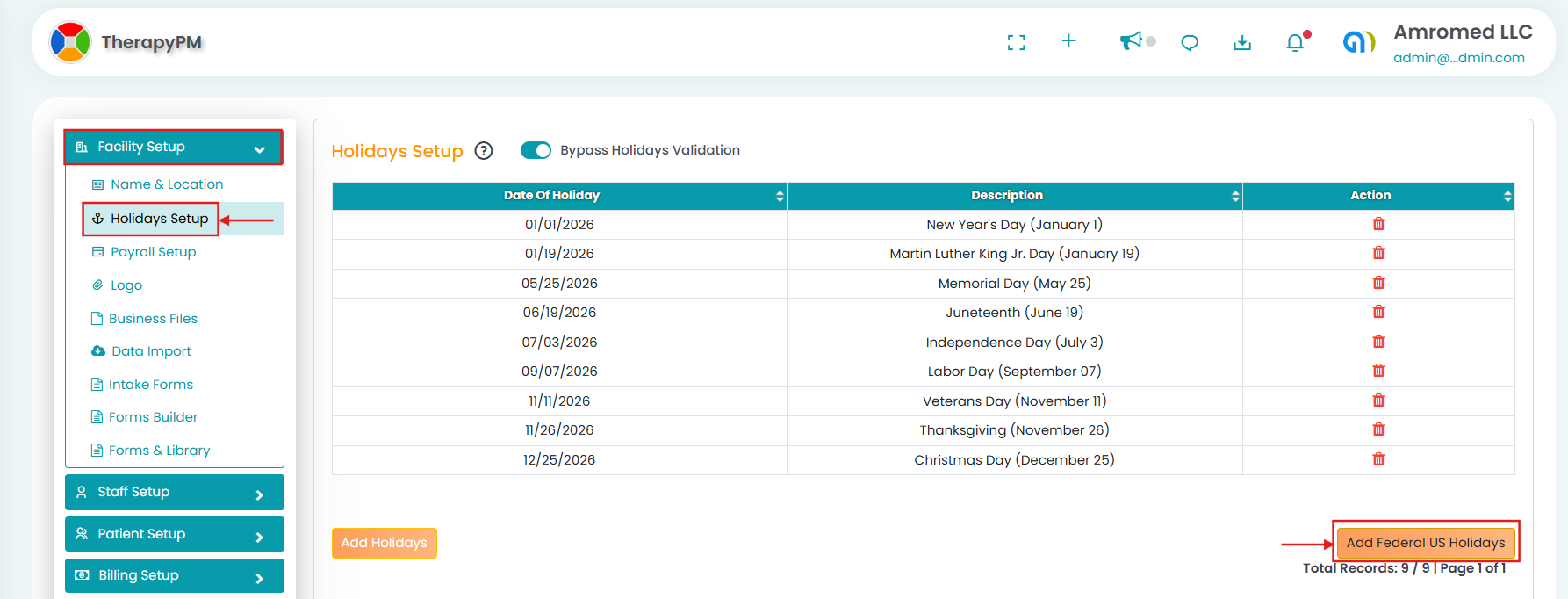
Navigate to Settings > Facility Setup > Holiday Setup.
Click “Add US Federal Holidays”.
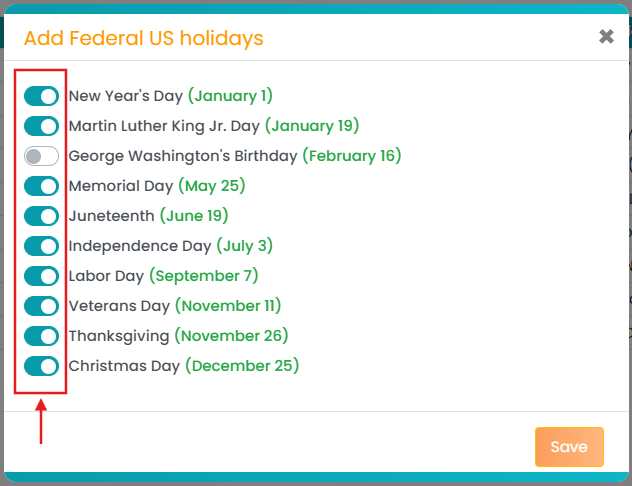
Toggle ON or OFF the preferred holidays.
The updated list will display all the US federal holidays that have been added or removed.
___________________________________________________________________________________________________________
Additional Filters in Time Off Management
TherapyPM has added two additional filters in the Time Off Management screen – Leave Type and Status. With this update, you can filter leaves more accurately, save time, and get the exact time-off records you are looking for.
How to Filter Specific Time-Off on TherapyPM?
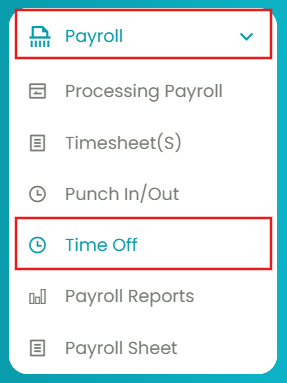
Navigate to Payroll > Time Off.
Select the filters – Date, Leave Type, and Status, and click Go.
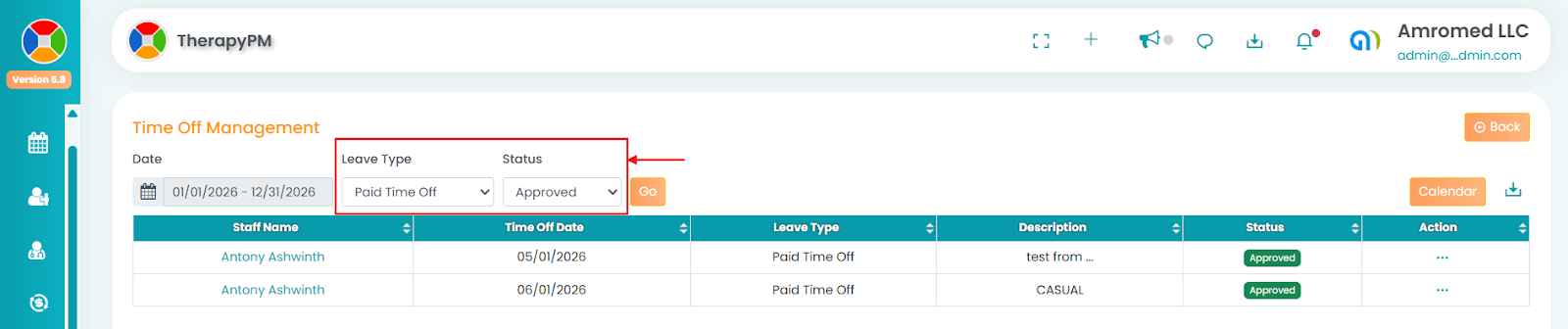
You can see the list generated based on specific results.
___________________________________________________________________________________________________________
24H Setup Toggle Added at a Payer Level
TherapyPM now offers a 24H Setup toggle for individual payers. When enabled, the system automatically populates the 24H field on the HCFA form for designated insurance types, reducing manual entry and supporting consistent claim submission.
How to Enable the 24H Setup on TherapyPM?
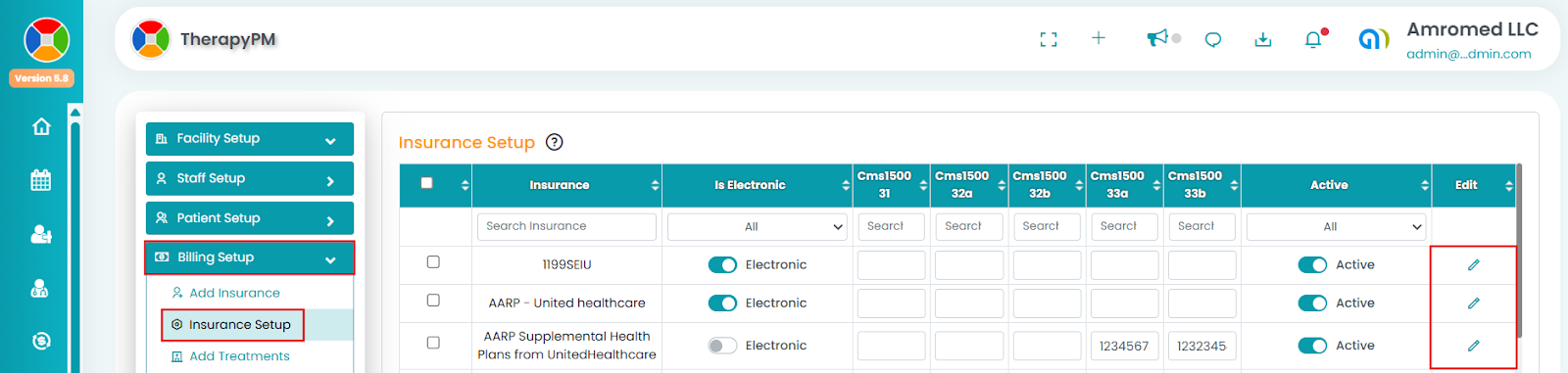
Navigate to Settings > Billing Setup > Insurance Setup.
Under the preferred insurance, click on the paper-pen icon (Edit column).
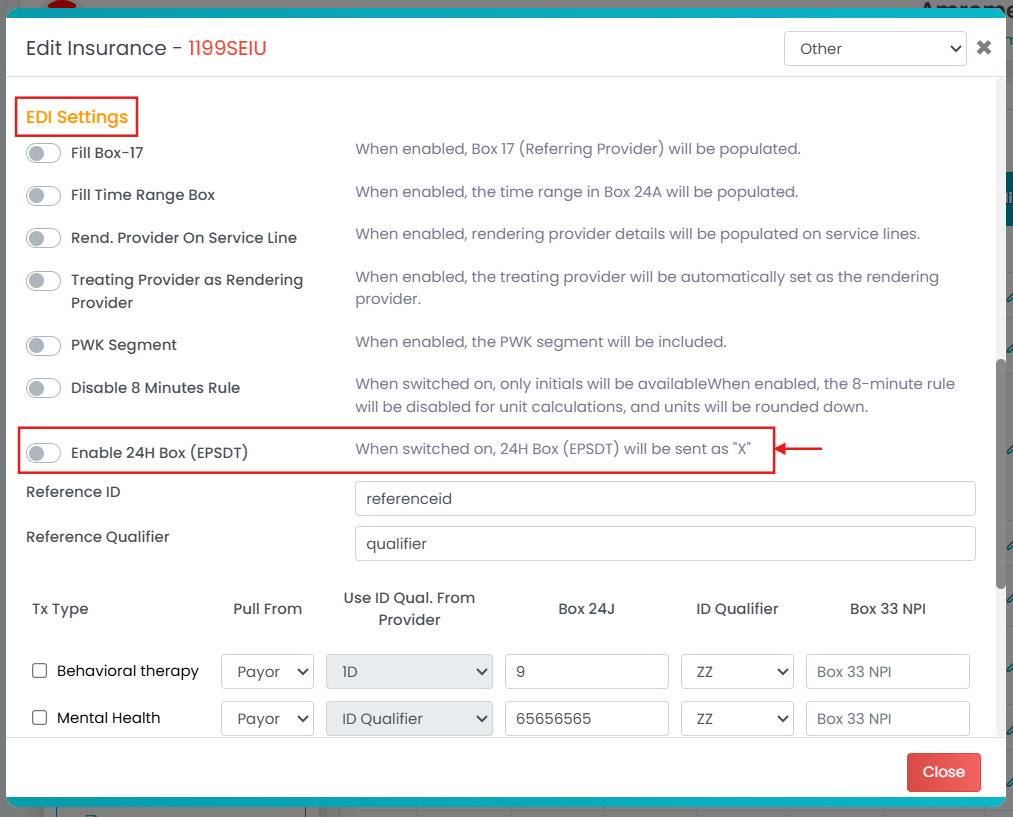
Under EDI Settings, toggle ON the “Enable 24H Box (EPSDT).
You can now see “X” in the EPSDT/Family Plan column on HCFA forms when this toggle is enabled for the selected insurance.
___________________________________________________________________________________________________________
Apply Discounts or Write-Offs at a Payer Level
TherapyPM has enhanced Patient Statements by adding the ability to remove costs or apply discounts/write-offs before finalizing the invoice.
Previously, users were able to add only extra charges to a statement. But now, you can apply discounts or adjustments to the invoices by entering a negative value with greater flexibility.
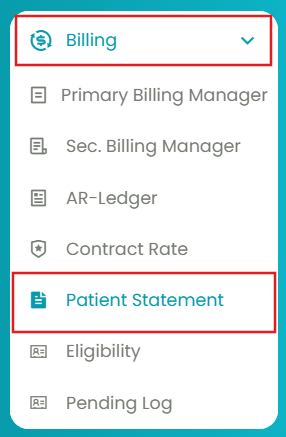
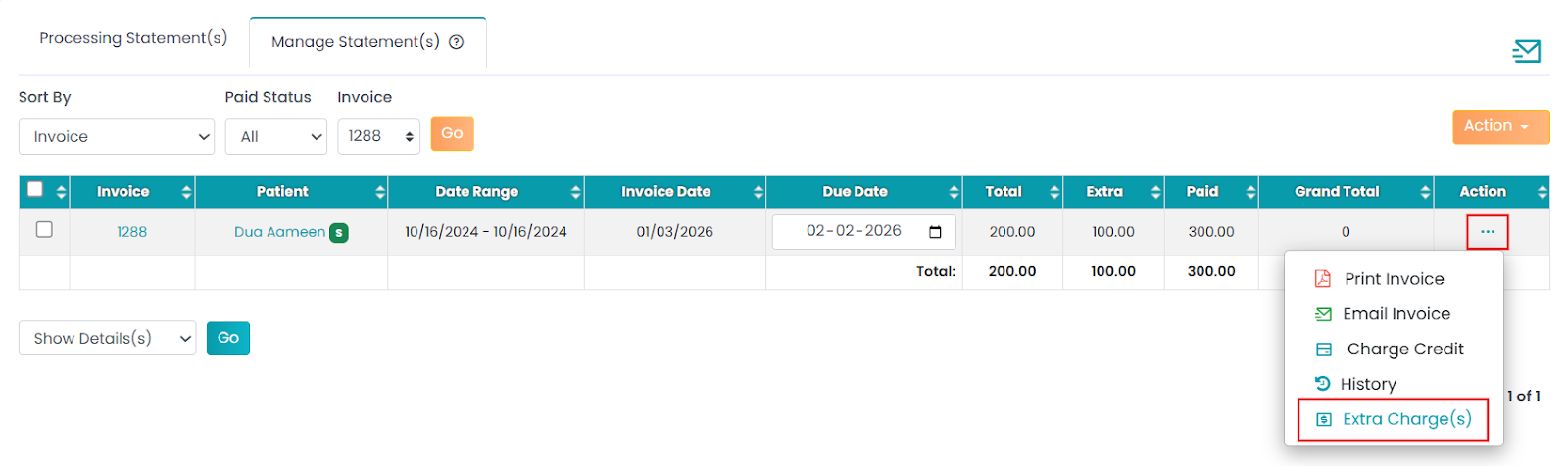
How to Apply a Discount or Write-Off on TherapyPM?Navigate to Billing > Patient Statement.
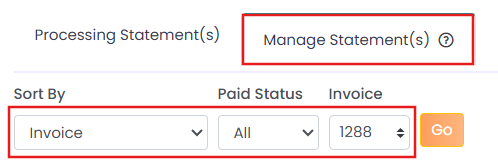
Click on Manage Statement (2) tab and select the invoice using the filters.
- Click on the three horizontal dots (…) under the Action column.
- Select Extra Charge(s).
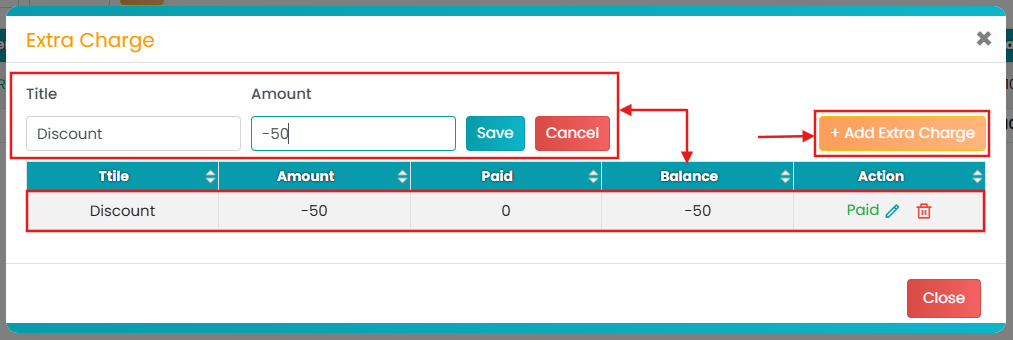
- Click on “+ Add Extra Charge”.
- Under Amount, add a negative value to provide a discount (e.g., -50.00)
- You can review the updated total here. Run or finalize the invoice.
_________________________________________________________________________________________________________
Permission Toggles Segregated in Access Settings Tab
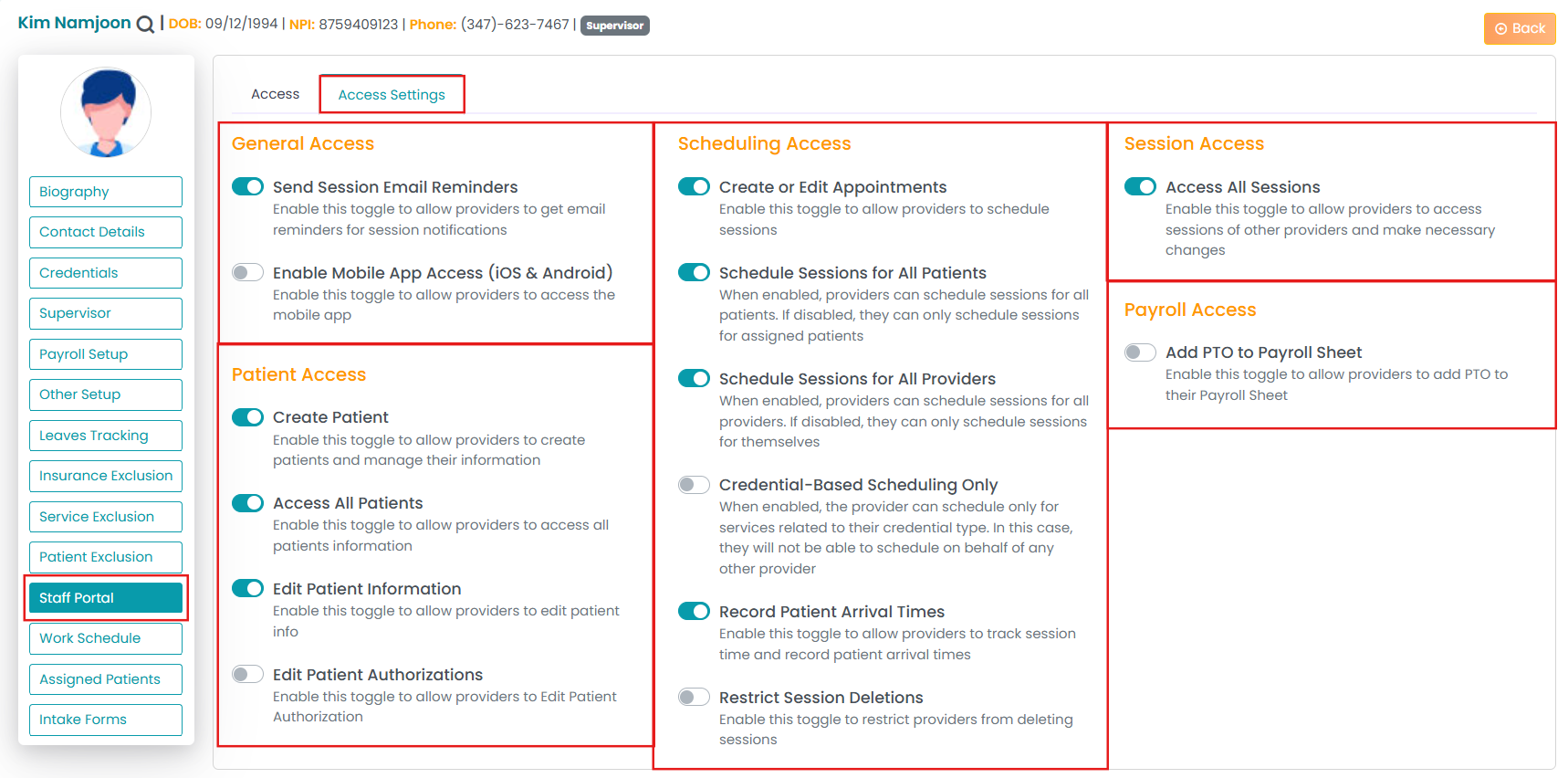
TherapyPM has updated the user interface for the Access Settings under the Staff Portal module. Permission toggles are now segregated under clearly labeled categories:
General Access
Scheduling Access
Session Access
Payroll Access
Provider Access
The segregation can help avoid confusion about which toggle goes where, especially with the Scheduling and Session Access. They are two different categories with independent behaviors. Providers often make mistakes here, for instance, seeing other providers’ schedules in their own schedules, and so on.
However, admins can now grant/deny scheduling permissions to determine which patients a provider can book. Session permissions control which clinical records can be viewed or edited.
How to Access the Toggles?
Navigate to the Staff module (scroll down or use a search bar).
Go to the Staff Portal > Access Settings (2) tab.
You can see the different access categories here.
___________________________________________________________________________________________________________
Updates to AR Follow-Up Bucket Logic
We’ve refined the logic used in the AR Follow-Up Bucket to ensure it displays only relevant and actionable claims. These updates help teams focus on what truly needs follow-up and reduce unnecessary clutter on the dashboard.
What’s Changed?
Zero-balance claims are no longer shown: Claims with a $0 balance will not appear in the AR Follow-Up Bucket.
Claims without AR notes appear after 15 days: If a claim does not have any AR notes, it will automatically move into the Follow-Up Bucket 15 days after submission.
Follow-up date–based visibility: Claims with a follow-up note will appear in the bucket only when the follow-up date is today or earlier.
Notes without a follow-up date are excluded: Claims that have notes but no follow-up date will not be included in the Follow-Up Bucket.
Provider Escalation removed from Dashboard: The Provider Escalation section has been removed from the dashboard to streamline the AR follow-up experience.
_________________________________________________________________________________________________________
Enhanced Payroll Rate Setup with Date Range Support
You can now configure multiple payroll rates for a single staff member based on services, with added support for date ranges.
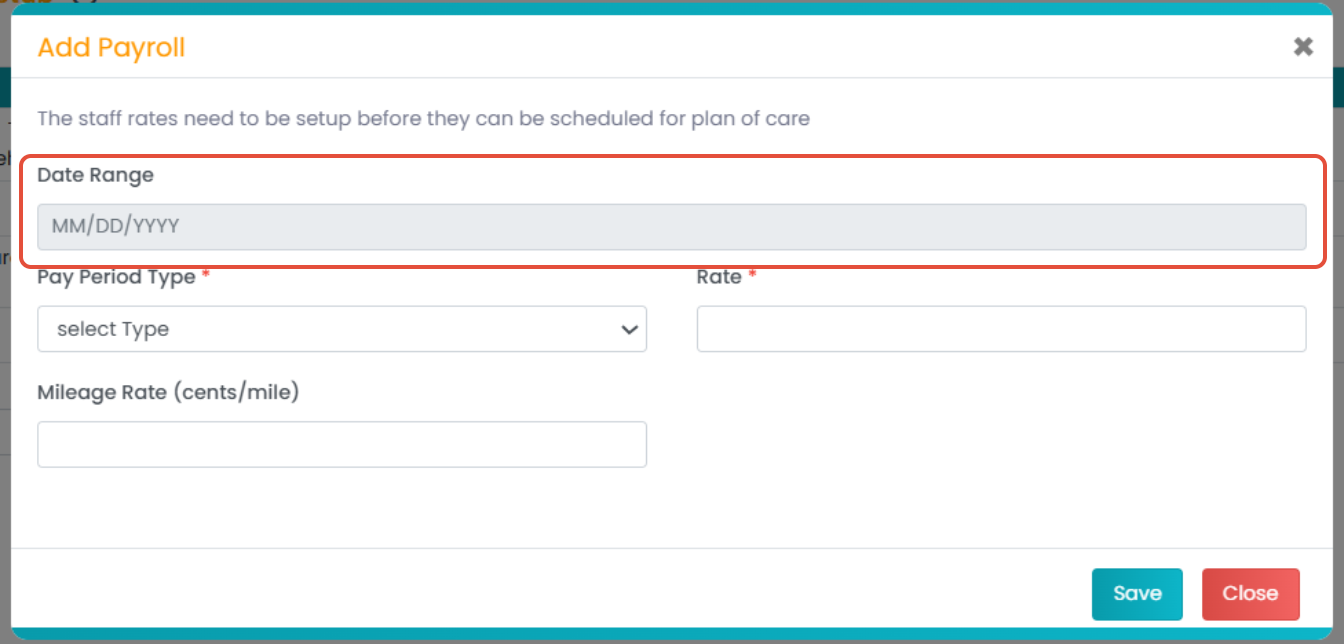
Navigate to the Staff > select any staff > Payroll setup
Go to the Add Payroll and then add payroll rates for a staff member based on services.