
Automatically Send Emails Based on Lead Progress
Automation rules allow the CRM to send emails without any manual effort as leads move through intake stages. This ensures families receive the right information at the right time keeping progress smooth and on track.
With automation, your team spends less time chasing paperwork and more time helping clients.
How to Create an Automation Rule
1. Go to Settings → Rules
2️. Click + New Automation

3️. Configure your rule:
Template
Select the email template that will be sent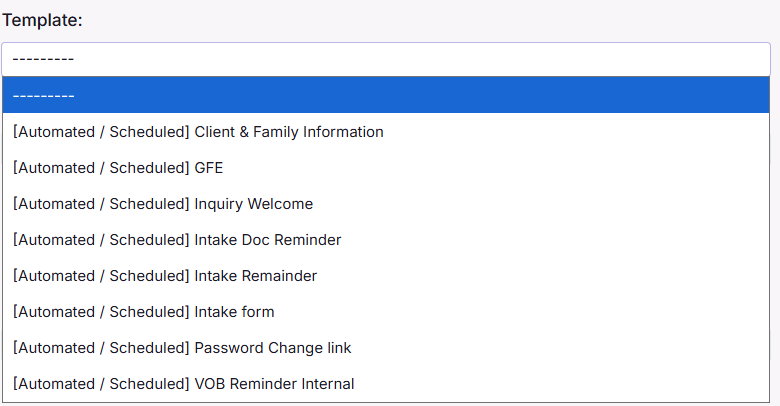
Stage
Choose the lead status that should trigger the email
(Example: Docs Pending, VOB Pending, AUTH, etc.)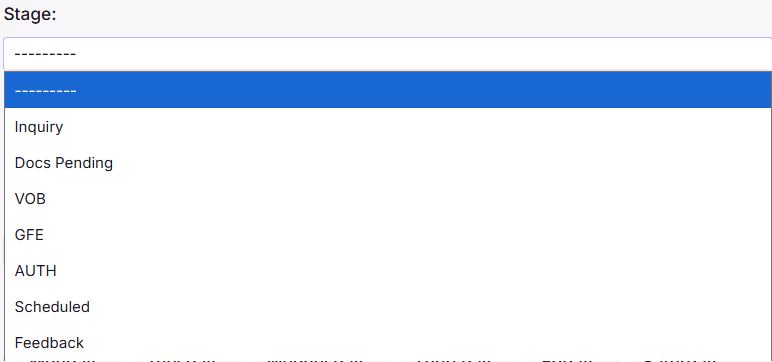
Schedule
Decide when the email should be delivered:
→ Immediately when the stage changes
or
→ At a specific time and/or repeated schedule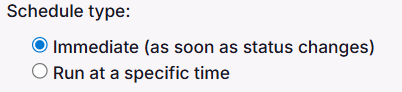
Days of Week
Useful for reminders — choose which days messages should go out
(Mon–Fri is common)
Send Mode
Choose how document links are shared:
• All links in one email — single message with everything included
• One email per document — helpful for step-by-step completion
Click Save and your automation becomes active immediately.
Best Practice Tips
1. Set at least one automation for every major lead stage
2. Test new rules using your own email first
3. Keep subject lines short and clear for mobile users
4. Avoid sending too many reminders in one day
5. Review rules monthly to adjust timing or messaging
Automation ensures no lead falls behind due to missed outreach.