
The CRM makes it easy to create new leads and update their information as they progress through the intake process. Follow the steps below to make sure every new inquiry is entered correctly and kept up-to-date.
Creating a New Lead
You can create a lead from any page in the CRM.
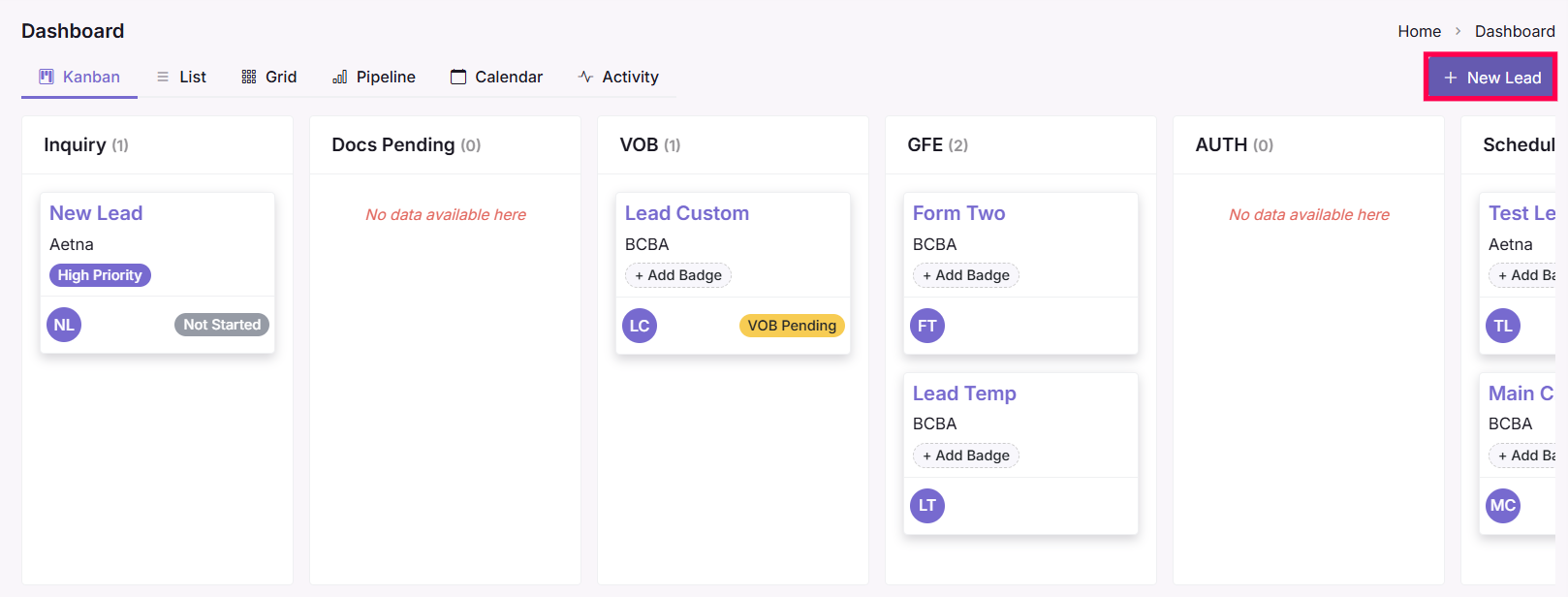
1. Click the + New Lead button
2️. Fill in the Lead Information fields:
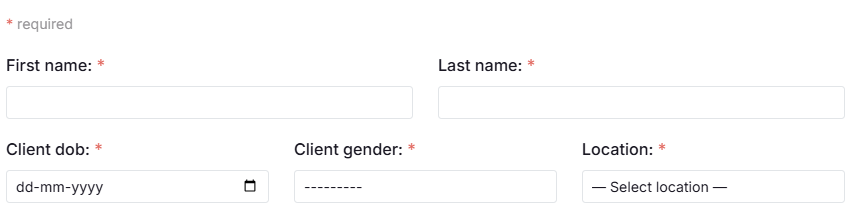
Client Information
First Name & Last Name (required)
Date of Birth (required)
Gender (required)
Location / Place of Service (choose from your practice locations)
Parent / Guardian Information
Parent First & Last Name

Contact Information
Phone Number (required)
Phone Type (Mobile / Home / Work)
Email (required)
Email Type (Personal / Work / Other)

Additional Information
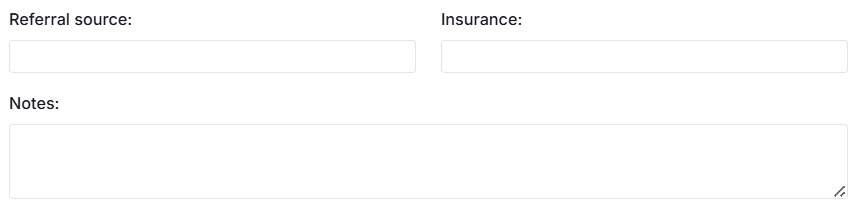
Referral Source (How they heard about you)
Insurance Provider
Internal Notes (anything your team should know)
Required Intake Forms
Select all intake documents that must be completed before services can begin
These are automatically pulled from your TherapyPMS configuration

Click Create Lead to save

The lead will now appear in the Inquiry stage of your Kanban board and will begin their automated intake workflow.
Editing Lead Information:
Lead details can be updated any time along the journey.
1️. Click on the lead card in the Kanban board
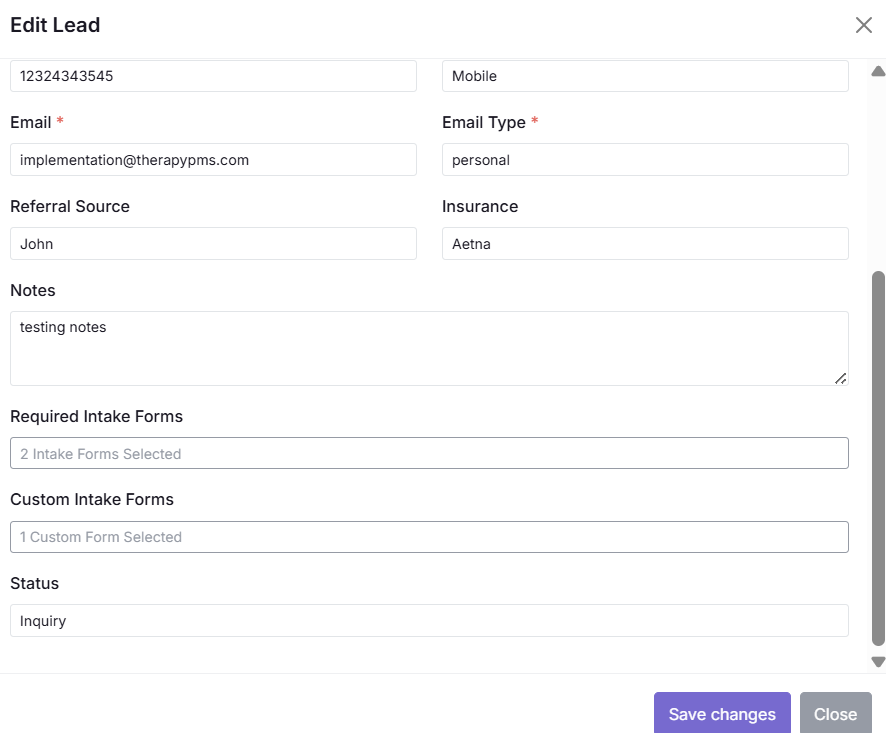
2️. A popup window will open with all lead details
3️. Make any necessary changes
4️. Save to update
From the dashboard, you can also:
Update a lead’s status by simply dragging the card into the next stage column
Add or remove intake forms (helpful if documents change based on payer or age)
Edit contact information if a family updates their phone or email
Adjust internal notes for communication clarity across teams