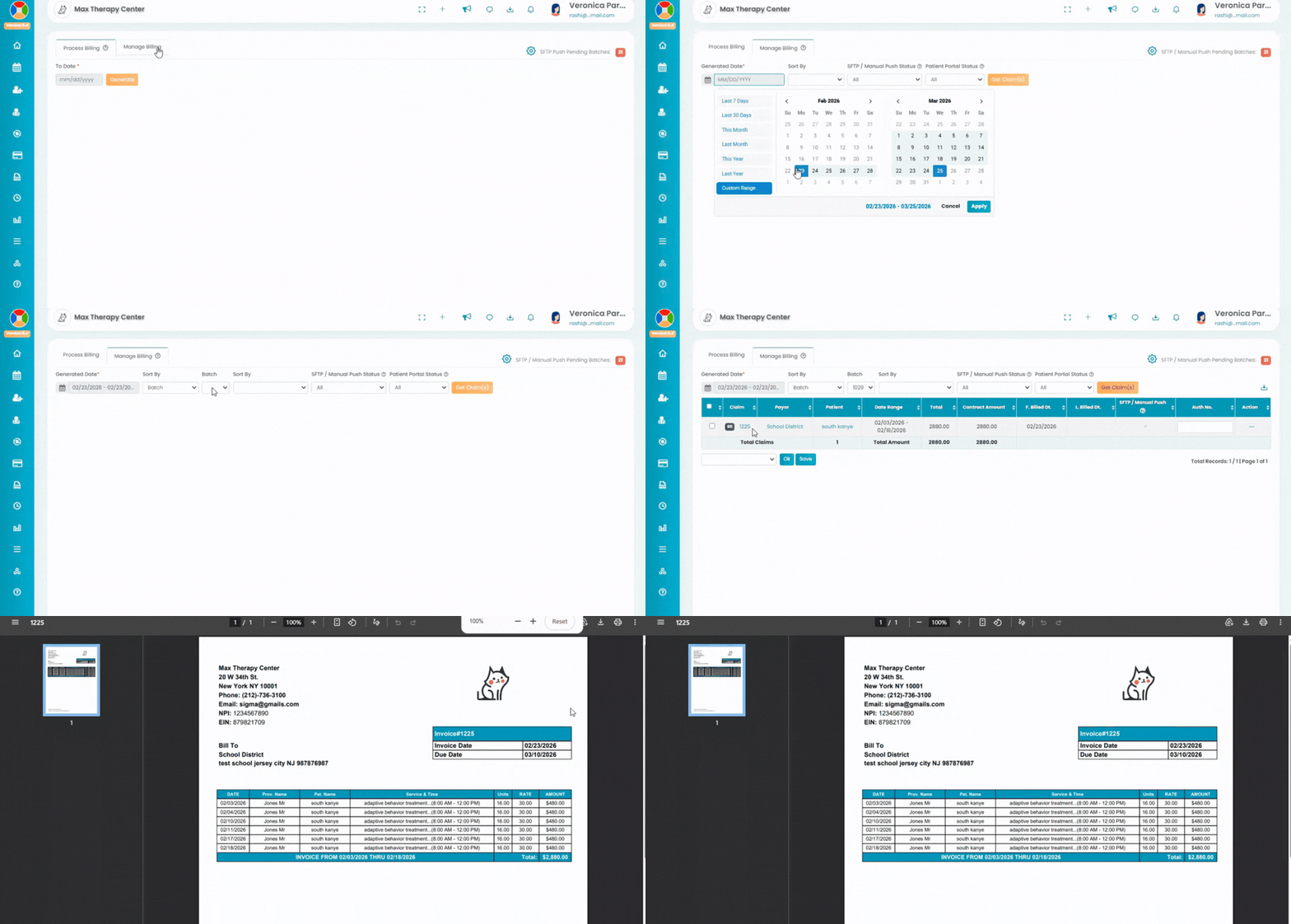
Overview:
This Article explains how to manage invoices associated with School District payers within TherapyPM. By following these steps, you can create accurate invoices.
Step 1: Create a School District Payer
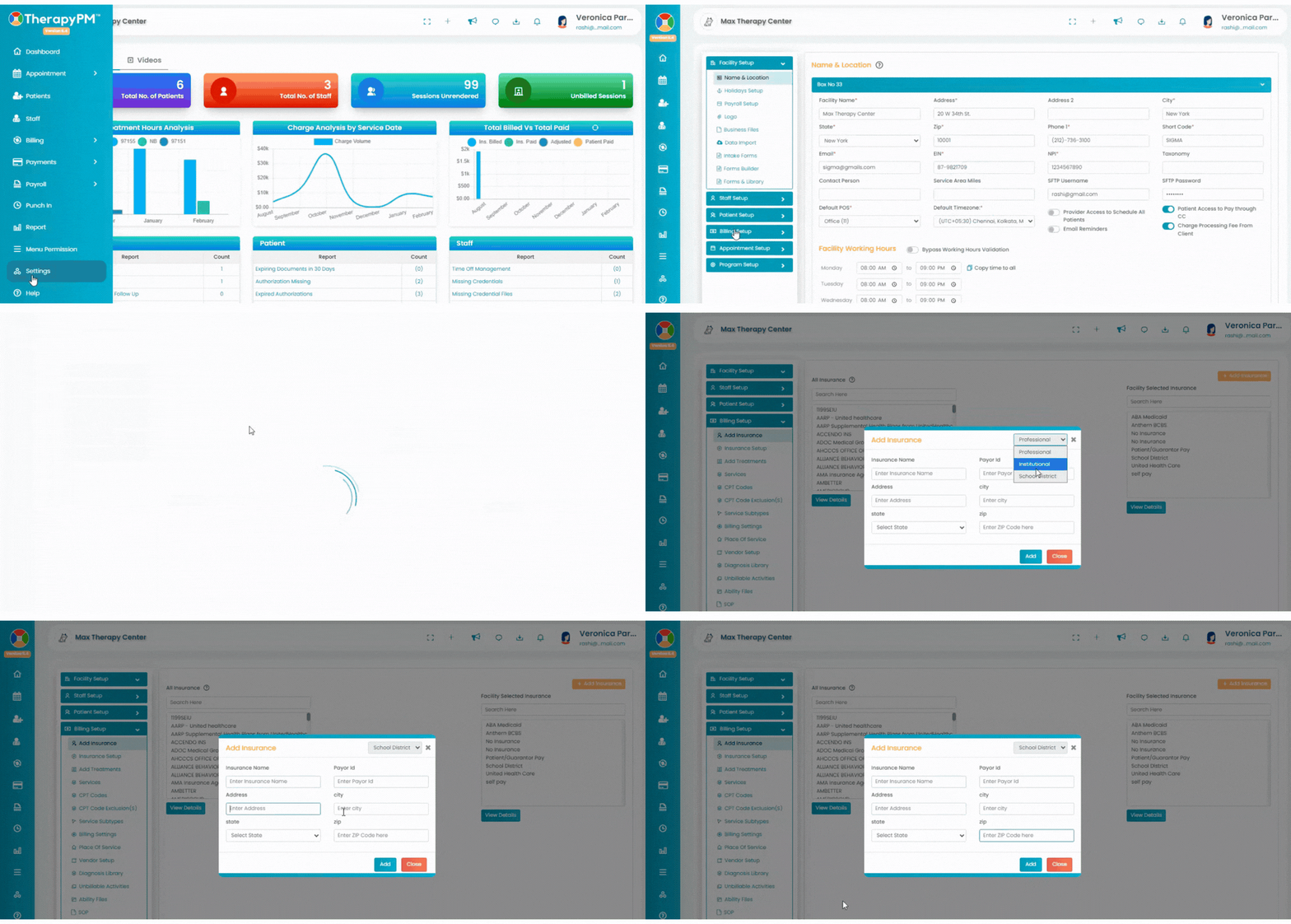
- Navigate to Settings under Billing Setup and select Add Insurance.
- On the Add Insurance page, click the Add Insurance button.
- In the pop-up window, go to the top-right corner and select School District as the payer type from the dropdown menu.
- Fill up all the relevant details and save.
- The school payer is ready,
Step 2: Patient demo and scheduling
- Set up the client information to link it to this payer by selecting the School you just created and assigning it as the insurance.
- Once assigned, you can begin scheduling sessions. If the sessions are recurring (for example, every weekday), you can schedule them together as a recurring series.
- After each session is completed, make sure to update the appointment status to Rendered.
Step 3: Billing Process
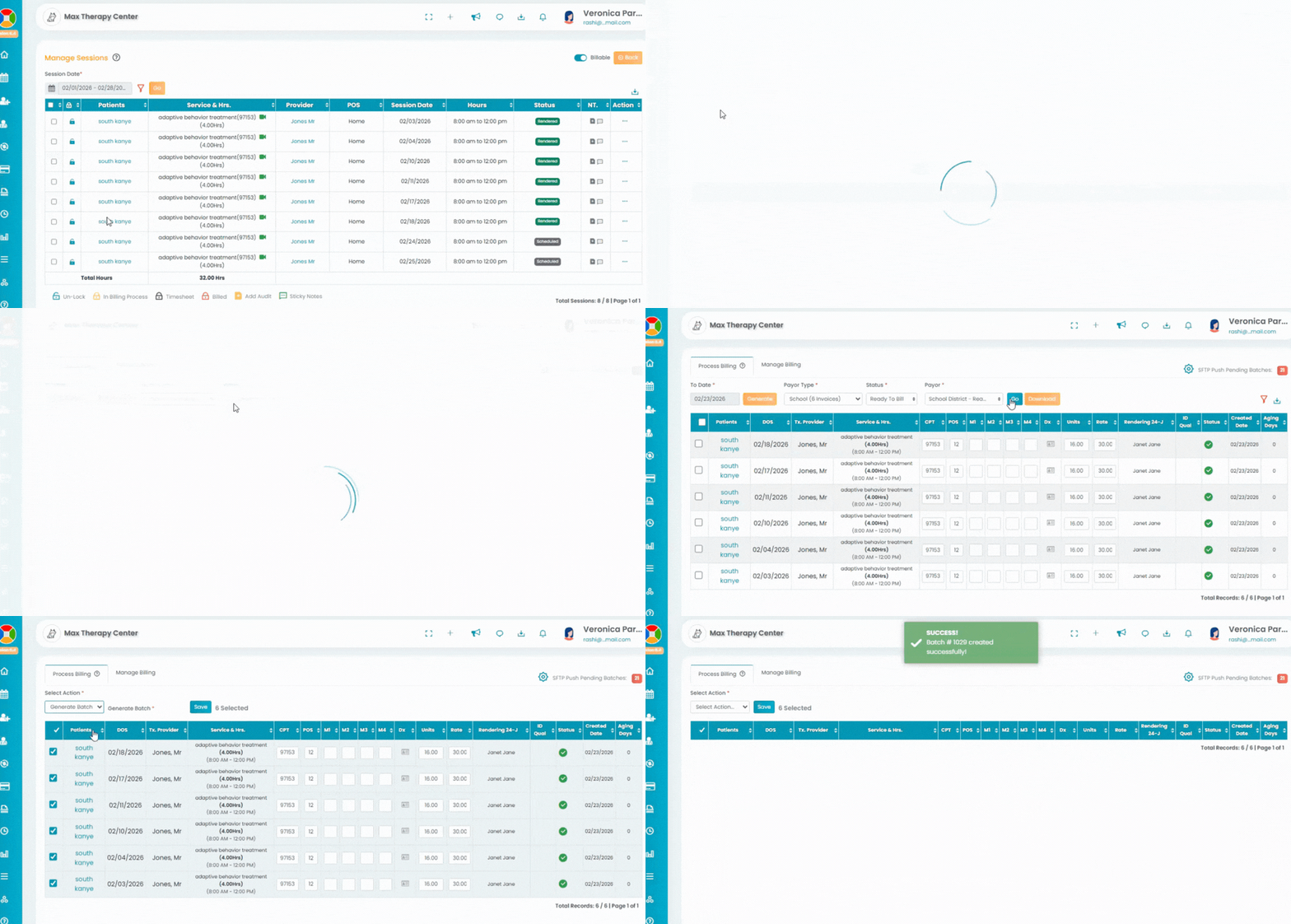
- Navigate to Billing Module > Primary Billing Manager.
- In the Process Billing tab, generate all rendered sessions by selecting the appropriate To Date.
- A Payor Type dropdown field will appear choose School/District from the available options.
- Next, sort the results and select the appropriate School District payer under the Payor option, then click Go to generate the table.
Step 4: Manage Invoices