
In the Patients' list, you can view everyone enrolled in your practice. Over time, however, the list can become cluttered, especially with inactive patients, making it harder to focus on the clients you're actively serving.
This article explains how to move a patient to the archive and hide them from the clinic’s patient list.
Step 1: Create an Archive Status in the Settings module
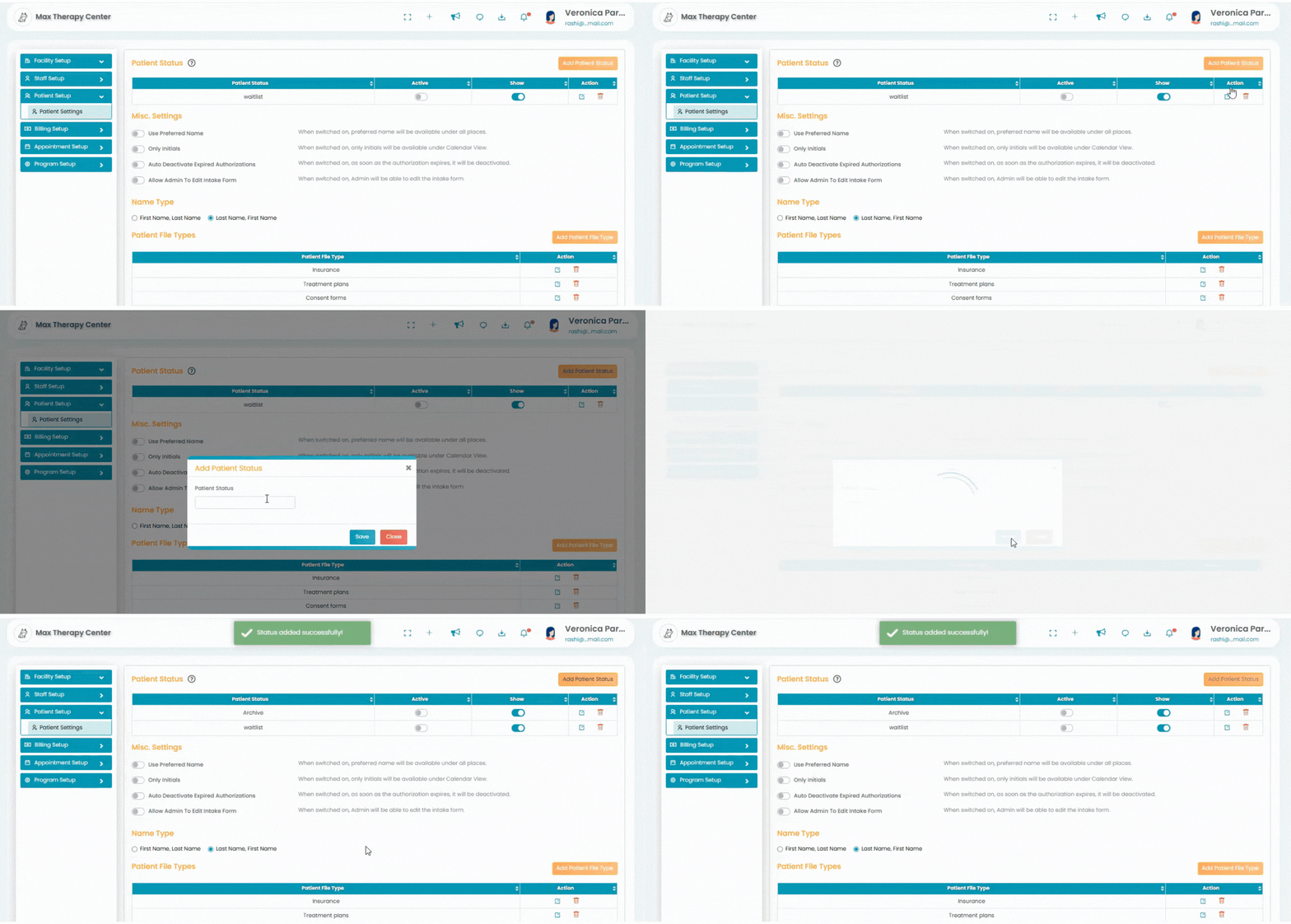
- Navigate to Settings ->Patient Setup -> Patient Settings.
- Click on Add Patient Status (located at the top right corner.
- Create a status named Archive (or any preferred status) and Save.
- Toggle ON the "Active" and "Show" status.
Step 2: Assign Patients to Archive Status in the Patients' module
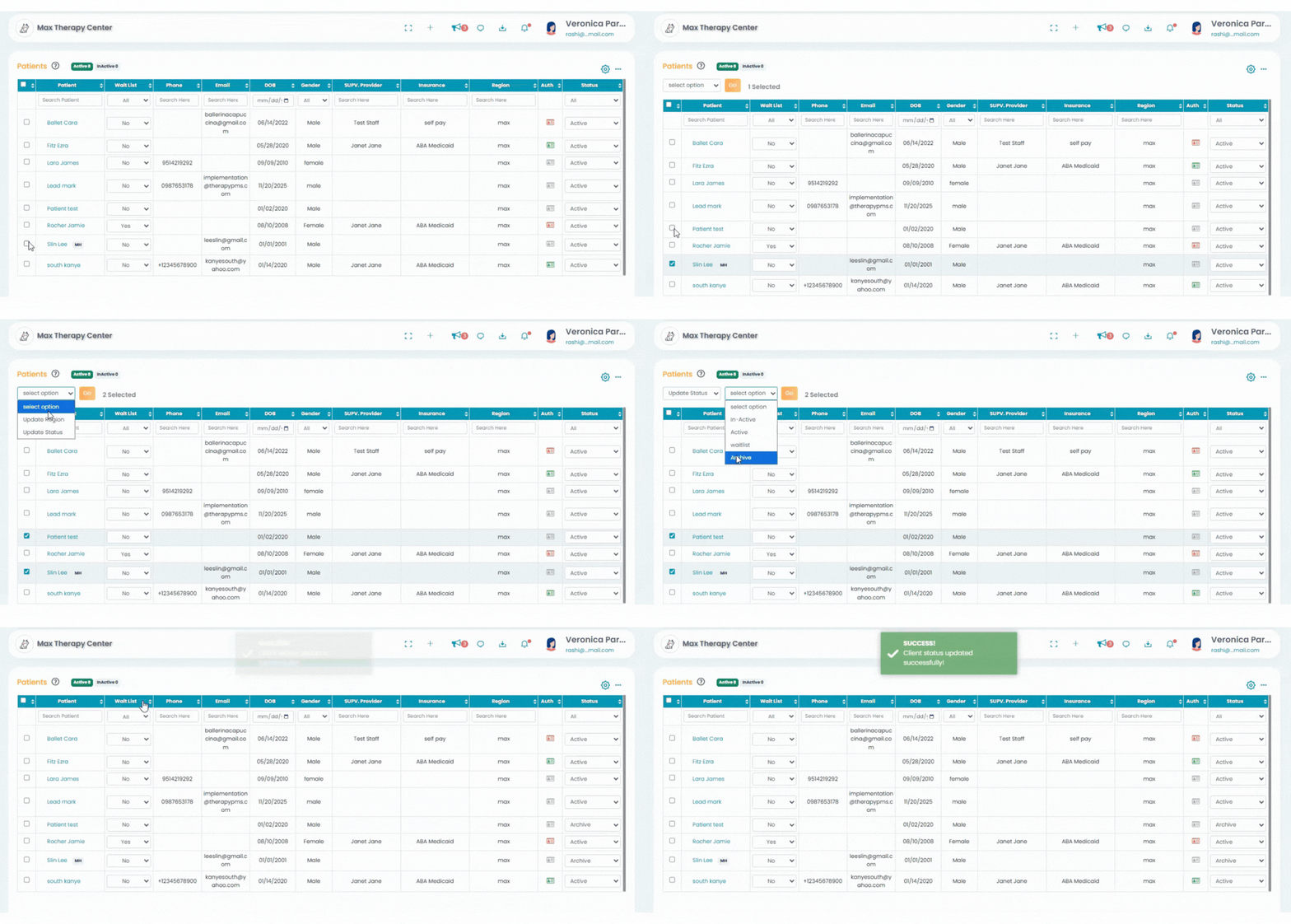
- Go to the Patient Module.
- Locate the patient you want to move to the Archive.
- Change their status to Archive (or the status you created).
Step 3: Hide the Archive Status from Patient List
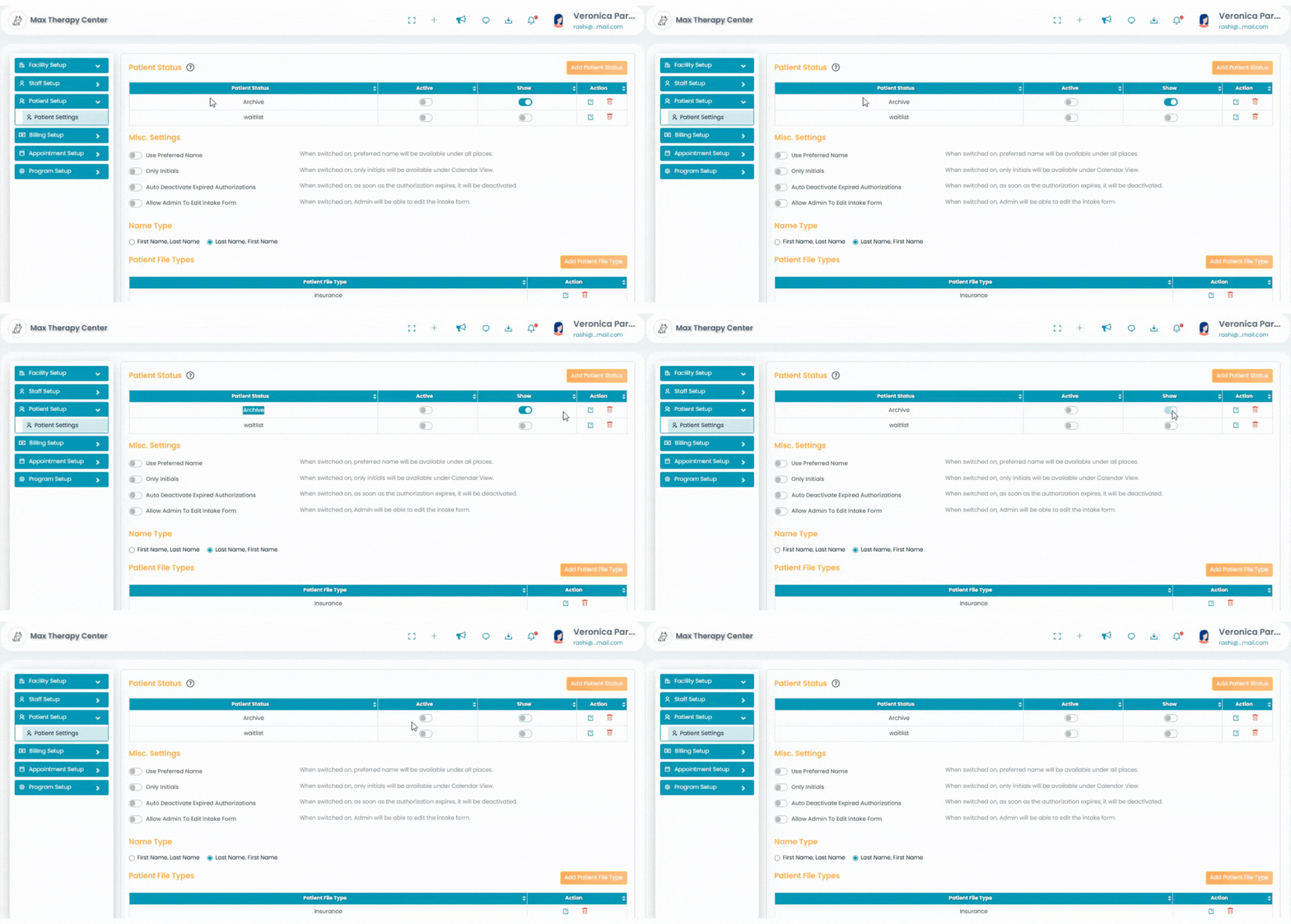
- Navigate back to Settings -> Patient Setup -> Patient Settings.
- Locate the Archive status.
- Disable the Active and Show options.
Now, the archived patients will no longer appear in the Patient Module.