
You will be able to create Custom Appointment statuses such as Confirmed, No Show, Rescheduled, etc. This helps you accurately track the full lifecycle of appointments while improving reporting accuracy and internal communication.
You can manage and configure these statuses from the General Settings page.
Custom Appointment statuses
Add New Appointment status
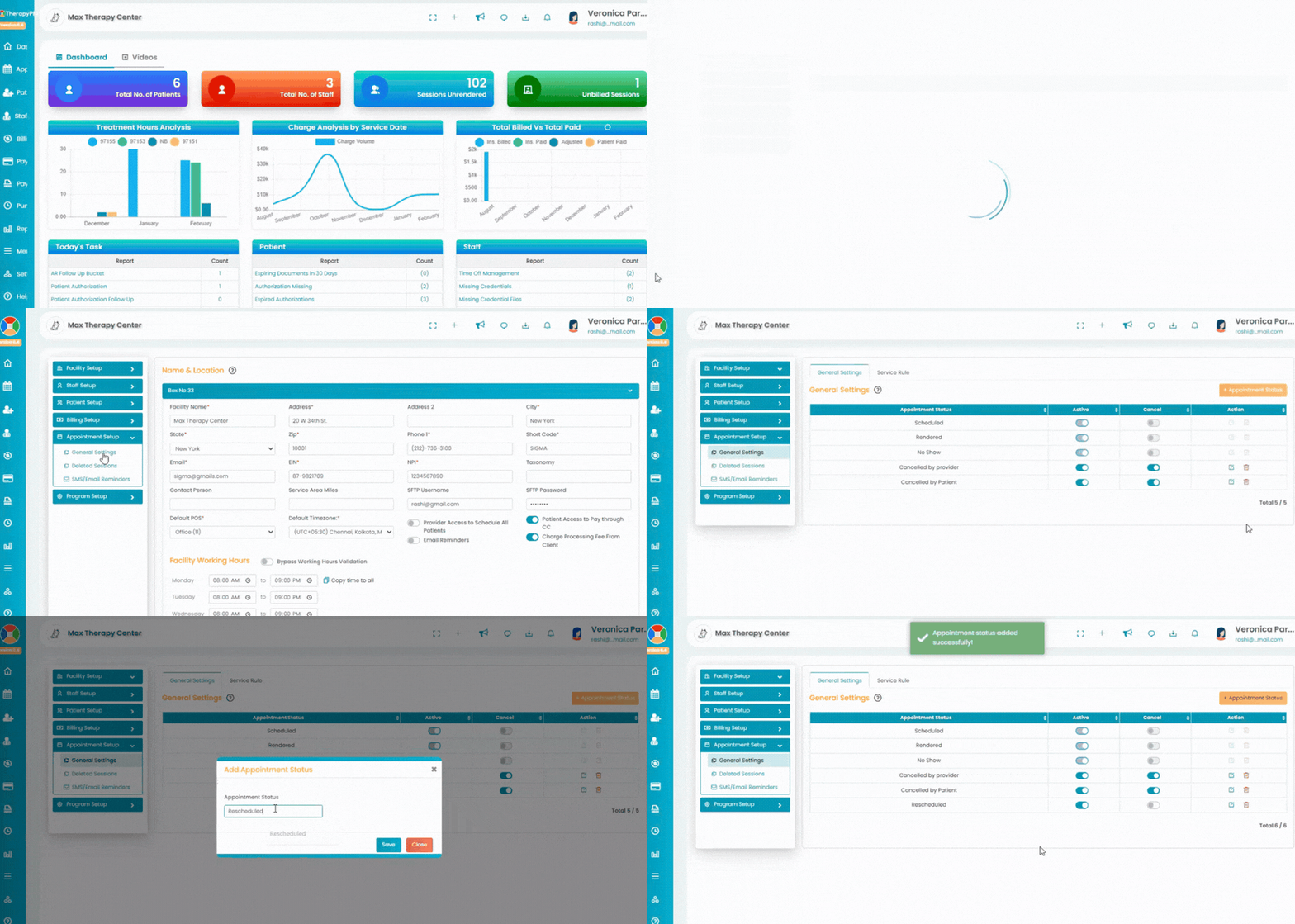
- Navigate to the Settings tab in the left navigation. Click the Appointment Setup tab and select the General Settings option.
- All the appointment statuses (default and custom) the system uses will be available in the table.
- To create a new appointment status, click the + Appointment Status button.
- Enter the appointment status name and click the Save button. The status will be added.
Manage Appointment status
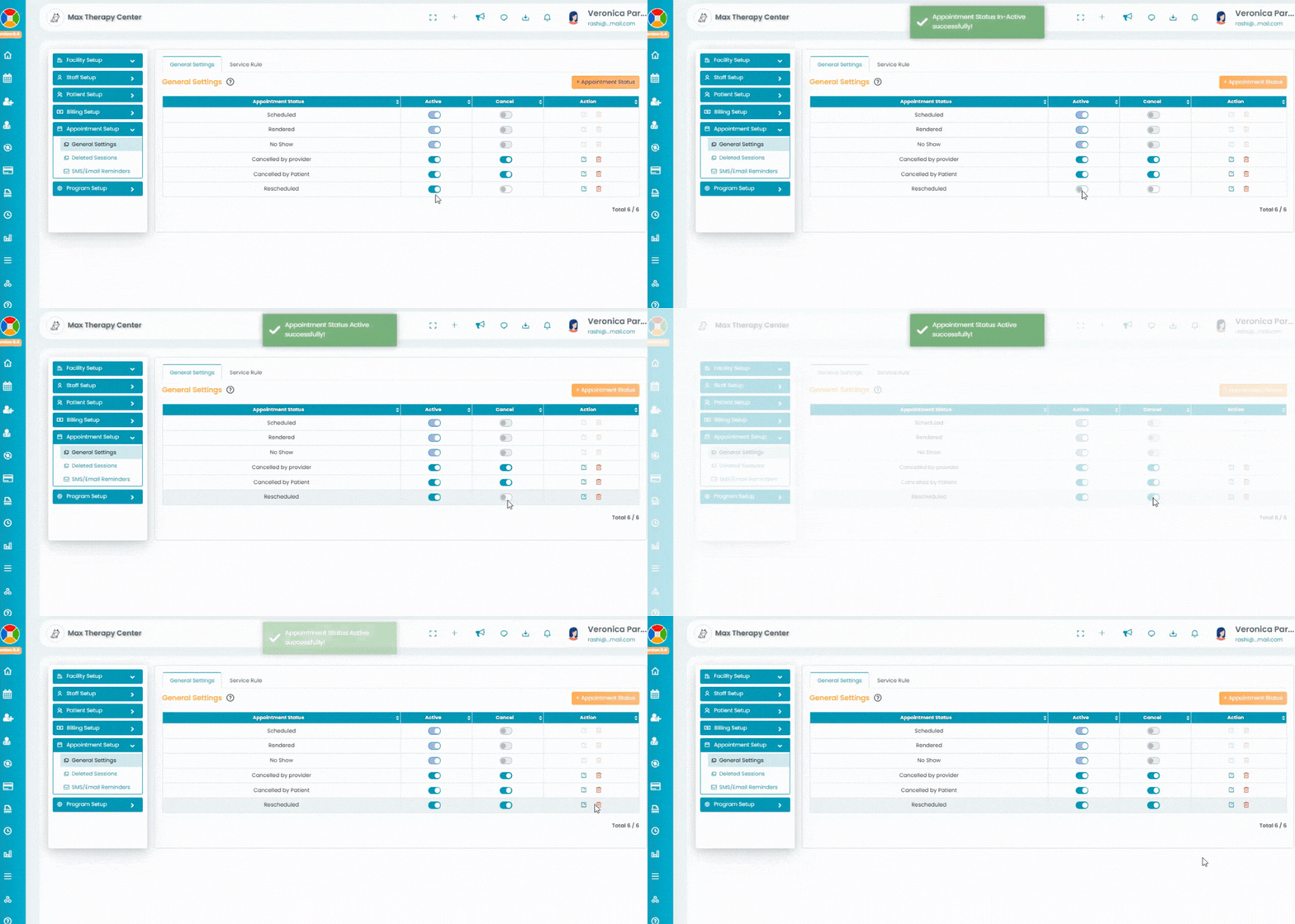
- Users can edit any status by clicking the Edit icon under the Action column.
- Delete the created appointment status by clicking the Delete icon under the Action column.
- The default statuses (Scheduled, Rendered, and No show) cannot be updated.
- Active toggle: Use the toggle to make a status active or inactive.
- Cancel toggle: Click the toggle to configure cancel as the appointment status.
- Any status created here will be available in the Create Appointment screen or Edit Appointment screen.
Service Rules
Add New Service Rule
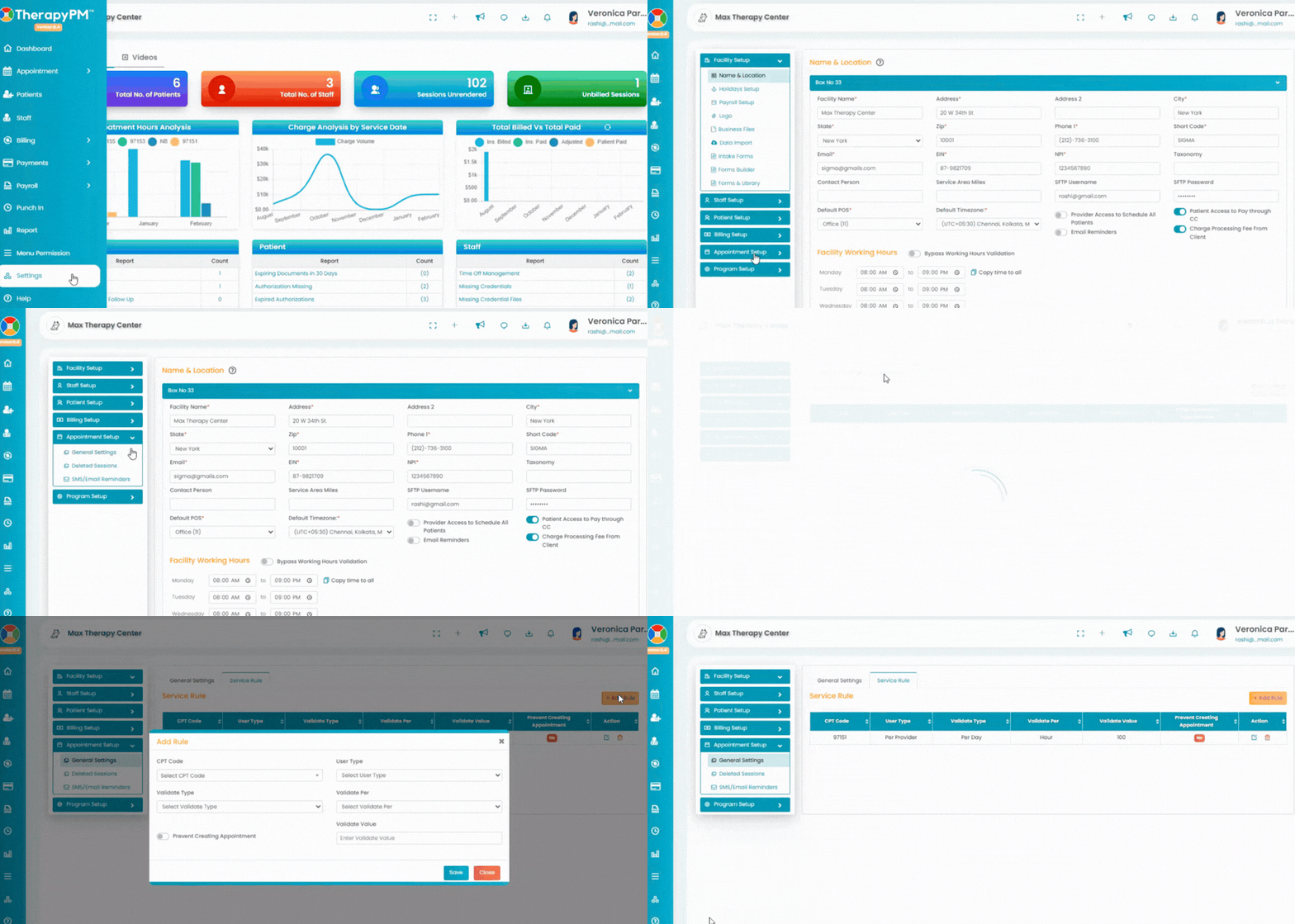
- Navigate to the Settings tab in the left navigation. Click the Appointment Setup tab and select the General Settings page. In General settings page access the Service Rule tab
- Access the + Add Rule button in the right corner.
- You will be directed to the Add Rule tab. Please fill in the following details:
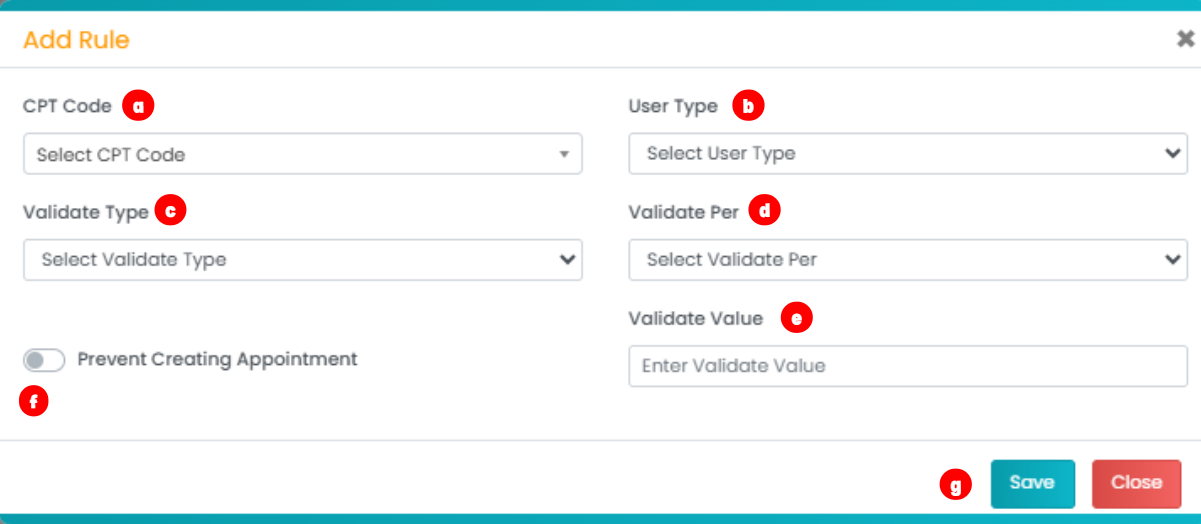 a. CPT Code: Select the CPT code from the dropdown (the code for which you would like to create the rule).
b. User Type: Choose whether the rule applies per patient or per provider.
c. Validate Type: Select the validation period per day, week, month, or total.
d. Validate Per: Choose whether the validation should be calculated by unit or by hour.
e. Validate Value: Enter the validation value corresponding to the selected options (for example, the maximum number of units or hours allowed).
f. Prevention Toggle: Turn the toggle ON if you want the rule to prevent appointment creation when the limit is exceeded. Leave it OFF if you do not want the system to block appointment creation.
g. Access the Save button to finalize and add the rule.
Manage Service Rule
You will be able to manage the rule using the Action button.

Click the Edit button in the Action column to modify the rule.
Click the Trash button in the Action column to delete the rule.