
Follow the steps below to view expiring authorizations
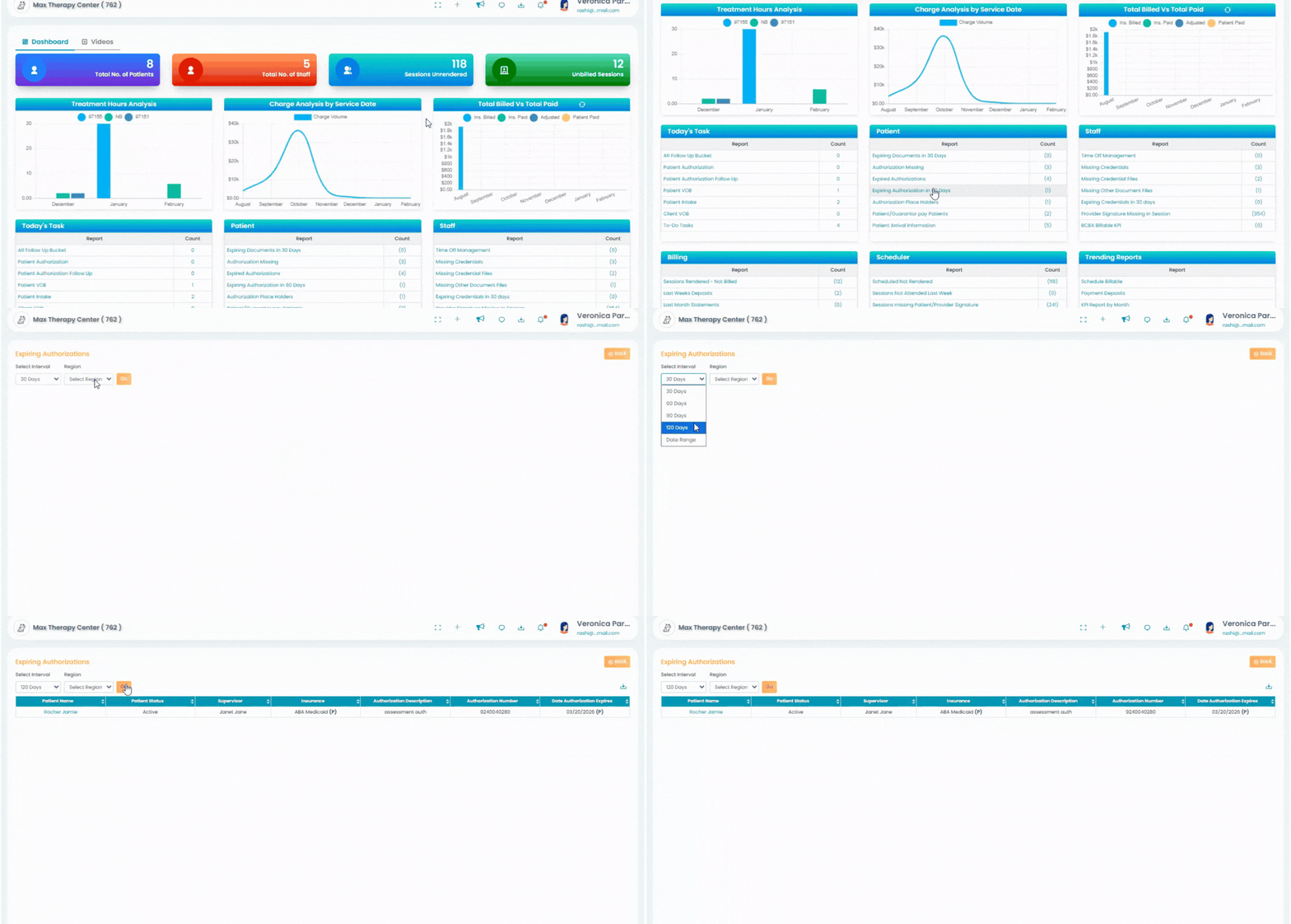
- To access this feature, go to the Dashboard (you can also see it directly on the homepage when you log in).
- Under the Patient Reports section, select Expiring Authorizations in 60 Days.
- From there, choose a predefined time interval or customize your own date range, then click Go.
- The report will display all authorizations expiring within your selected timeframe, along with clear and detailed information to help you stay ahead and take action confidently.
Note: If notifications are enabled for supervisors, they will receive an email alert for expiring authorizations when they are listed as the supervisor on the client’s authorization.