
When a claim is batched, it will automatically move to Manage Billing, and the claim status will be updated to Billed.

In the list view, the session appointment will display a red lock icon, indicating that the claim is in Billed status and currently under Manage Billing.
To make any changes, you must first retract the claim from Manage Billing, and then retract it from Process Billing to fully unlock the session and enable edits.
Retract Claim Form Manage Billing
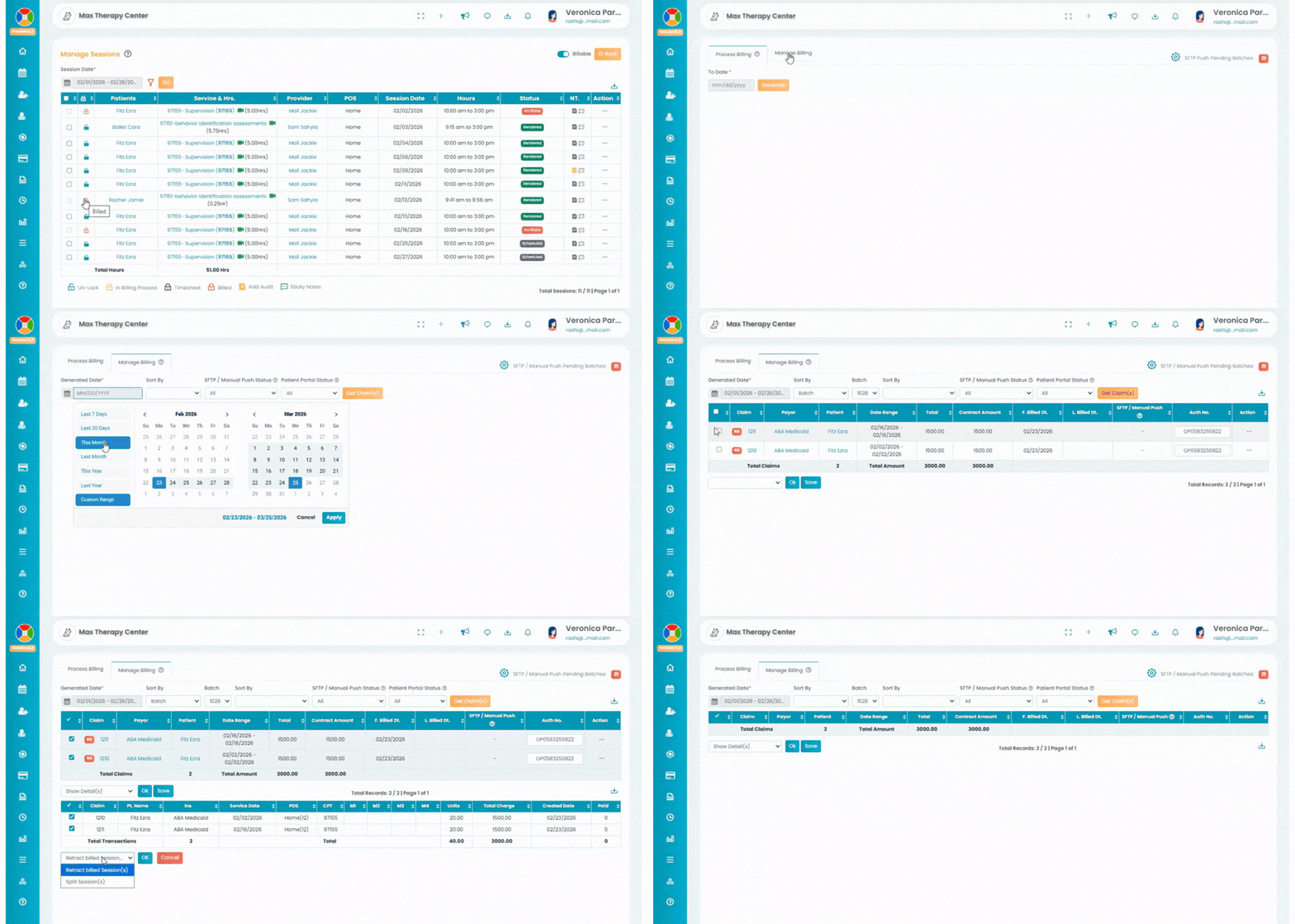
- The batched claims can be accessed in the Primary Billing Manager option under the Billing tab in the left navigation.
- The batched claims can be accessed in the Manage Billing tab. Use the filters and click the Get Claim(s) button to generate the batched claims.
- Select the claim(s) in the data table using the checkbox. Then, select the Show Detail(s) option from the drop-down list (bottom left). Click the Ok button. Another list will be generated below.
- In the new list, select the session to be retracted using the checkbox. Then, click the Retract Billed Session(s) option from the list and click the Ok button.
- Once retracted, the claim(s) will be removed from the Manage Billing tab and appear in the Process Billing tab.
Note: When the appointment is removed from Manage Billing, it will automatically move back to the Process Billing page.
To completely retract the claim from the Process Billing module and unlock the appointment, read this article.