
Once a session is pulled to Process Billing, it will automatically be locked within the appointment. You’ll see a yellow lock icon in the list view, and no changes can be made to the appointment at that stage.

If any updates are required, the claim must first be retracted from Process Billing before modifications can be made.
Retract Claim From Process Billing
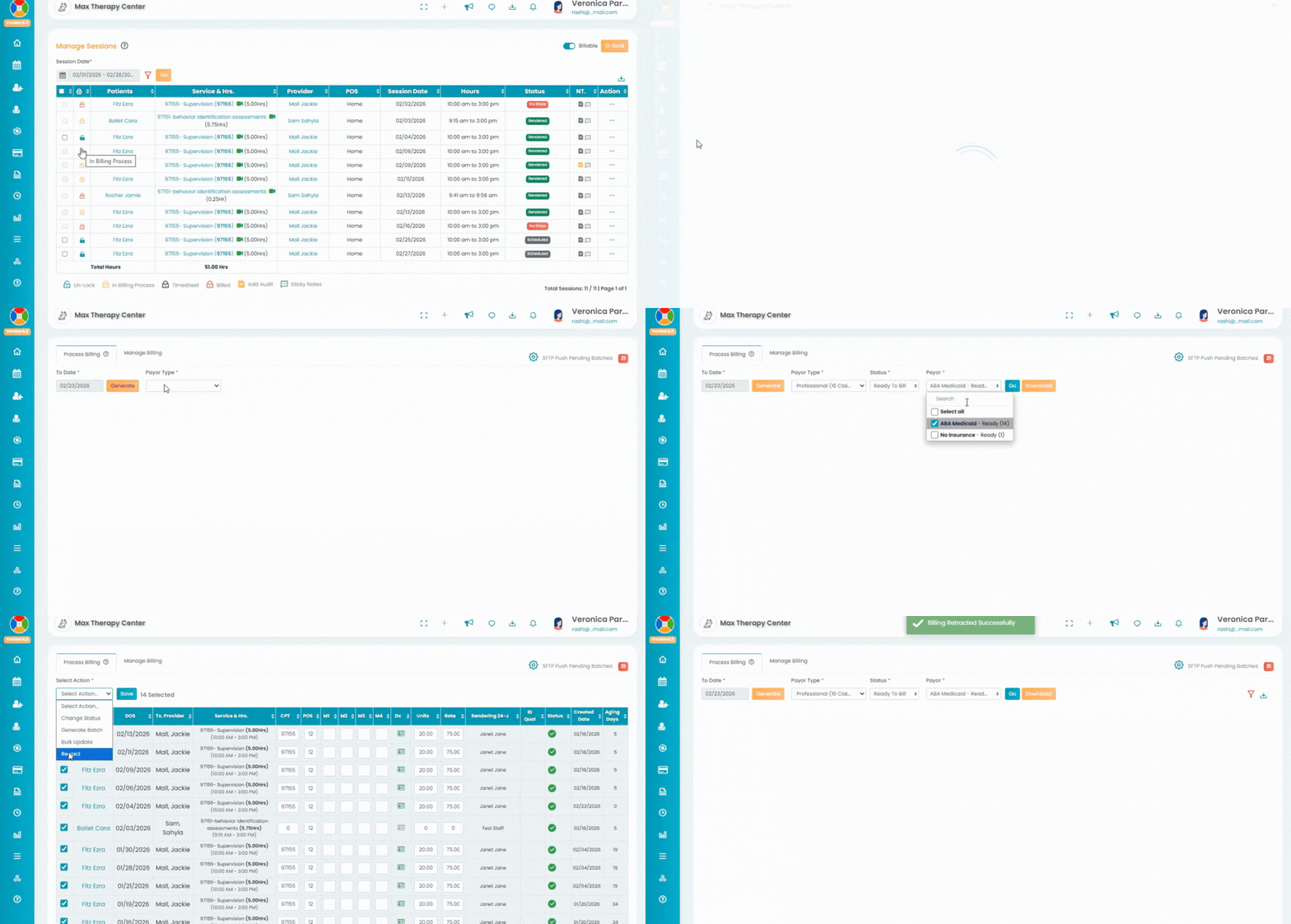
- The generated claims can be accessed in the Primary Billing Manager option under the Billing tab in the left navigation.
- Claims that are not part of a batch can be accessed in the Process Billing tab. Use the filters and click the Go button to generate the desired claims.
- All the claim(s) will be generated in the data table.
- Select the claim(s) by using the checkbox in the data table. A new drop-down Select Action will appear in the place of other filters. Select the "Retract" option from the list and click the Save button. After clicking the Save button, the claim will be removed from the Billing module.

Note: Once the claims are reverted, the appointment will be unlocked in the List View, allowing edits. The lock icon in the List View will change to a turquoise Unlock icon, indicating that the appointment information can now be modified in the Edit Appointment screen.