
Step 1: Update Appointment Status to No Show
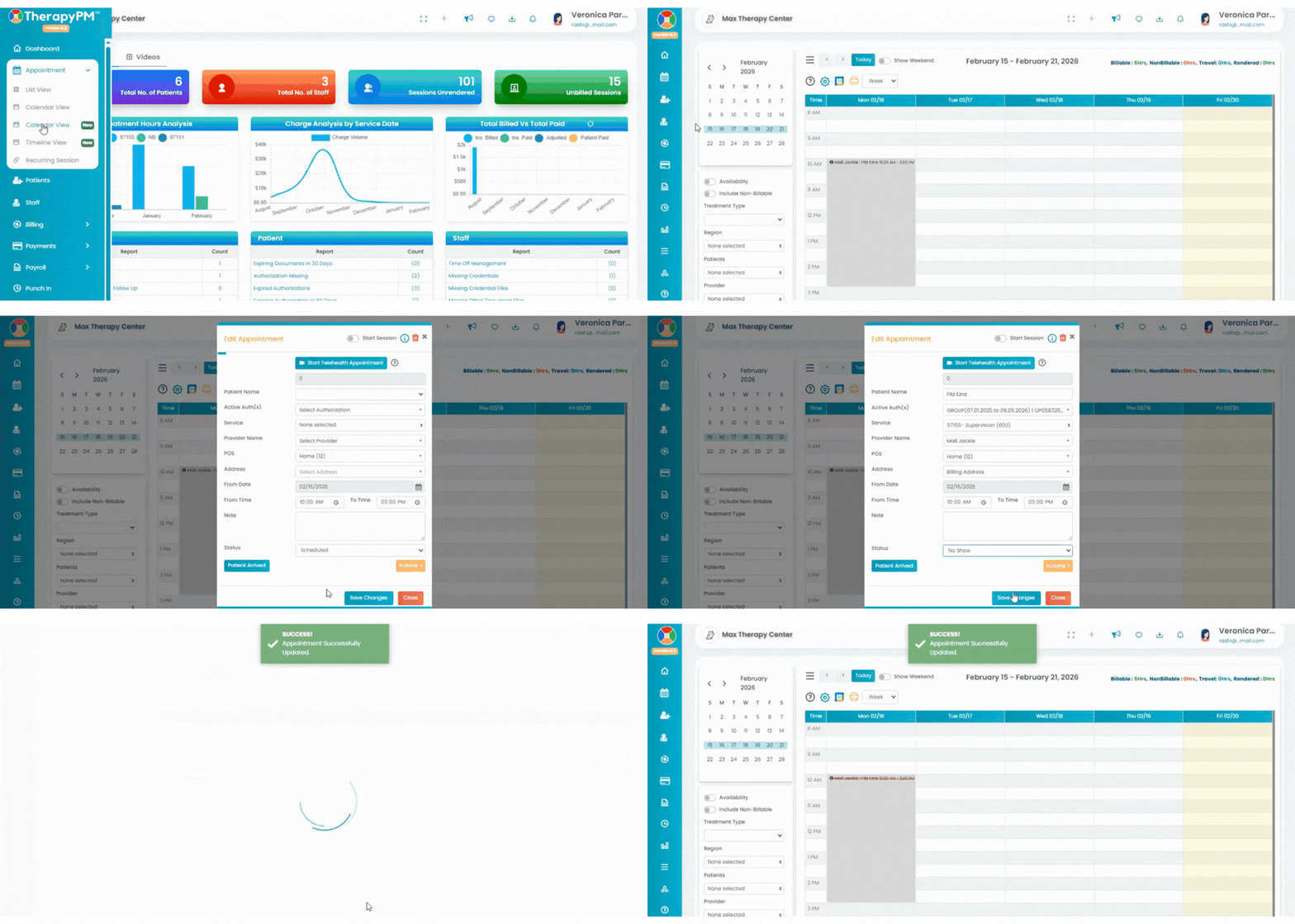
When a client misses an appointment and you need to generate a No Show invoice, you must first update the appointment status.
Navigate to the List View or Calendar.
Locate the missed session.
Update the appointment status to No Show.
Note: To successfully generate a No Show invoice, you must use the system’s default “No Show” status. Any customized appointment statuses will not trigger the No Show invoice functionality.
Step 2: Billing processing
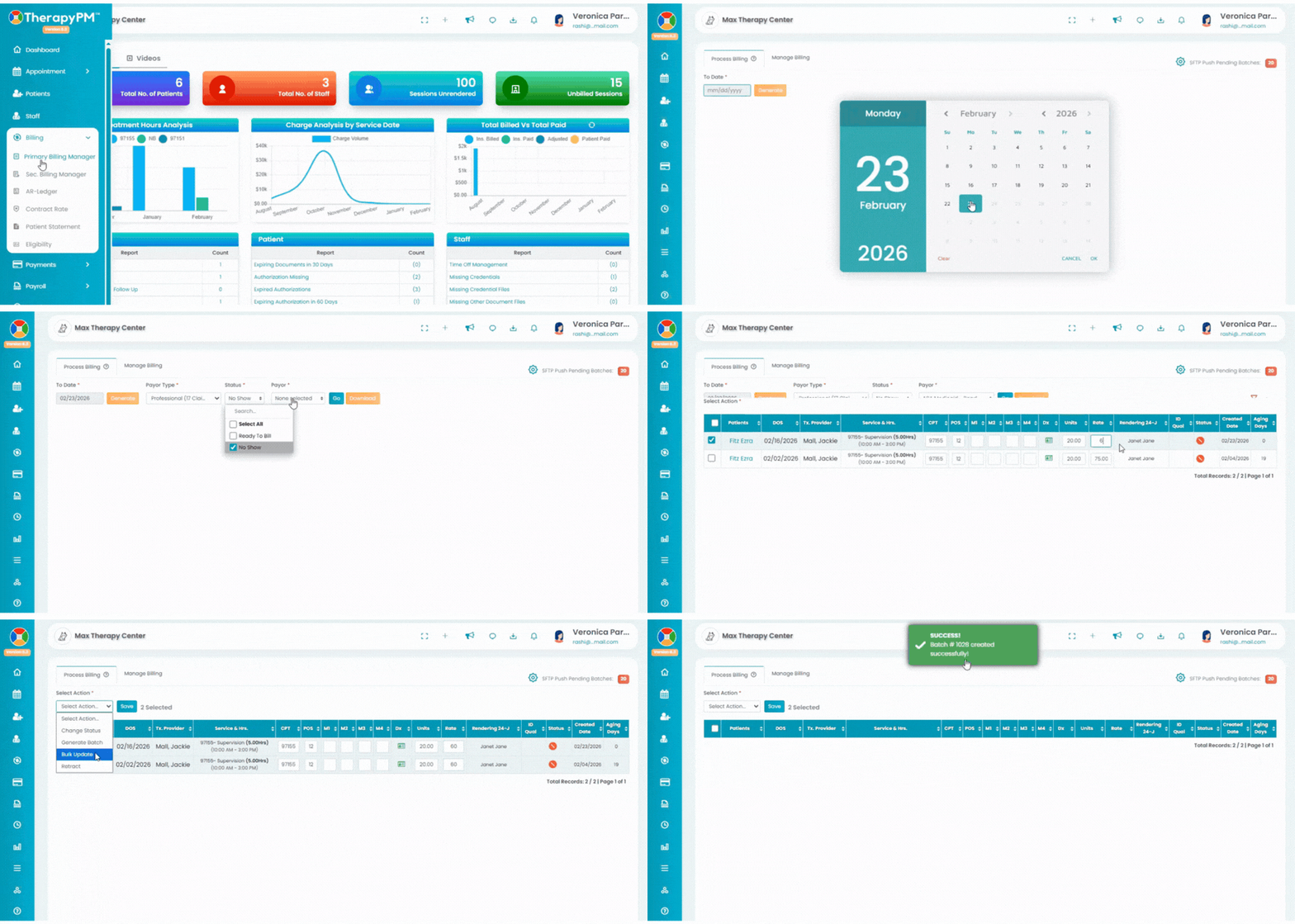
Once the appointment status has been updated to No Show, you can proceed with billing to generate the invoice.
Navigate to the Primary Billing Manager tab.
Use the Sort Options to filter sessions.
In the Status filter, select No Show.
Select the appropriate Payor.
Click the Go button.
The session will appear in the results.
Review the session details.
You can update the rate here to apply your patient’s No Show charge.
Make any necessary edits to the billing information.
Click Generate Batch to proceed.
The invoice will then be successfully generated.
Step 2: Manage No Show Invoices
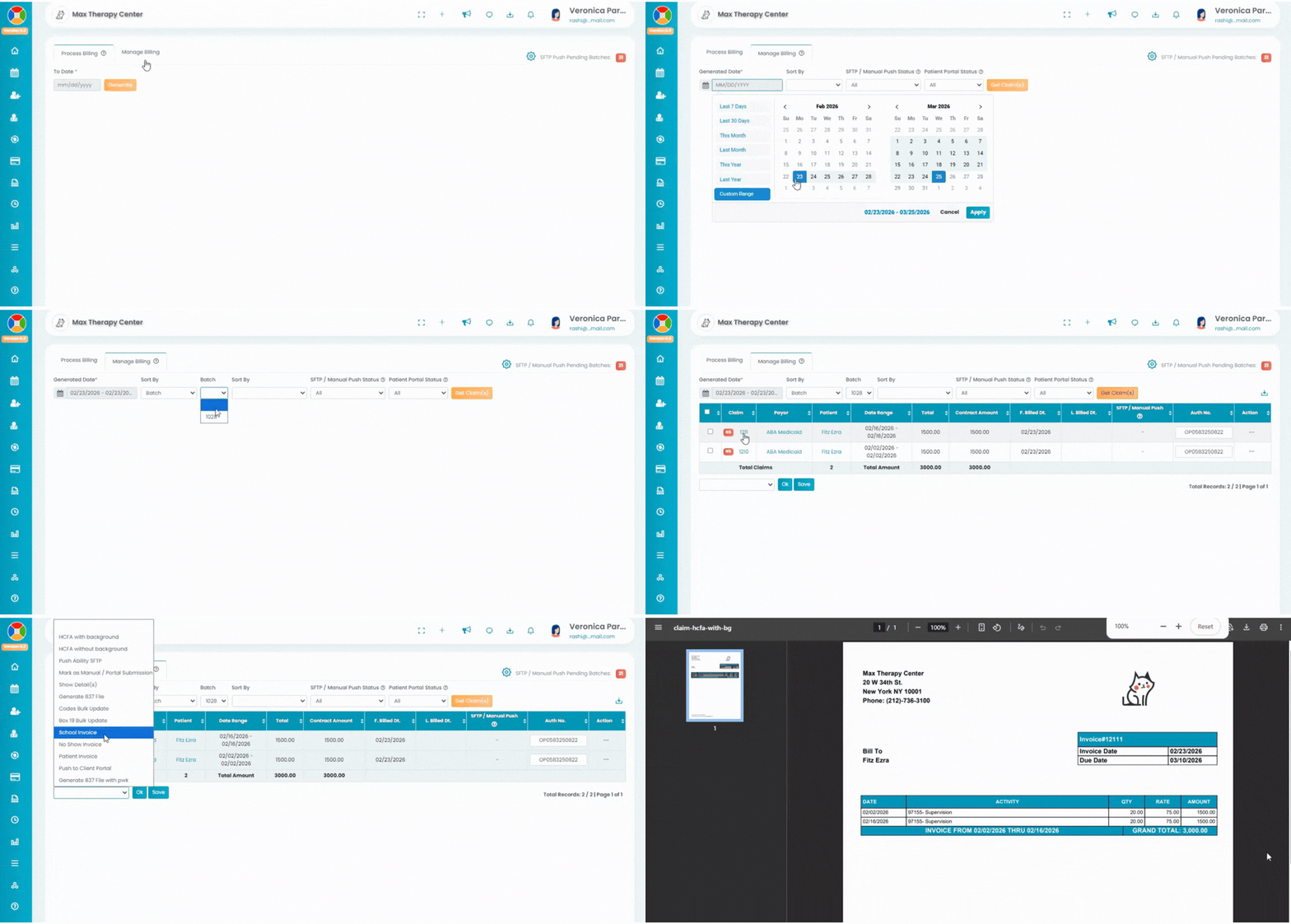
Once the batch is generated, the session will automatically move to the Manage Billing tab.
Navigate to the Manage Billing tab.
Use the available sort or filter options to locate the invoice you just created.
Click on the Invoice Number to open and review the invoice details.
From there, you will be able to print the invoice sheet for payment processing or to share it with the client.