
This article explains how you can create/manage leave types and document types along with provider note access. Video Walkthrough
For a live demonstration of Staff Miscellaneous Settings. See the below video:
TherapyPM allows you to create and manage staff-related settings in a facility - staff statuses, miscellaneous settings, leave types, document types, and provider note access. You can streamline administrative processes and enhance staff management by learning to configure and utilize these features effectively.
Navigating the Staff Misc Settings
- Navigate to the Settings tab in the left navigation.
- Click the Staff Setup tab. Select the Misc. Setting option.
- On this page, the user will have the below features related to providers:
- Staff Status
- Misc. Settings
- Leave Types
- Document Types
- Note Access
Manage Staff Status
Create Staff Statuses
- Click Add Staff Status to create a new status.
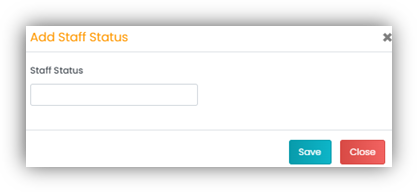
- In the Add Staff Status pop-up, enter the status description and click Save.
- Once you have added a new Staff Status, it will appear under the list. You can then perform the following actions:

- Switch ON the toggle to assign the staff status as active.
- Switch ON/OFF the toggle to activate the Show function.
- Turn ON Toggle: Staff assigned to this status will appear in the All Staff list within the Staff module.
- Turn OFF Toggle: Staff assigned to this status will be hidden in the software. They will not appear in the All Staff list within the Staff module.
Actions: 
- Edit Status: Click on the pen-paper icon and modify the status title. Click on the Save button.
- Delete Status: Click on the red trash icon.
MISC. Settings
Under Misc Settings, you will see the following features:

- Only Initials: Turn ON the toggle to activate the feature in the calendar view.
- Show Providers Schedule: Turn ON the toggle to activate the feature in the calendar view in Provider Portal (by default).
- Use Nickname: Turn ON the toggle to activate the feature in the calendar view.
Name Type
The Name Type setting allows you to control how the provider’s name is displayed across the practice.
There are two available options:
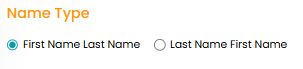
First Name Last Name
Example: John SmithLast Name First Name
Example: Smith, John
Simply toggle the preferred format based on how you would like provider names to appear throughout the system
Leave Types
This feature allows you to create leave-type categories that providers can use when submitting leave requests. Some of the essential features under Leave Types are explained below:
Create Leave Types
- Click on the orange "Add Leave Type" button on the top right corner. A pop-up will appear.
- Fill in the following details:
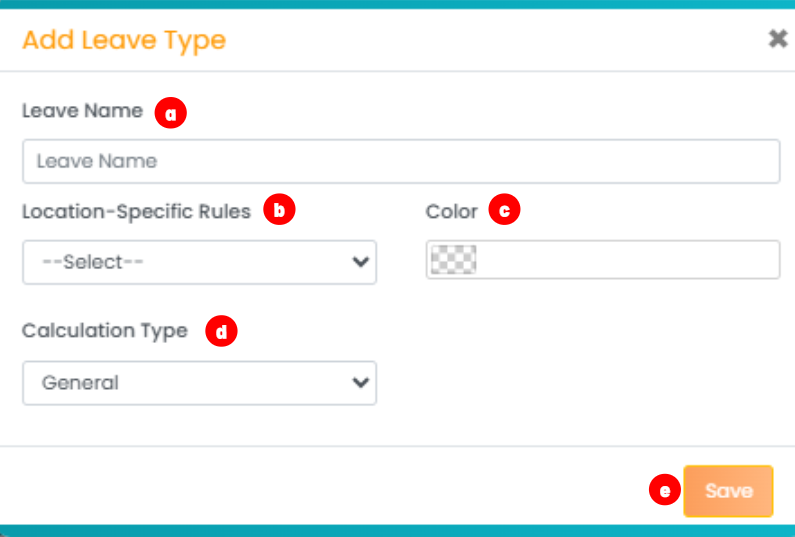
- Leave Name: Specify the name for the leave type.
- Location-Specific Rules: Specify the rules based on your preferred location from the drop-down menu.
- Color: Select which color you would use to identify the leave type.
- Calculation Type: Select the mode of calculation for paying this leave type.
- Save changes to finalize.
Manage Leave Types
- Sort: Use this option to arrange the leave types in different order (left column).
- Active toggle: Turn ON this toggle to activate the corresponding leave type (second left column).
- Edit: Use the paper-pen icon to update the leave type in the Action column (right).
- Delete: Use the red trash icon to remove the corresponding leave type in the Action column (right).
Manage Notes Access
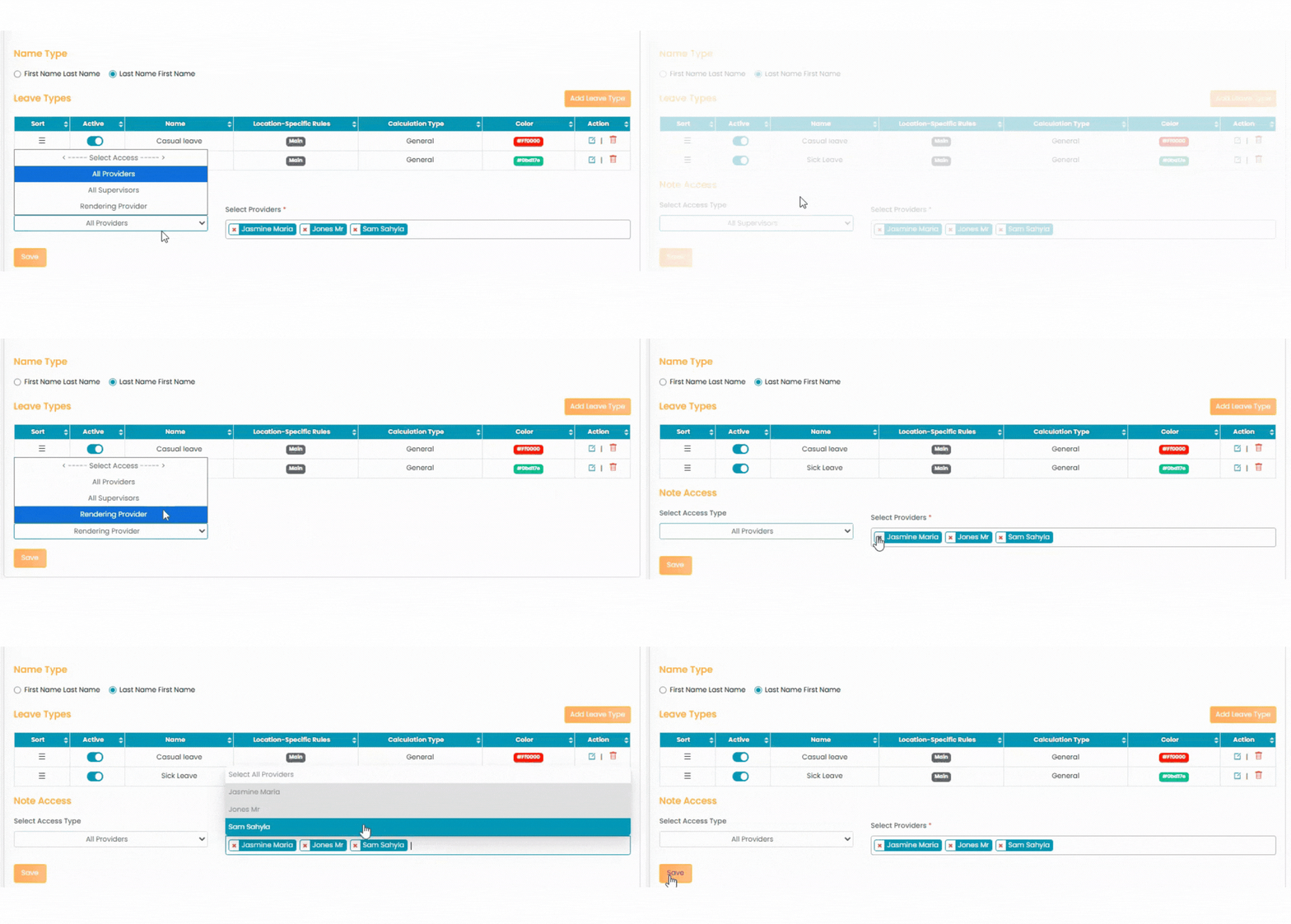
The notes access section consists of options to grant note access to providers within the facility.
- Select the access type to view providers in different groups based on the level of access. The drop-down menu consists of:
- All Providers: This group displays all the providers in the facility.
- All Supervisors: This group displays the providers marked as supervisors.
- Rendering Providers: All the providers are marked as rendering provider.
- Under the Select Providers section on the right, use the "x" button beside the provider name to remove the provider from the access list.
- Then click the Save button to apply your updates.