
This article explains how you can create and view the session notes added to an appointment.
How to Add Session Notes?
Navigate to the Appointment tab on the left. Under the Appointment drop-down, go to My Schedule.
There are two ways you can add notes:
My Schedule
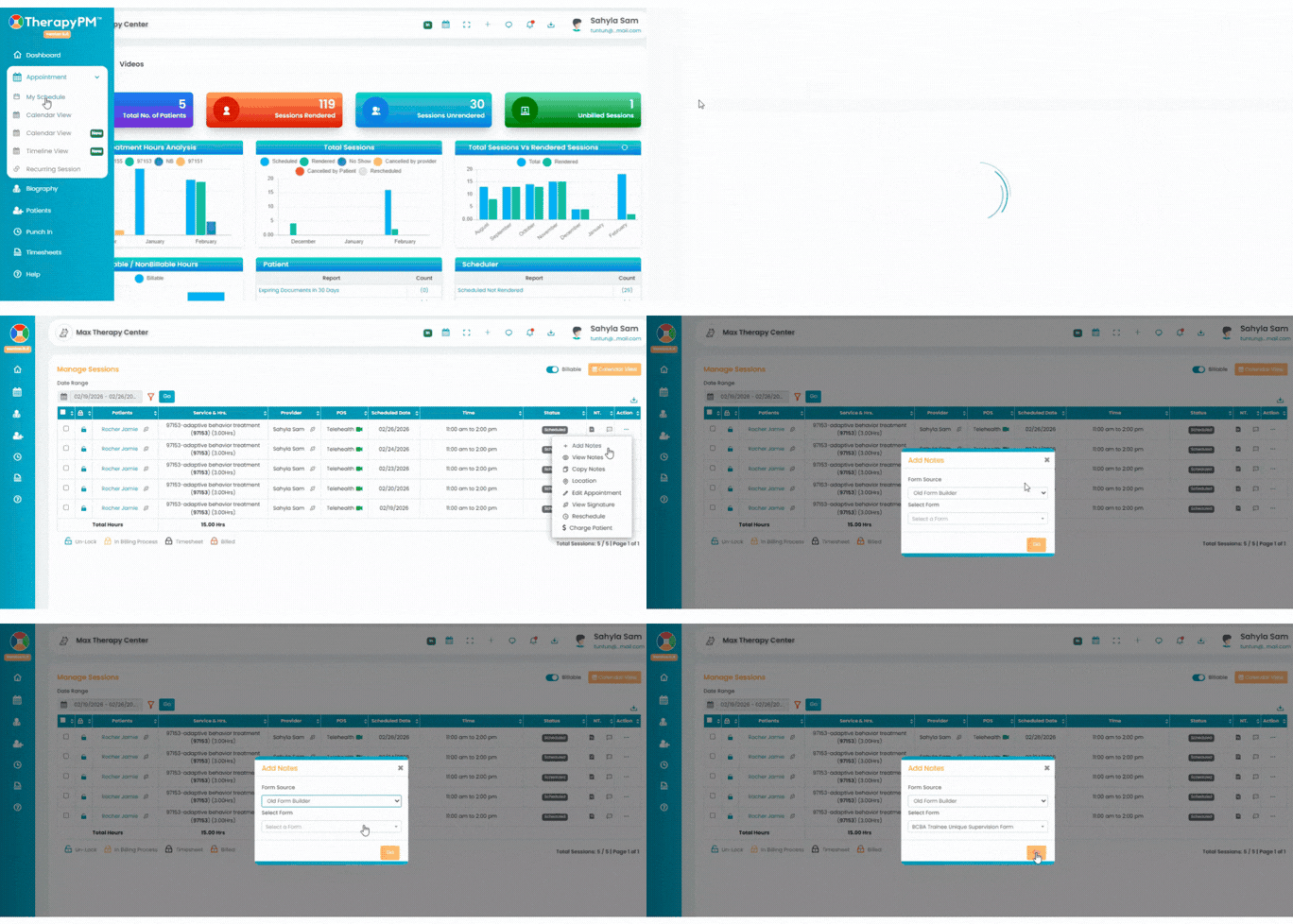
- In the "My Schedule" section, find the specific appointment by reviewing the list of past and present appointments. Click on the three dots under the action column.
- Click on "Add Notes" and select a note from the drop-down options. In the Add Note pop up select the desired form.
- Then you will be redirected to the form. Complete the forms, add the signature, and click "Save."
- Alternatively, you can click on Edit Session to add notes.

- In case of recurring sessions or similar appointments, you can copy your notes by clicking the "Copy Notes" button in the Edit Appointment screen, choose the note, and edit them accordingly.

- View these notes by clicking on "View Notes".
Any Calendar View
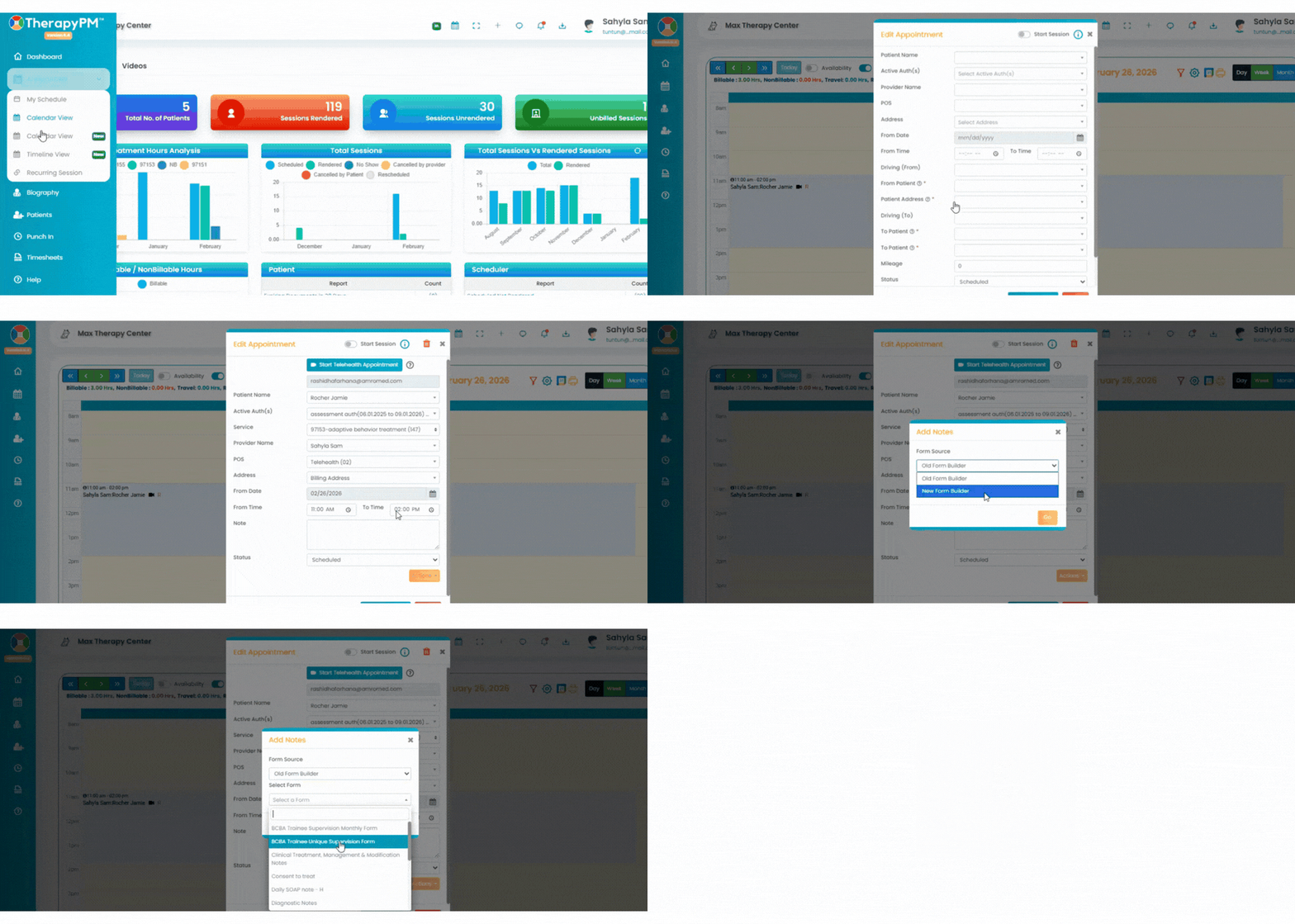
- Click on desired calendar in the "My Schedule" tab or click on Calendar View menu underneath the Appointment View folder. Locate and select the specific appointment that you are looking for and click on it to open up the 'Edit Appointment Session' tab.
- Click on "Actions", and then on "Add Session Note" and select a note from the drop-down options.
Complete the forms, add the signature, and click "Save."
- In case of recurring sessions or similar appointments, you can copy your notes by clicking the "Copy Notes" button in the Edit Appointment screen, choose the note, and edit them accordingly.

- View these notes by clicking on "View Notes".