
The article explains how to update/manage patient info in the Patient Portal.Patients can edit their information using the Patient Portal. To make changes, follow these steps:
Click on "My Info" from the navigation bar (left).
Edit/update the required information. The details entered by the admin/provider when the profile was created will be there. Note: Some details cannot be modified.
Basic Information
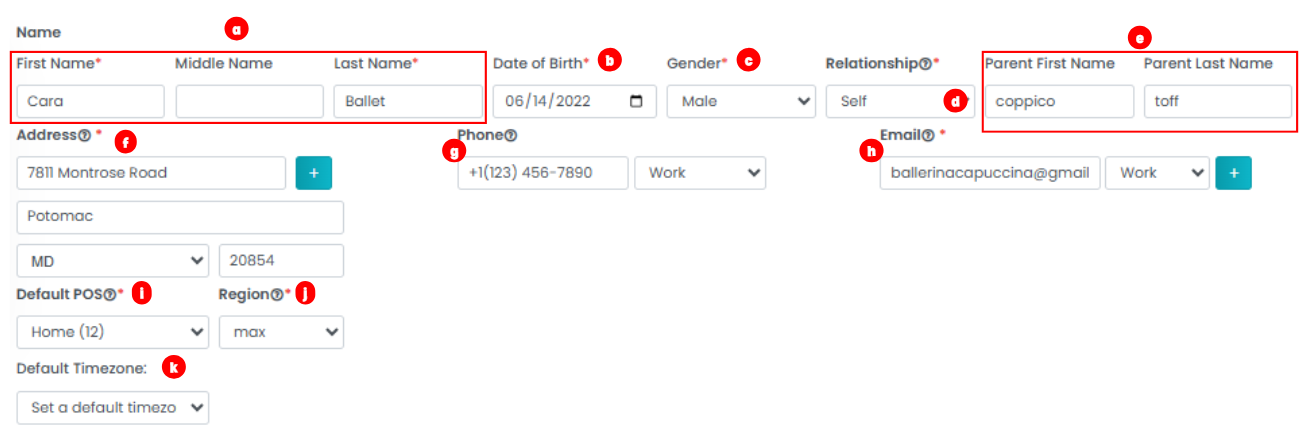
- First Name: Input the patient's first name, Middle Name: Input the patient's middle name and Last Name: Input the patient's last name.
- Date Of Birth: Select the date of birth from the calendar.
- Gender: Choose the patient's gender from the provided drop-down.
- Relationship: Select the patient's relationship for insurance purposes from the drop-down list.
- Parent First Name: First name of parent or guardian, Parent Last Name: last name of parent or guardian.
- Address: Enter the patient's residency details. There will be separate fields for street, city, state, and zip code. To add more addresses, click on the "+" icon. To remove the addresses, click on the trash icon.
Phone: Provide the patient's contact number and select the type (e.g., work, cell, home). You can add additional phone numbers.
Email: Input the patient's email address and select its type (e.g., work, home). You can add additional email addresses.
POS: Enter the service location, such as the main office, school, home, etc.
Region: Specify the service region.
Default Time zone: Choose the time zone of the client.
About Patient

- Race & Ethnicity: Choose the patient's race from the drop-down menu.
- Preferred Language: Select the patient's preferred language from the drop-down menu.
- Date First Seen: Input the date of the initial assessment. However, this field cannot be edited.
- Referred By: Select the referring physician or doctor who directed the patient to the facility for service. However, this field cannot be edited.
- Assignment: Select Yes to accept the assignment or No. However, this field cannot be edited.
Guarantor Information
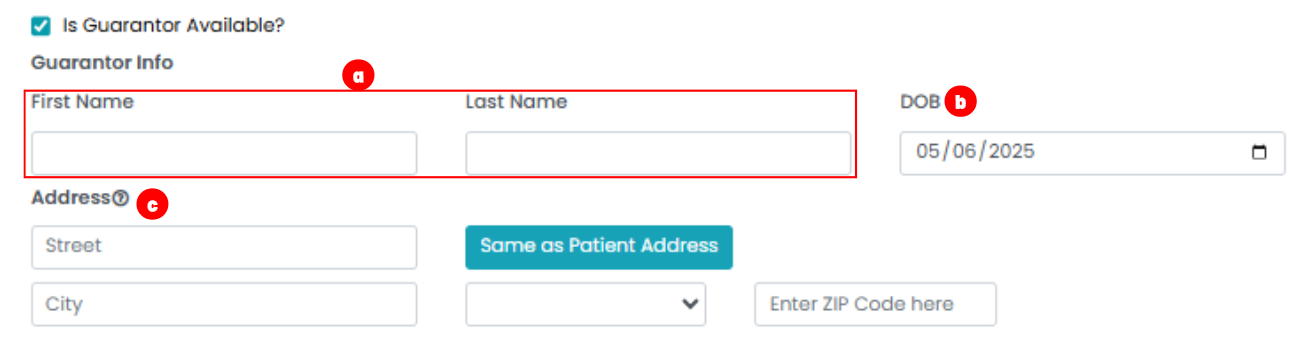 Guarantor Information: Input the guarantor details for billing purposes. To fill in the details, you need to check the box that says, "Is Guarantor Available?"
- Name: Guarantor First name: Enter the guarantor's first name, Guarantor Last Name: Enter the guarantor's last name.
- Guarantor Date of Birth: Select the date of birth of the guarantor from the calendar.
- Guarantor Address: Input the guarantor's address. If the patient and the guarantor share the same address, check the box that says, "Same as Patient Address."

Upload Signature: Upload the patient's signature for future paperwork convenience.

Save Patient: Once you have edited the details, click on the "Save Patient" button.