
Video Walkthrough
View the below walkthrough video on Calendar View in Provider Portal
Appointments of any provider can be managed using calendar view module of TherapyPM. Apart from appointment management, this functionality allows provider to filter the appointment based on criteria and allows to sync the TherapyPM calendar with Google Calendar.
Manage Calendar
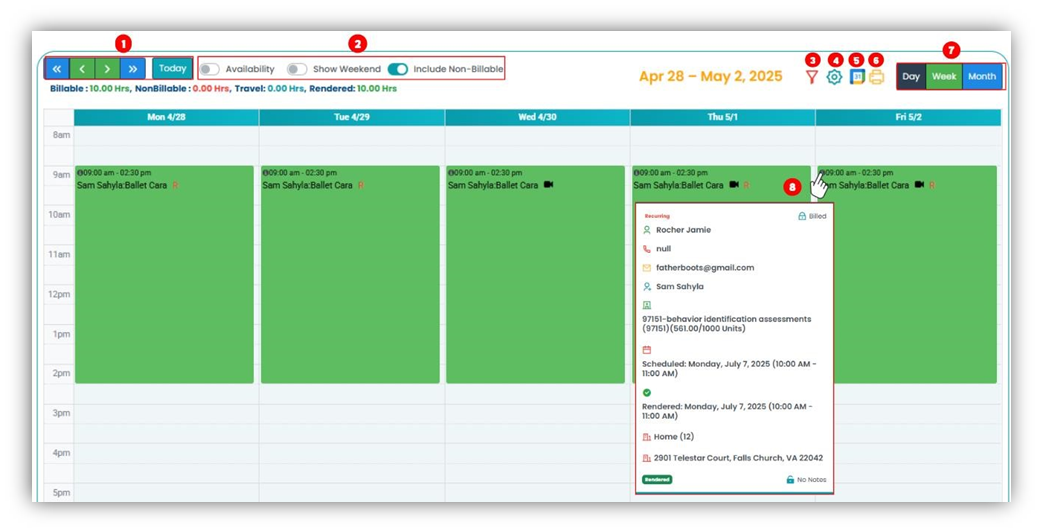
- Toggle Arrow: Move back and forth between days/weeks/months depending on what was previously selected by clicking on the arrows on the left side of the screen. Use Today Button to comb back top todays calendar.
- Quick Toggle Settings:
- Availability: Will provide available slots to ad session.
- Show Weekend: Click the toggle to include weekends in the calendar view.
- Include Non-Billable: Include non-billable sessions as well in the Calendar.
- Filter: Use this option to filter the appointments in Calendar View by date range or treatment type or patient(s) or provider or place of service or status.
- Settings: Use this option to add more filter options to appointment by client or service along with calendar view layouts.
- Calendar Sync: With this option provider(s) will be able to sync their calendar with Google Calendar. This can also be used to reset Google Calendar sync.
- Print Calendar: Download a PDF version of the Calendar with this option.
- Day/ Week/ Month: Toggle between the different types of periods, and it will change the view accordingly. However, the week view is the default option.
- Quick View: Hover over the “I” icon in the appointment block to view appointment information.
- Calendar Appointments: Click on the appointment slots to access edit appointment screen where provider(s) will be able to change appointment details, add/ save/ edit session notes.