
Video Walkthrough
View the below walkthrough video on My Schedule Tab
How to Manage Appointments in My Schedule?
Accessing List View: Click on the "My Schedule" option, which can be found as the second item in the navigation bar. Once there, you will be presented with a list format displaying your upcoming appointments. 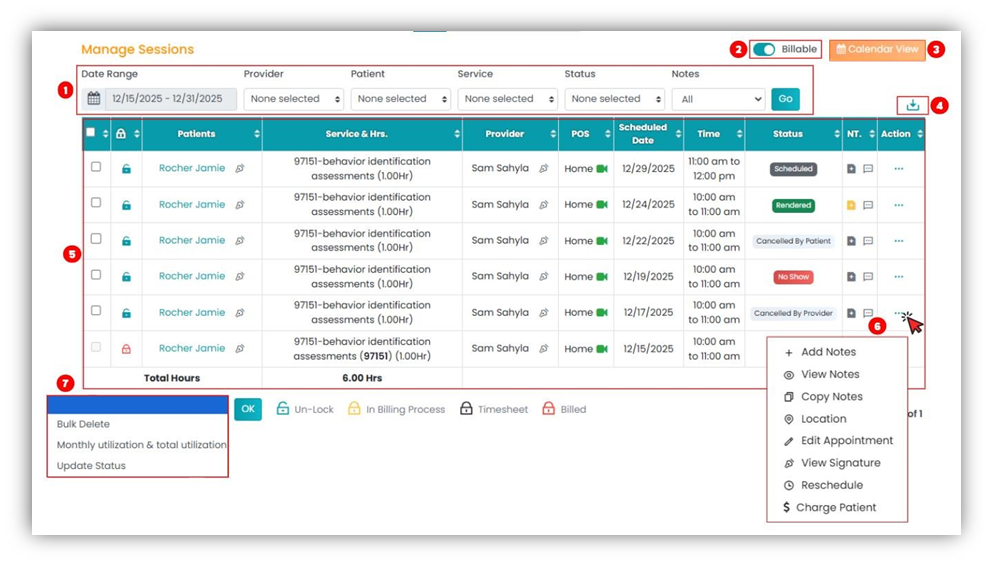
- Applying Filters: To generate appointments in the list view, select the date range, select patients from the filtering options and click Go. Date range and patient filters are required.
- Billable/Nonbillable Toggle: In the List View, you can easily switch between billable and non-billable sessions, offering efficient categorization.
- Calendar View: Click this button to view the provider schedule as calendar view.
- Download Icon: Use this icon to download the list as CSV or EXCEL file.
- Manage Sessions Table: The table provides all the information pertaining to the appointment under the provider.
- Action Column (…): This versatile feature offers an array of functions:
- Add Notes: Trigger a pop-up box to select and add a pre-defined template from your system settings, such as SOAP Notes.
- View Notes: Access and review notes from previously completed sessions.
- Copy Notes: Duplicate notes for editing or adaptation.
- Location: This option shows the treatment location for the appointment.
- Edit Appointment: Modify session details, such as authorization, service type, and more.
- View Signature: Use this option to view patient and provider signature.
- Charge Patient: Charge the patient for the respective session.
- Drop-down option: This option provides list of appointment management actions for admins like bulk delete, monthly utilization & total utilization and update status.