
Adding a patient profile in TherapyPM is the 1st step in setting up patient authorization or scheduling an appointment.
How to Add a Patient?
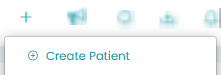
- Plus Icon: Click on the plus icon on the top right-hand portion of your screen.
- Create Patient: A drop icon will appear that will suggest two options: Create Patient and Create Appointment.
- Create Patient Popup: When you click on the button "Create Patient", a popup will appear requesting a patient details. Fill in the data and click on 'save'. The asterisk (*) mark denotes that the details are required.
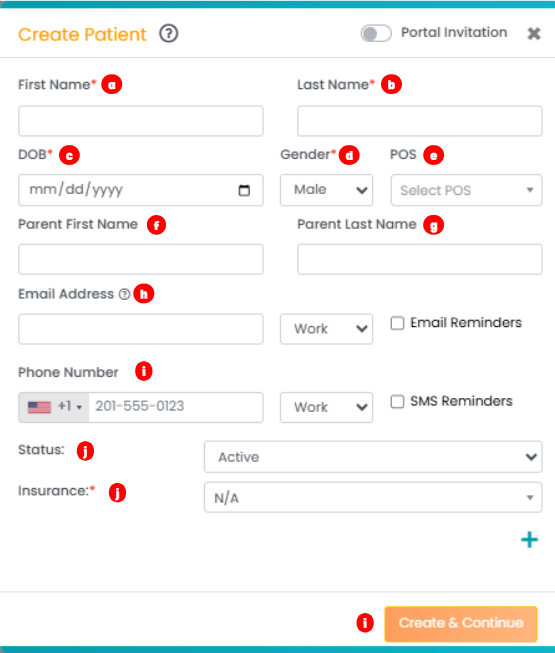
- First name: Type the patient's first name.
- Last name: Type out the patient's last name.
- Date of birth (DOB): Select the date of birth.
- Gender: Select the gender.
- Place of service (POS): Select the date of the birth.
- Parent First Name: First name of the patient’s parent.
- Parent Last Name: Last name of the patient’s parent.
- Email address: Type the email address of the client. You can provide a work email or a personal email. Check the box "Email Reminders" if you would like TherapyPM to send any reminders via email.
- Phone number: Type the phone number of the client. You can provide a work email or a personal email. Check the box "SMS Reminders" if you would like TherapyPM to send any reminders via messages. We do charge additionally for the messages.
- Status: Select the status of the patient.
- Insurance: Select the Insurance from the drop-down option.
- Create & Continue: Once you have filled in all the data, click on "Create & Continue."