
This article explains how you can add multiple patients as siblings under one patient.Video Walkthrough
For a live demonstration on Manage Patient Siblings, watch the below video:
In TherapyPM, you can manage sibling clients under a single parent login. Since each email address can only be used for one account, the same email cannot be added to multiple clients individually. To resolve this, one client can be set as the primary client, and the sibling(s) can be assigned to that primary account. This allows the parent to use one email and one login, and easily switch between siblings. Please find the steps below to enable this setup.
Manage Sibling Clients
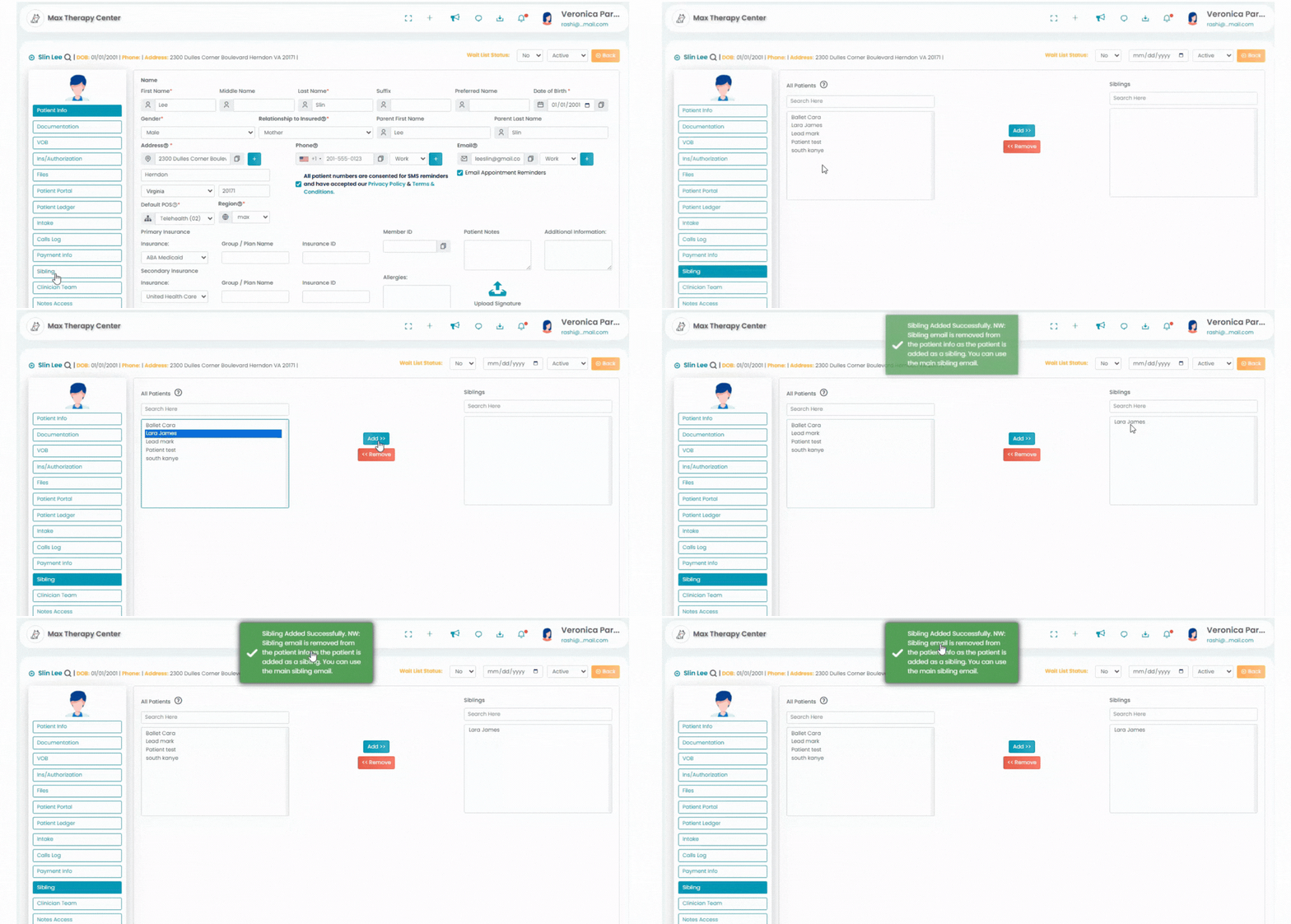
- Click on the Patient tab (left). Select the specific patient to access their information.
- After selecting the patient, click on the "Sibling" option. To add a sibling to this patient's portal, select the desired patient(s) from the 'All Patient list' and click on the 'Add' button. The newly added siblings will be visible in the 'Sibling' list.
- Client assigned as sibling mail will be removed from the patient info as the patient is added as a sibling. You can use the Primary sibling email.
Note: Only existing patients in the system can be added as siblings.
Manage Siblings in Parent portal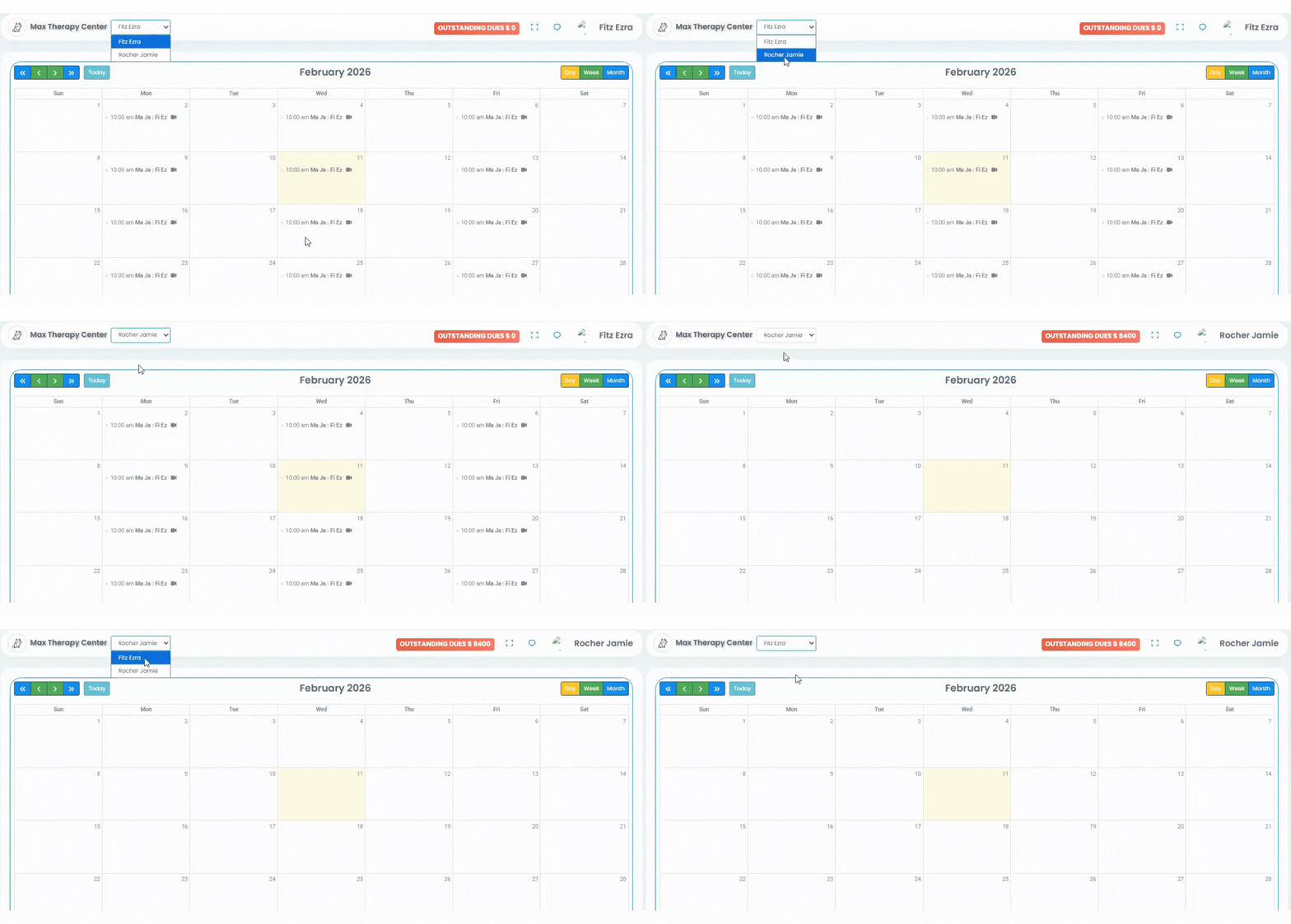
- The primary patient should log in to their patient portal.
- Upon entering the primary portal, they should click on the drop-down located at the upper left corner. This will display all the associated sibling accounts linked to the primary portal. Once you click on another account (i.e. the sibling), all the information about that sibling will be reflected in the patient portal.