
This article explains how you can enable the clients to fill and submit intake forms via patient portal. Video Walkthrough
For a live demonstration of Manage Patient Intake, watch the below video:
TherapyPM has made it easier for you to enable patients to complete and submit intake forms via the Patient Portal. You can streamline the intake process by uploading the necessary intake forms, assigning them to patients, and notifying them. Patients can access, complete, and submit these forms effortlessly.
How To Manage Intake Forms?
- First, the intake form needs to be added to the system. You can use our multiple intake form management options, please refer to the articles below: Form Builder (New) and Form Builder (Old), which allow you to build and customize your own forms.
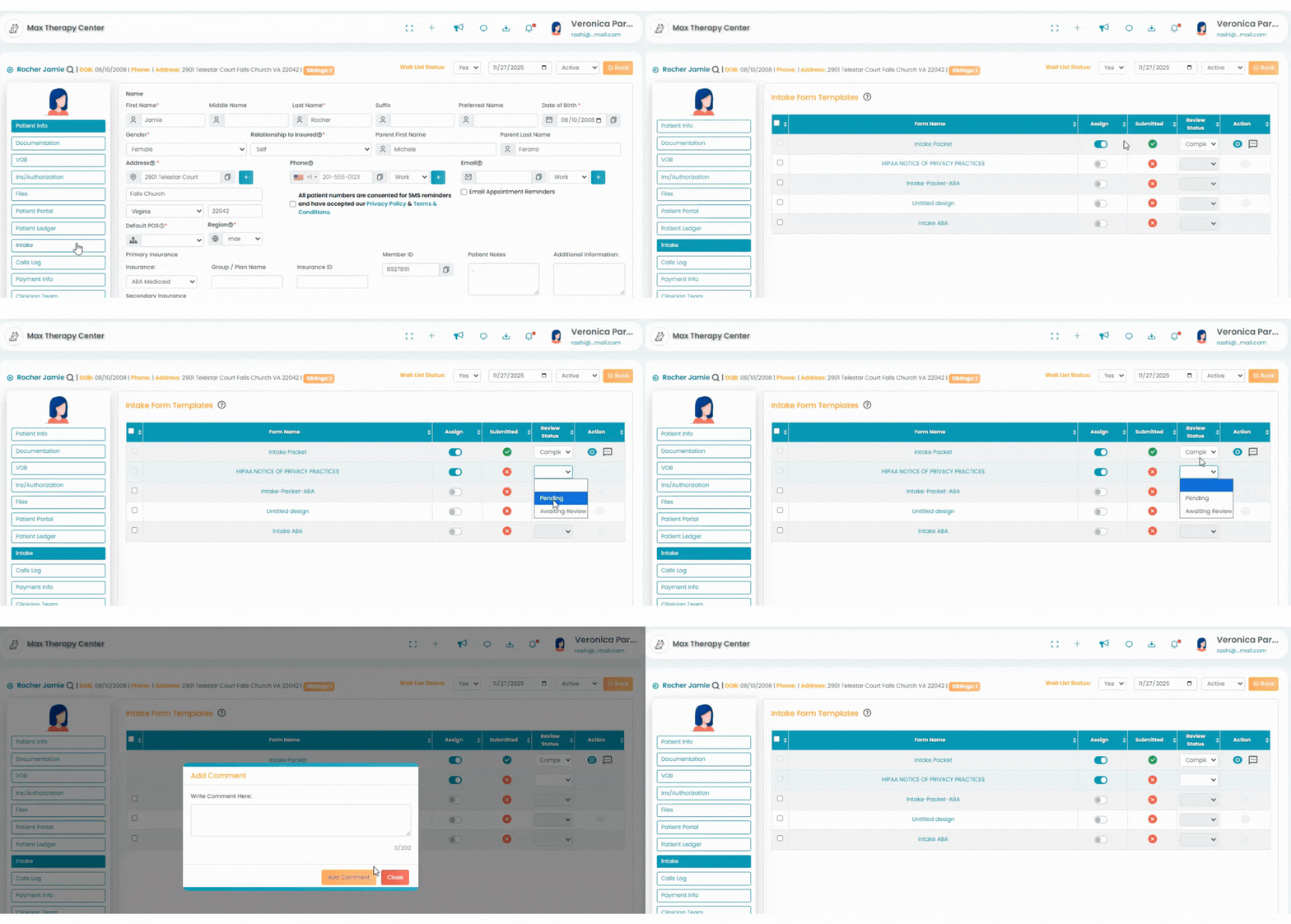
- After creating and uploading the intake forms, Navigate to the desired client profile and Intake tab.
- Assign them to your patients by toggling the 'Assign' option. The client/Guardian will receive email that is added in clients profile.
- Patients can find their intake forms by clicking on 'Documents' under "My Info" in their portal. To complete the forms, they should download them, fill them out, and then upload them to the system.
- When forms are submitted, the admin will receive an email and a notification. Click on the form and it will redirect you to the "Intake Form" page where you can review it. You'll find three review status options: "Completed," "Pending," and "Needs Revision."
- If the form hasn't been reviewed, choose Pending. For forms that are good to go, mark them as completed. If revisions are necessary, select "Needs Revision," prompting the patient to make the required changes.