
This article explains how to apply payment to a deposit.Video Walkthrough
View the below walkthrough video to learn How To Apply Payment?
After deposits are created, any manually created deposit will require you to apply the payments to ensure the system stays updated and accurate.
Note: For automated deposits, payments are applied automatically, so no additional action is needed on your end.
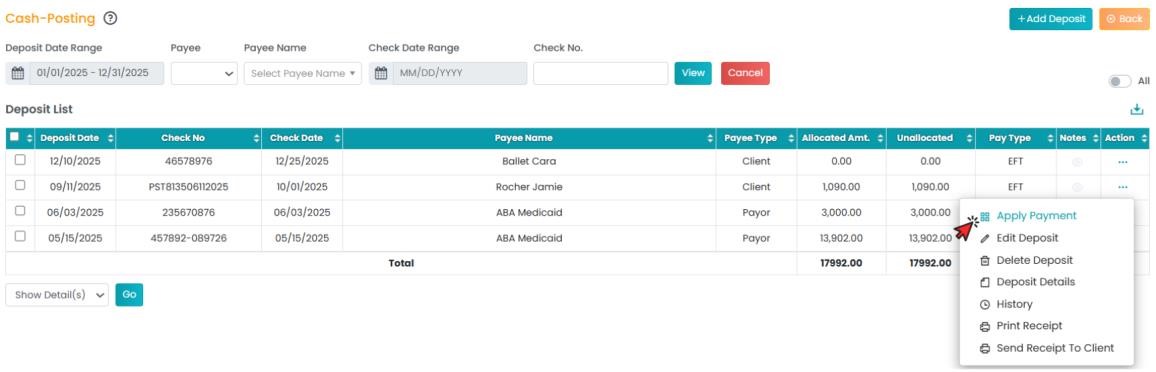
- In the Deposit List, select the deposit you need to apply payment for and click the "Apply Payment" option in the Action column. It will redirect you to the Apply payment page.
- On the Apply Payment screen, utilize the options below to complete the payment application process:
- Post By: Select between Claim No., Patient, Batch, and Invoice for the filter.
- For the select Post By option, make the desired selection. Based on the option you selected, you will get different filters to choose from:
Claim No - Enter the Claim No. in the second field.
Patient - Select Patient and the Date Range.
Batch - Choose the Batch No. from the drop-down list.
Invoice - Enter Invoice No. in the second field. - Use the sorting toggles to easily organize and view the list of claims or invoices based on your needs.

- All Clients: Enable the toggle to include all the patients.
- Include Closed: Enable the toggle to include any claim with closed status.
- Apply overpayment: Will include claims that has 0 balance

6. Amount Details: View the Total Amount, Amount Applied, and Amount Remaining details below the fields.

7. Then click the Show button to generate the payments below.
8. The Payment table will appear after selecting the filters and clicking the Show button. Below are the details available in the payment table
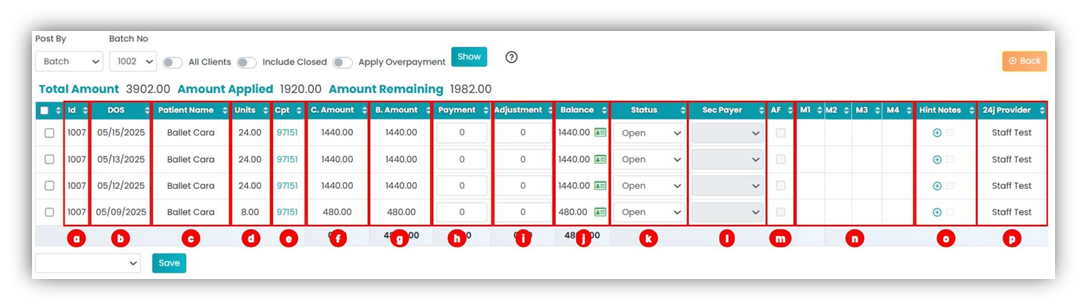
- ID No - This is a unique identifier.
- DOS - This is the date of service.
- Patient Name.
- Units - This is the number of units completed.
- CPT code - Service Code pf the procedure.
- C. Amount - Contract amount that is pulled from Contract rate page.
- Payment - Input the amount to be paid corresponding to the value in the Amount column.
- Adjustment - Enter any applicable adjustment amounts.
- Balance - The value calculated after subtracting Payment and Adjustment from the Amount value. Use the green scorecard icon to separate the balance amount between different statuses.
- Status - The status can be selected from the drop-down list.
- Secondary Payer - Only if a secondary Payer is associated.
- AF - Auto-forward.
- Modifiers.
- Hint Notes - Use this option to add/view hint notes.
- 24j Provider - The provider if the 24j in hcfa form.
8. Drop-Down Option: Use the checkbox in the table to select multiple rows and select the desired option from the drop-down list.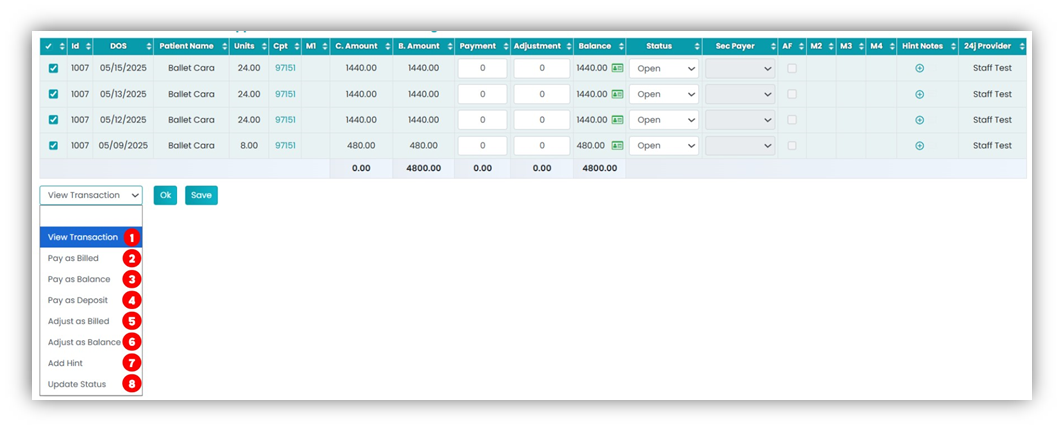
- View Transaction: Use this option to view the transaction details for the selected claim.
- Pay as Billed
- Pay as Balance
- Pay as Deposit
- Adjust as Billed
- Adjust as Balance
- Add Hint: Use this option to add hint notes in bulk.
- Update Status: Select the preferred status from the second drop-down.