
This article explains how to manage deposits in Cash-PostingVideo Walkthrough
View the below walkthrough video to learn more about Cash Posting tab
Below are the steps to view a deposit and its details:
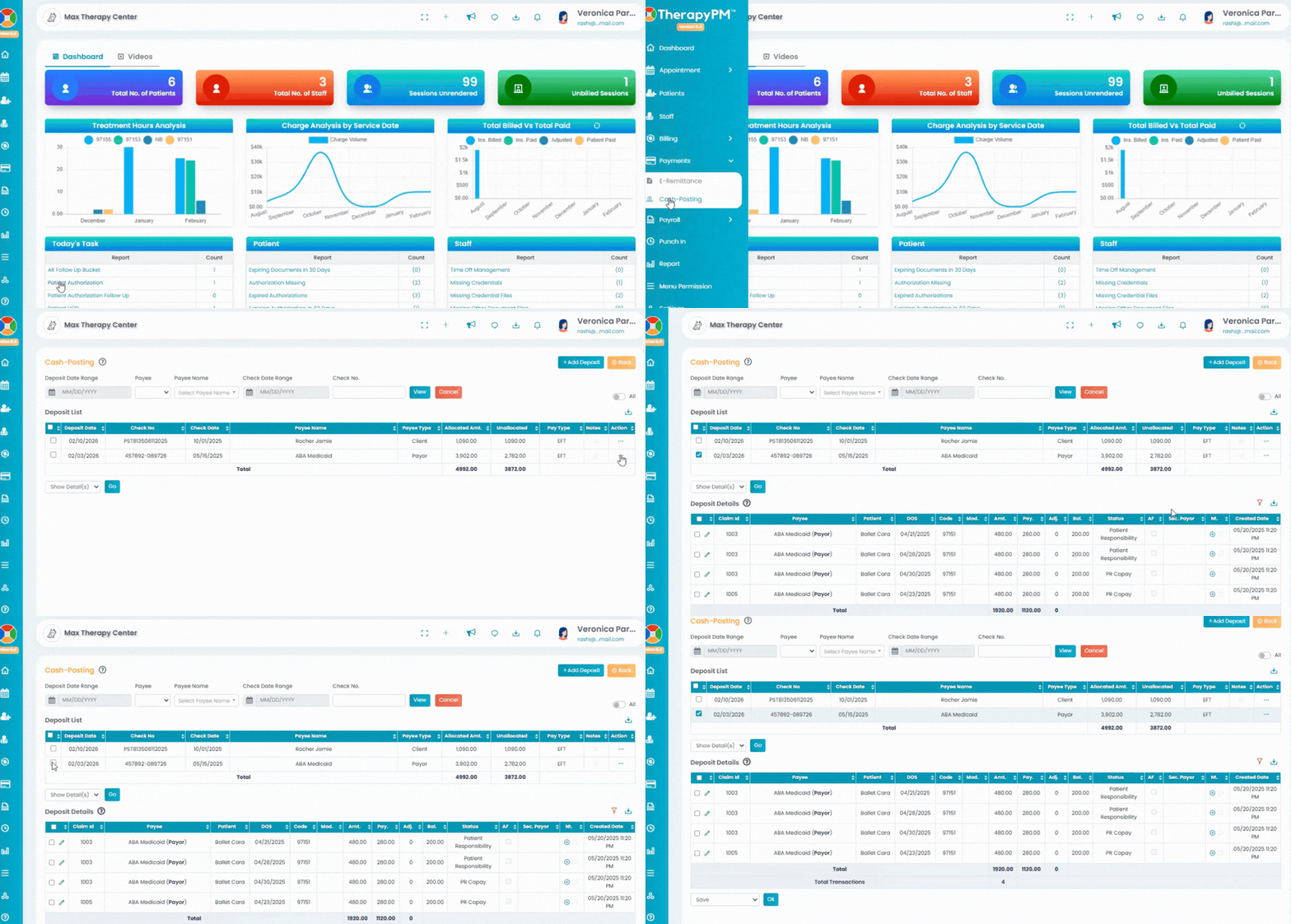
- Select the Cash Posting option in the Payment tab under the left navigation.
- Use the filters - Deposit Date Range, Check Date Range, Payee, Payee Name, and Check Number. Click View to generate the required deposits.
- Under the Deposit List, click on the three horizontal dots (...) under the Action column.
- Click on the Deposit Details option under the list. A new table will appear below.
- Alternatively, select a deposit in the list using checkboxes. Choose Show Detail(s) from the bottom-left drop-down to view Deposit Details.
- Click the Download icon to save the table in CSV or Excel format.
Below are the steps on how to edit deposits details:
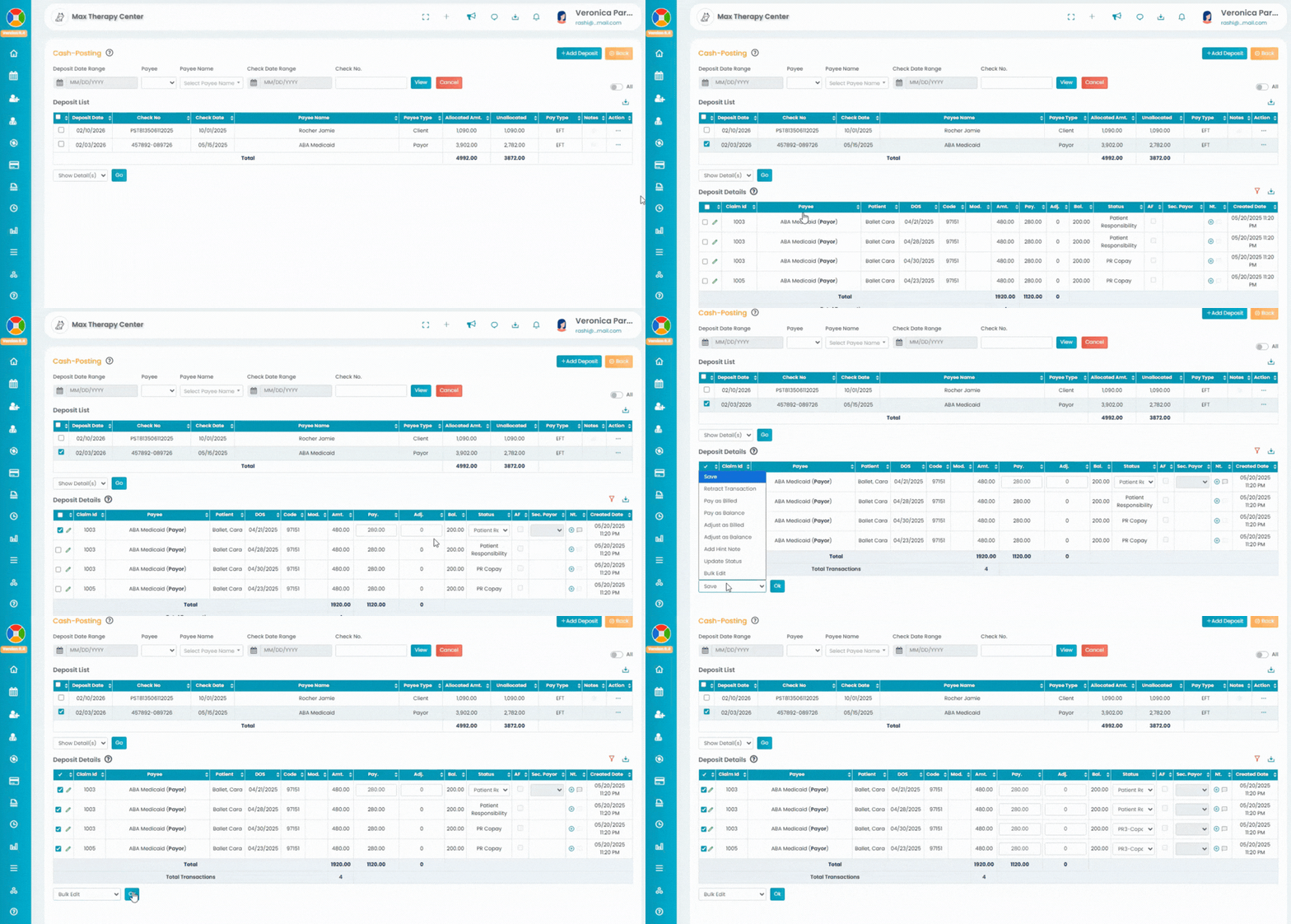
- Access the Deposit that you would like to edit from the Cash-Posting Page.
- Select the checkbox next to the deposit. Click Show Details to expand the information and click on Go.
Click the Pencil icon next to the respective claim. Make the necessary corrections.
Select Save from the dropdown to click OK to apply the updates.