
This article explains how you can add service sub-type. 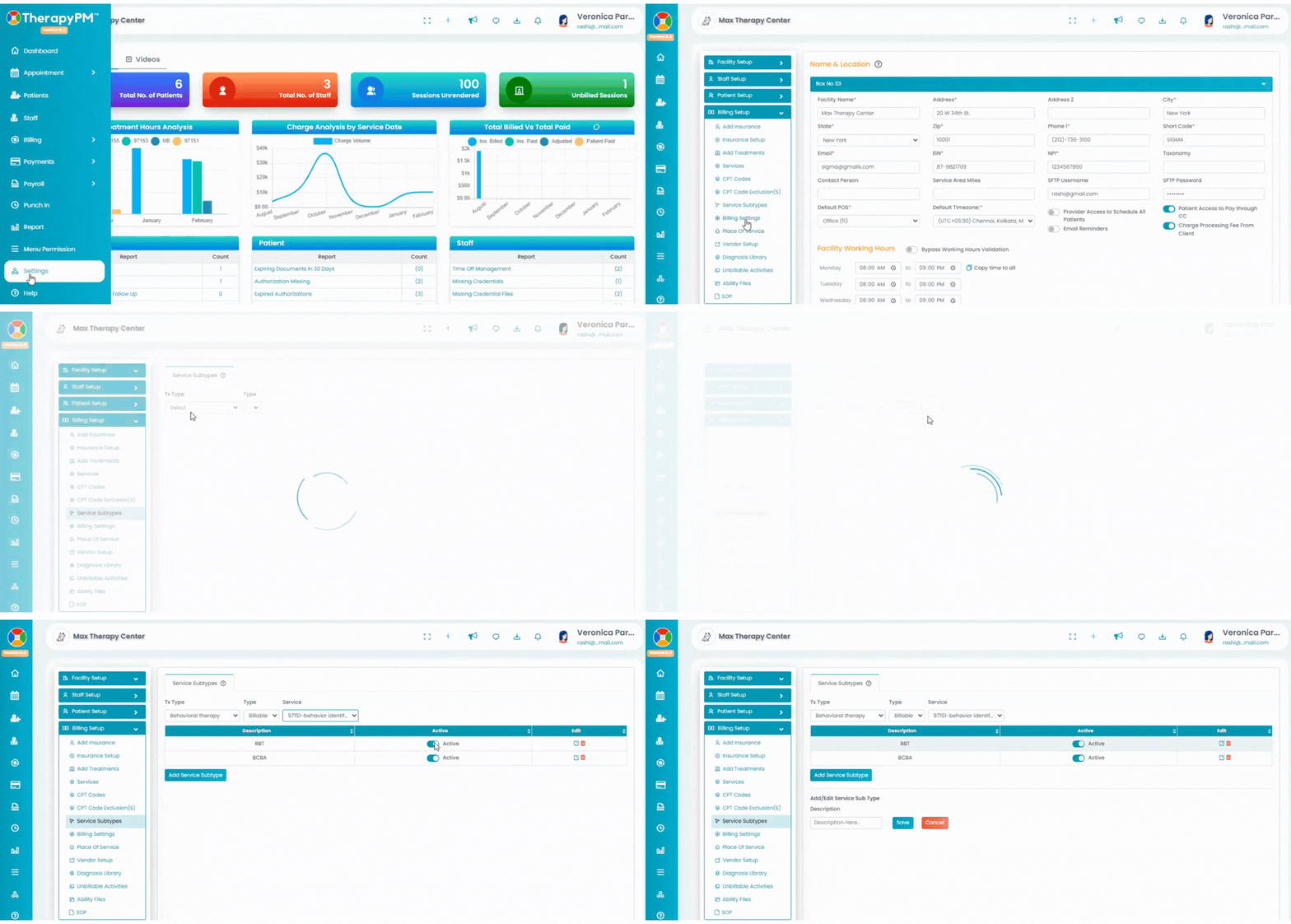
Manage Sub-Type(s) of Services
In the Settings tab (left), navigate to Billing Setup and click on "Service Subtypes".
To Add and review the subtypes sort by the options below: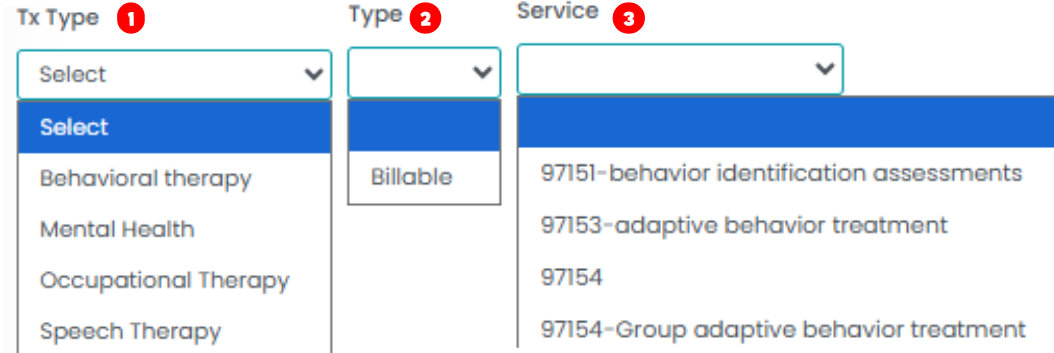
- Tx Type: Select the treatment type from the drop-down menu.
- Type: Select the type of service, i.e. billable and non-billable.
- Service: Select the service for which you would like to create a sub-type from the drop-down menu. The subtypes if added will be listed
Add Service Sub Type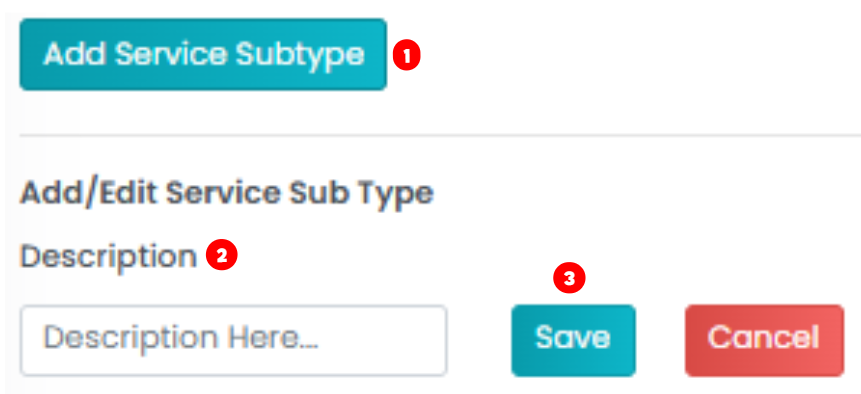
- Click on the blue "Add Service Sub Type" button in the bottom left.
- Enter the description for the service subtype.
- Click the Save button.
Manage Service Sub Type

- Active Toggle: To keep the status of the sub-type as active/inactive toggle the button under the Status Column.
- Edit Service Sub Types: Click on the pen-paper icon and edit the description of the service.
- Delete Service Sub Types: Click on the red trash icon located under the Action column.
Note: You would need to be careful while deleting these sub-types as it may construe some reports. How to Add Service Sub Type?
- Click on the blue "Add Service Sub Type" button in the bottom left.
- Enter the description for the service subtype.
- Click the Save button.