
This article explains how you can add and manage your CPT codes. 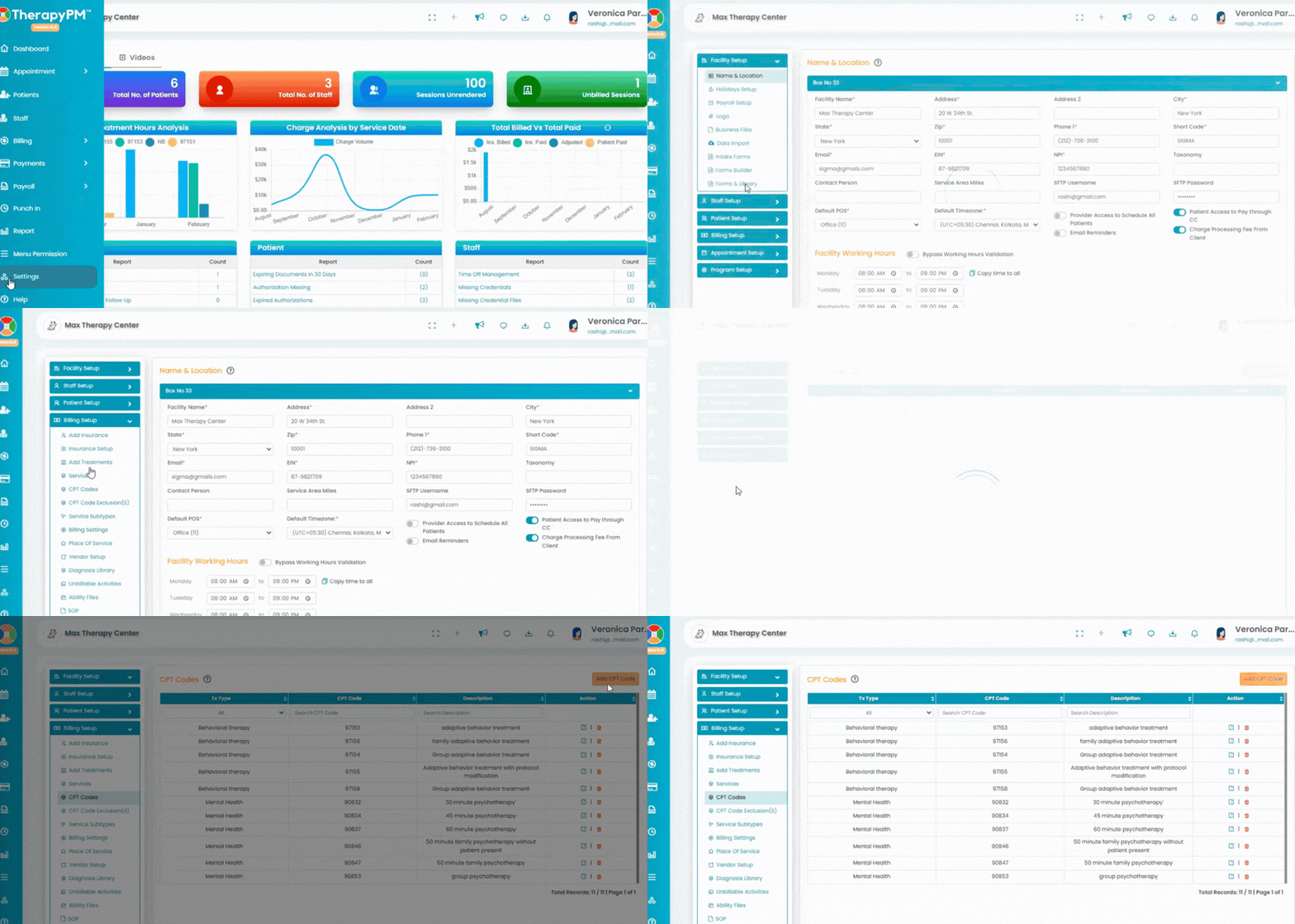
In the Settings tab (left), navigate to Billing Setup and click on "CPT Codes".
Here you will see the list of CPT codes that have been added in the past.
The CPT codes will be displayed with the below information 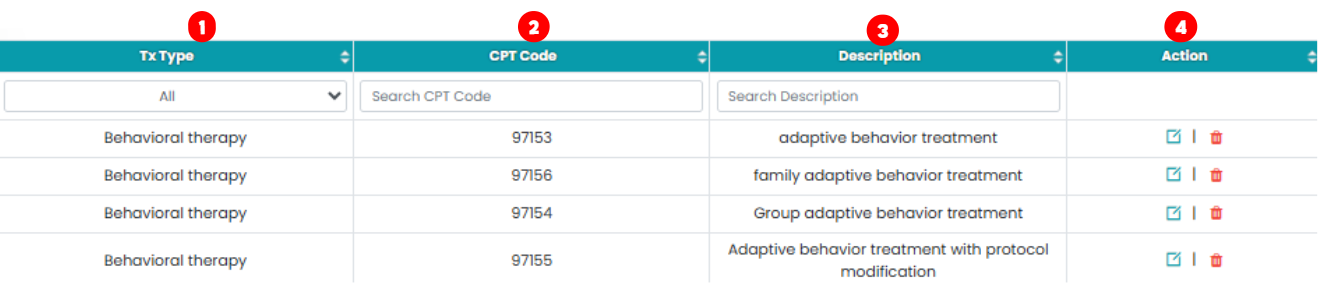
- Tx Type: The treatment type of the CPT code will displayed here.
- CPT Code: The CPT code itself will displayed here.
- Description: The description of the CPT code will displayed here.
- Action:
a. Edit CPT Codes: Click on the edit (pen-paper) icon to edit the CPT code details.
b. Delete CPT Codes: Click on the delete (trash) icon to delete the CPT codes.
Note: You will be able to delete the CPT code only if they are not in use. How to Add CPT Code?

Click on Add new CPT code button, a pop-up screen will appear. In that screen follow the below steps:
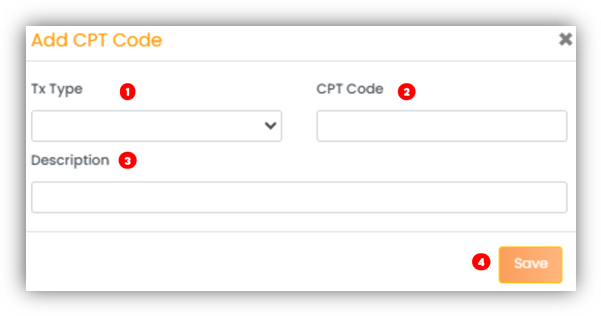
- Tx type – Select the taxonomy type for the CPT code.
- CPT code – Enter the CPT code in this field.
- Description – Enter description for the CPT code.
- Click Save to create and finalize the CPT code.