
Video Walkthrough
View the below walkthrough video to learn more about Manage Billing tab
Manage & Submit Claims
Below steps explains how to manage batched claims and submit them to the clearinghouse using the Manage Billing tab in the Primary Billing Manager.
Step 1: Access Manage Billing
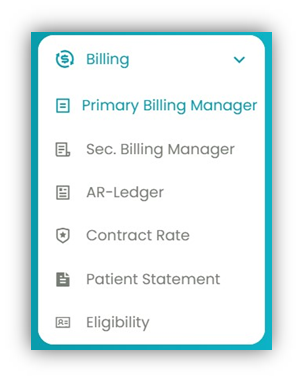
- From the left navigation menu, go to Billing.
- Select Primary Billing Manager.
- Click the Manage Billing tab.
This page allows you to manage all batches created in the Processing Billing tab.
Step 2: Search for Claims or Batches
Use filters to locate specific claims or batches. You can filter by:
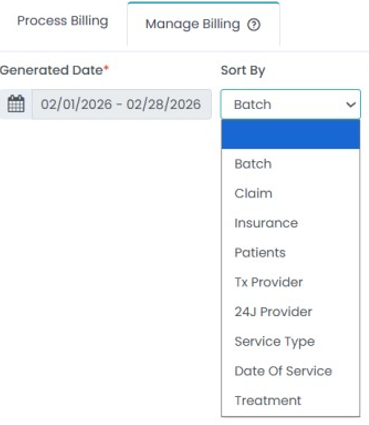
- Batch Creation date or date range
- Batch Number
- Claim Number
- Insurance Patient Name
- Treatment Provider
- 24J Provider
- Service Type
- Date of Service
- Treatment
After selecting your criteria, click Get Claims.
Step 3: Understanding the Claims Table
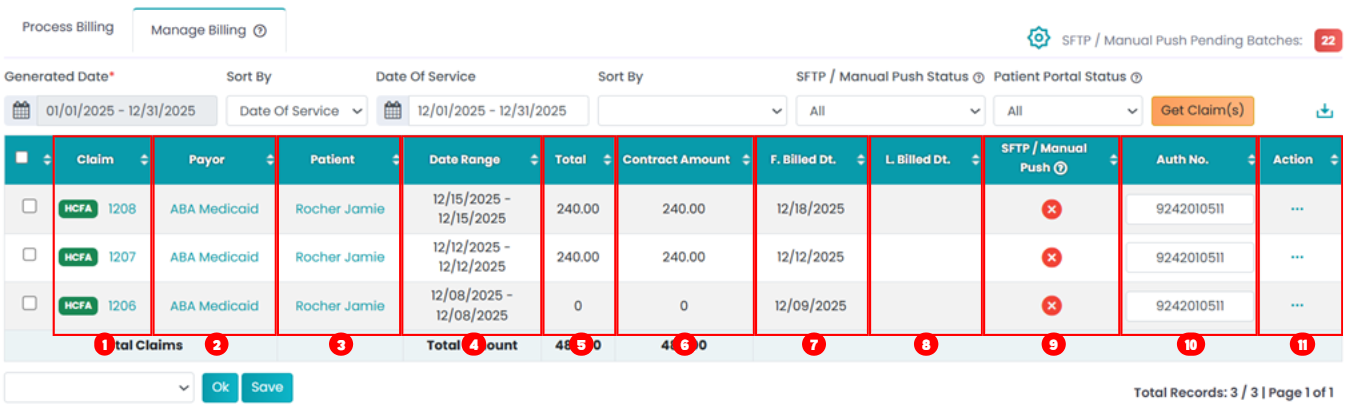
Claims appear in a tabular format with detailed information.
- Claim/Invoice Number - Click to open the HCFA form
- Payer Name - Click to open the patient’s Authorization section
- Patient Name - Click to open Patient Info
- Date Range - Service date range for the claim
- Total Amount - Total billed amount
- Contract Amount - Insurance contract rate
- Billed Date - Date the claim was batched
- Last Billed Date - Populates after submission to clearinghouse
- SFTP/Manual Push - Status If the claim has been pushed to clearing house. Red = Pending, Green = Pushed.
- Authorization Number - Editable field (blank if none). Click Save after updating
- Action button - Action button allows you to View Claim form, Download EDI and add Corrected claim information
Step 4: Manage Claims in bulk:
Select one or more claims to perform actions using the dropdown menu:
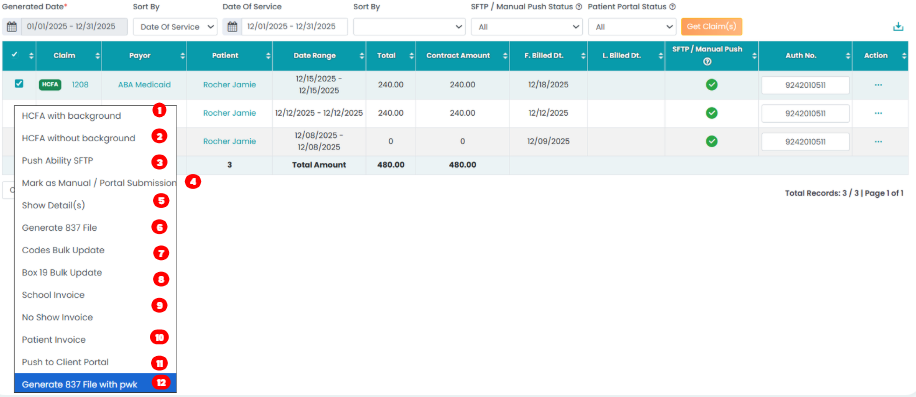
- Download HCFA – Download the HCFA form with or without background.
- Push to SFTP / Clearinghouse – Submit claims electronically to the configured clearinghouse.
- Mark as Manual / Portal Submission – Use this option if the claim was submitted outside the system. This marks the claim as submitted without pushing it through SFTP.
- Show Details – View complete session and claim details.
- Generate 837 File – Create the electronic claim file.
- Bulk Code Update – Add resubmission claim codes in bulk.
- Bulk Update Box 19 – Add or edit Box 19 information for multiple claims.
- School Invoice – Generate the school invoice form (if applicable).
- No-Show Invoice – Generate a patient invoice for missed appointments.
- Patient Pay Invoice – Generate an invoice for patient-responsible charges.
- Bulk Submit Patient Invoices – Send selected patient invoices to the Client Portal.
- Generate 837 File with PWK – Create an 837 file including paperwork details.